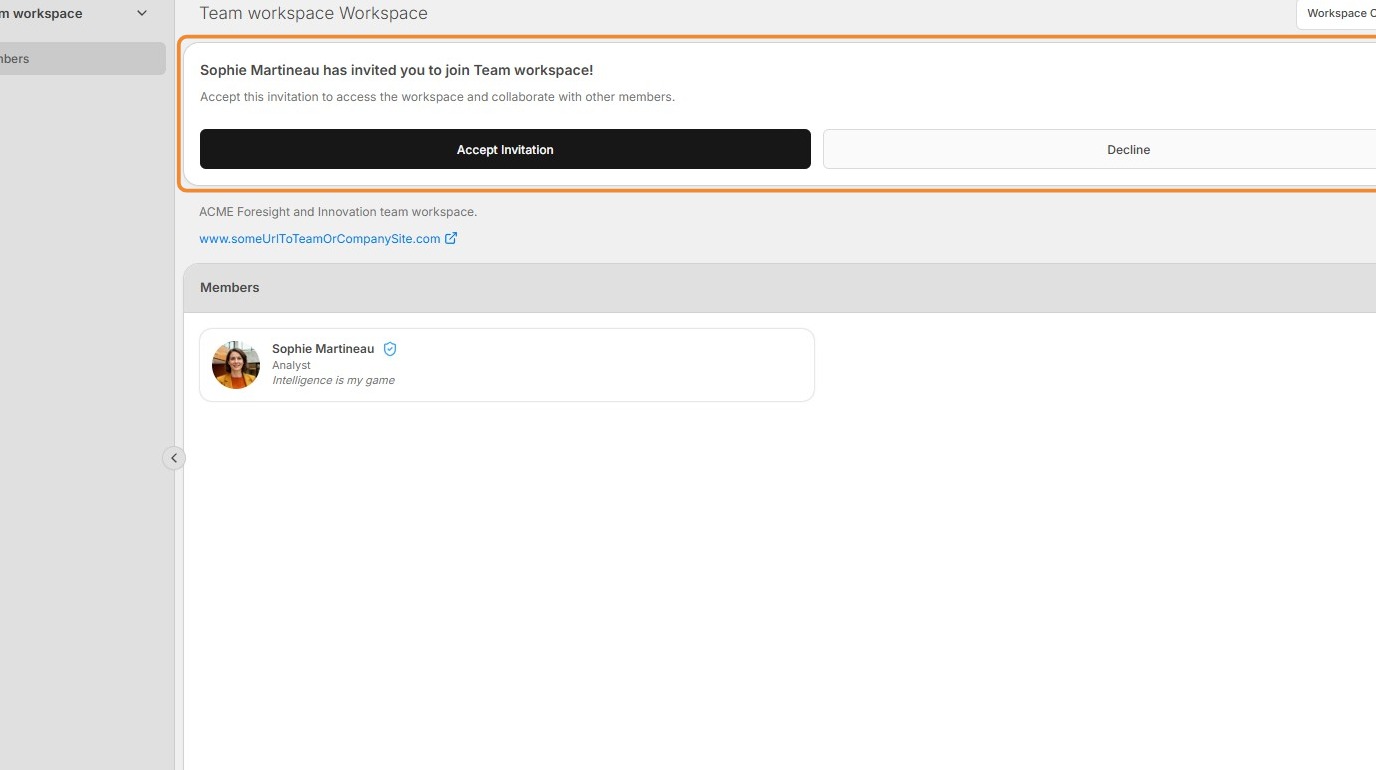
Learn how to navigate workspaces, create new workspaces, and add and manage team members. This guide also covers how users invited to a workspace are notified and can accept or decline the invitation.
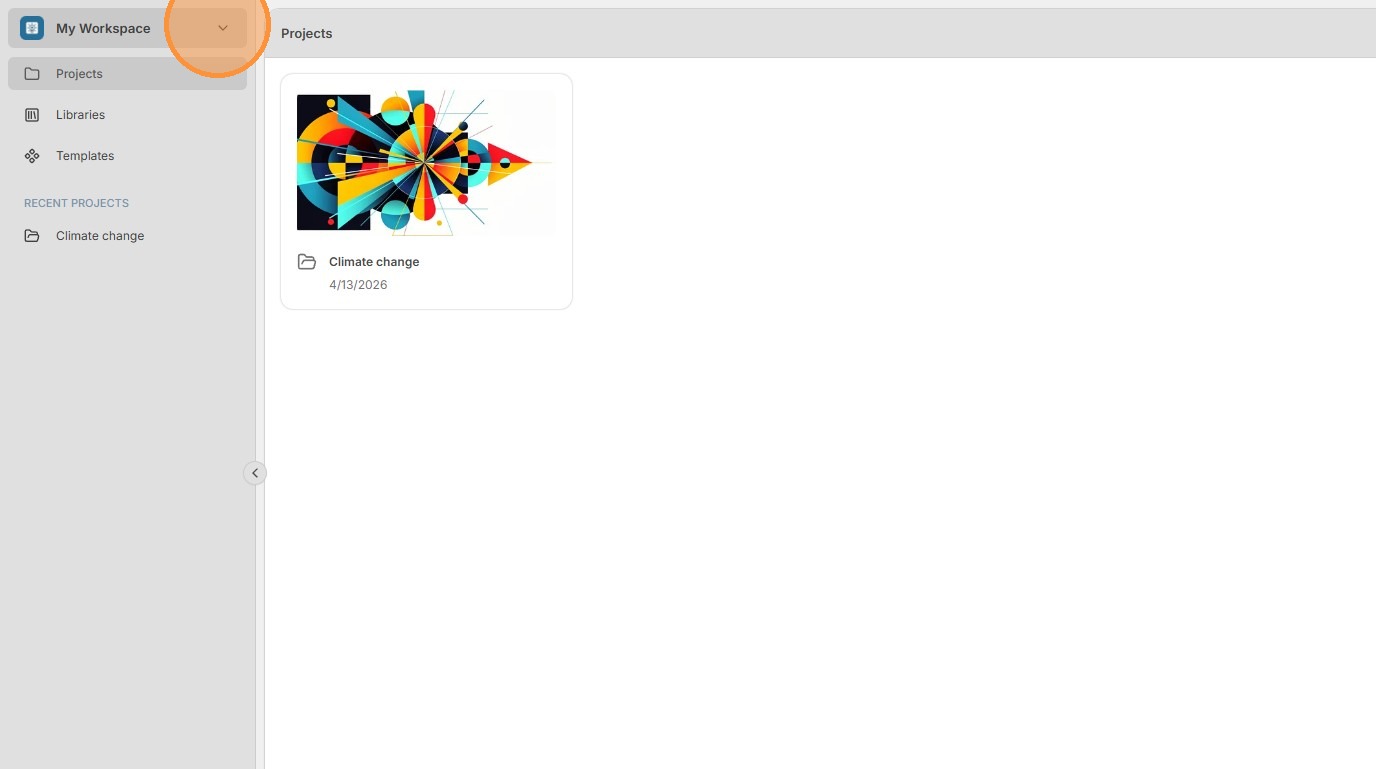
1. Navigate between workspaces using the workspace menu in the top-left corner. Selecting a specific workspace will load the Projects section of that workspace.
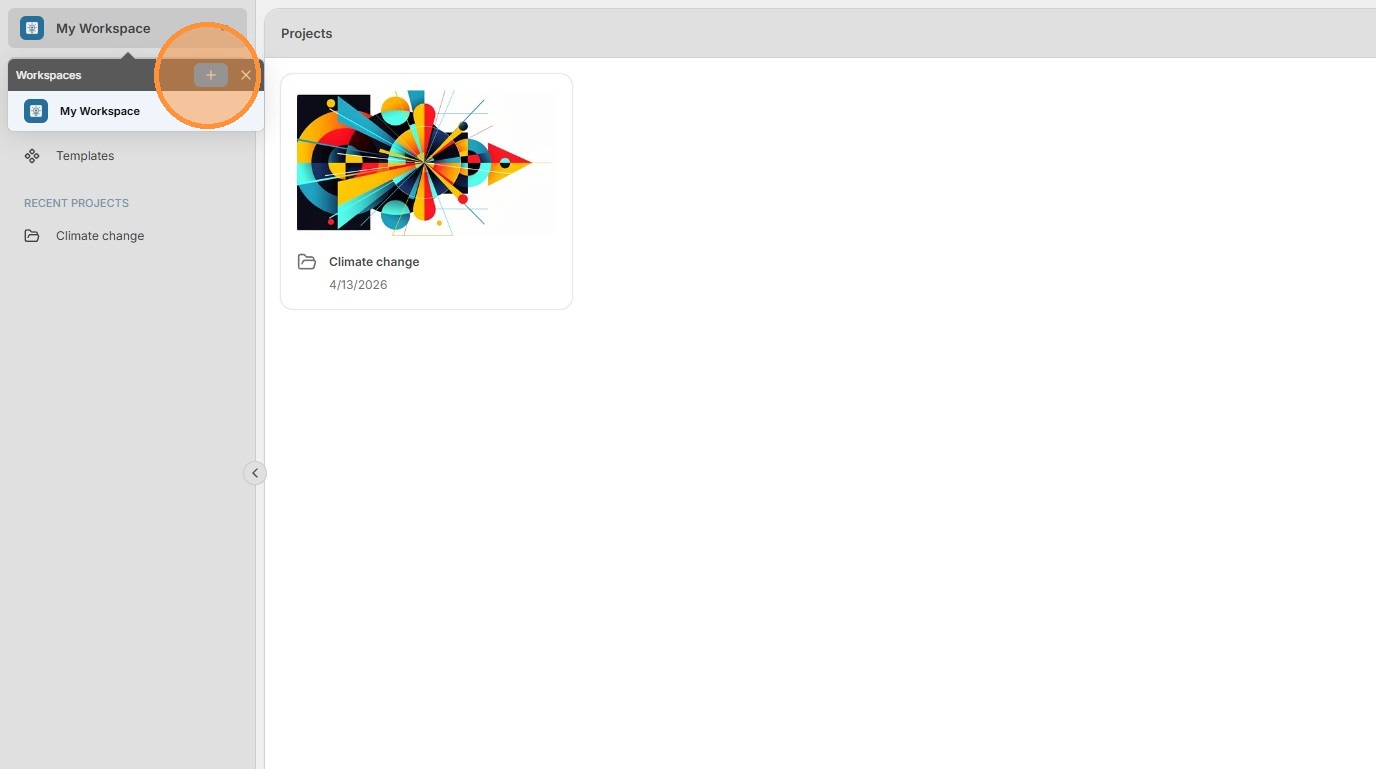
2. To create a new workspace, click the + icon in the workspace menu.
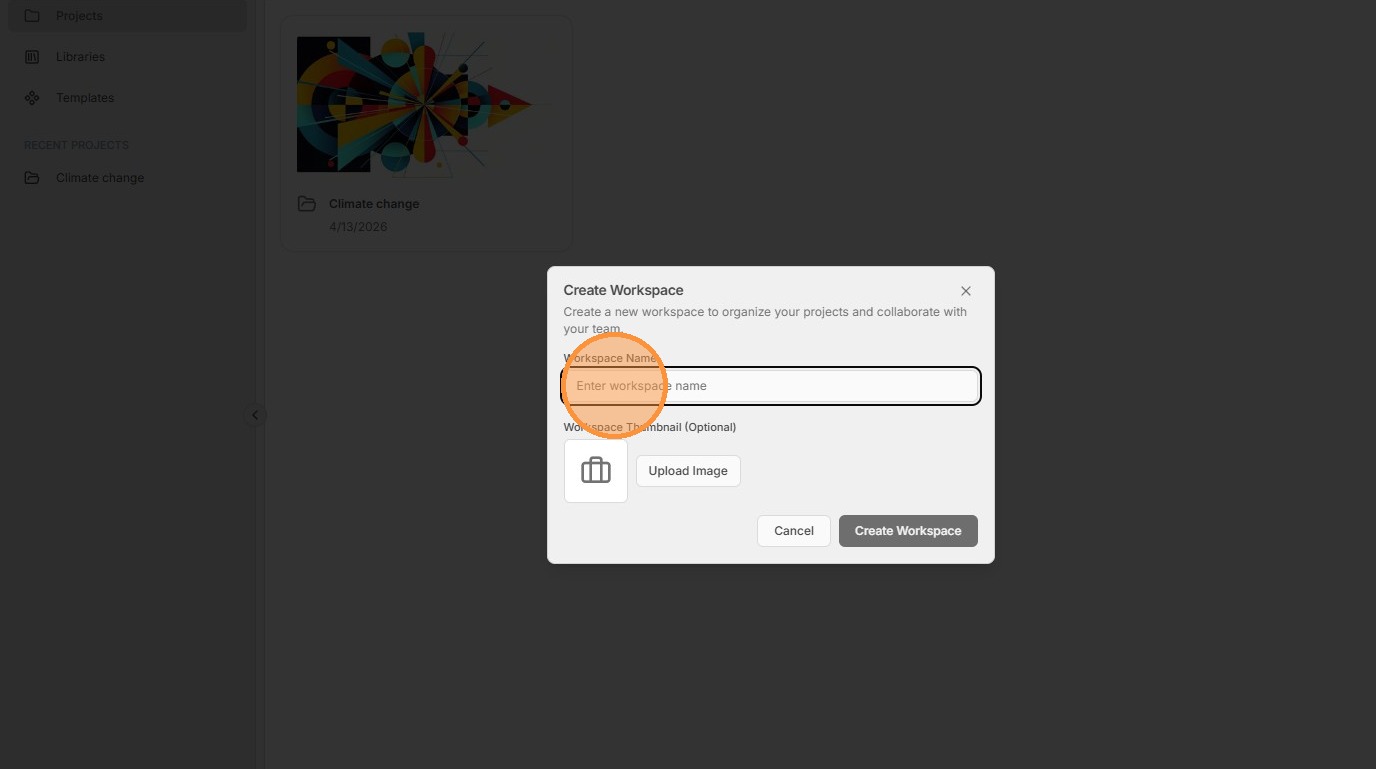
3. Provide a name, and optionally an icon, for the workspace.
4. To edit details about the workspace, click Workspace Options and then Workspace Settings in the menu.
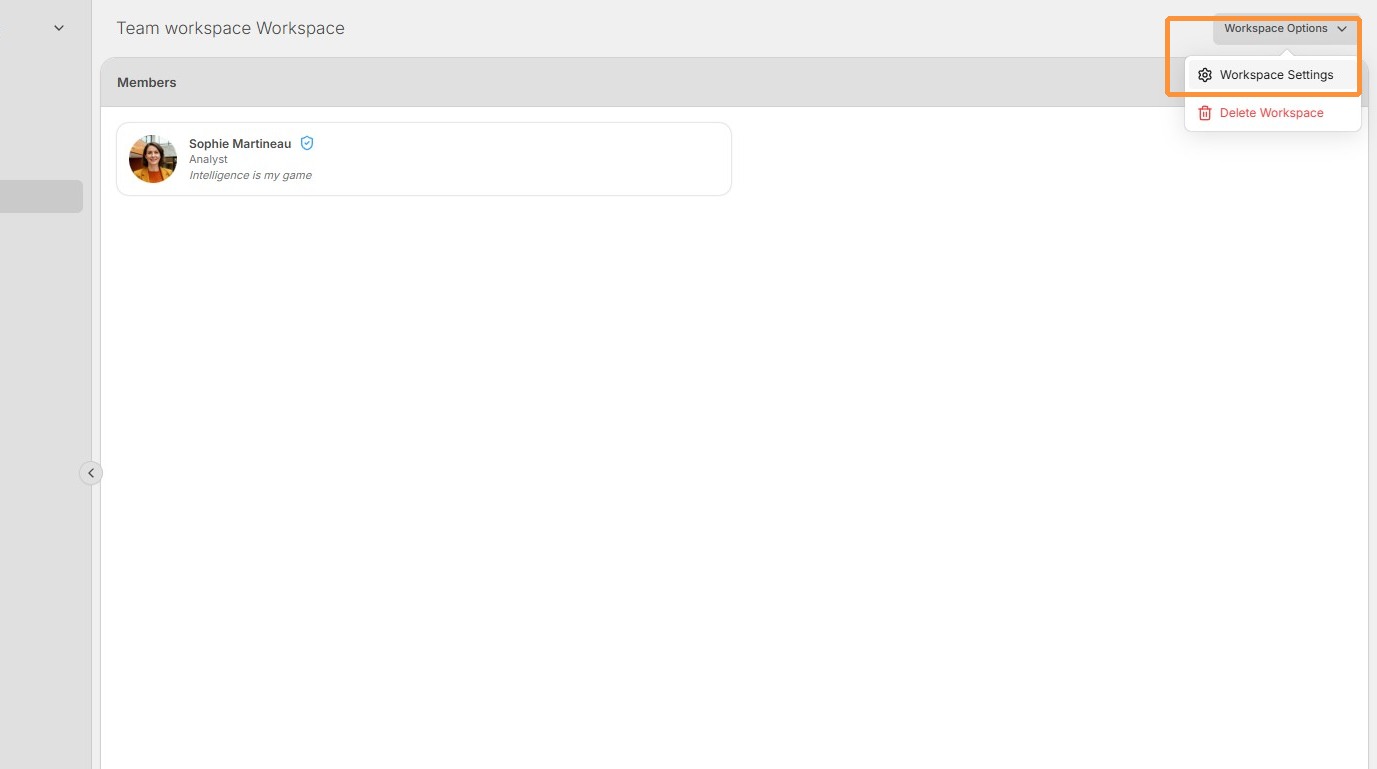
5.
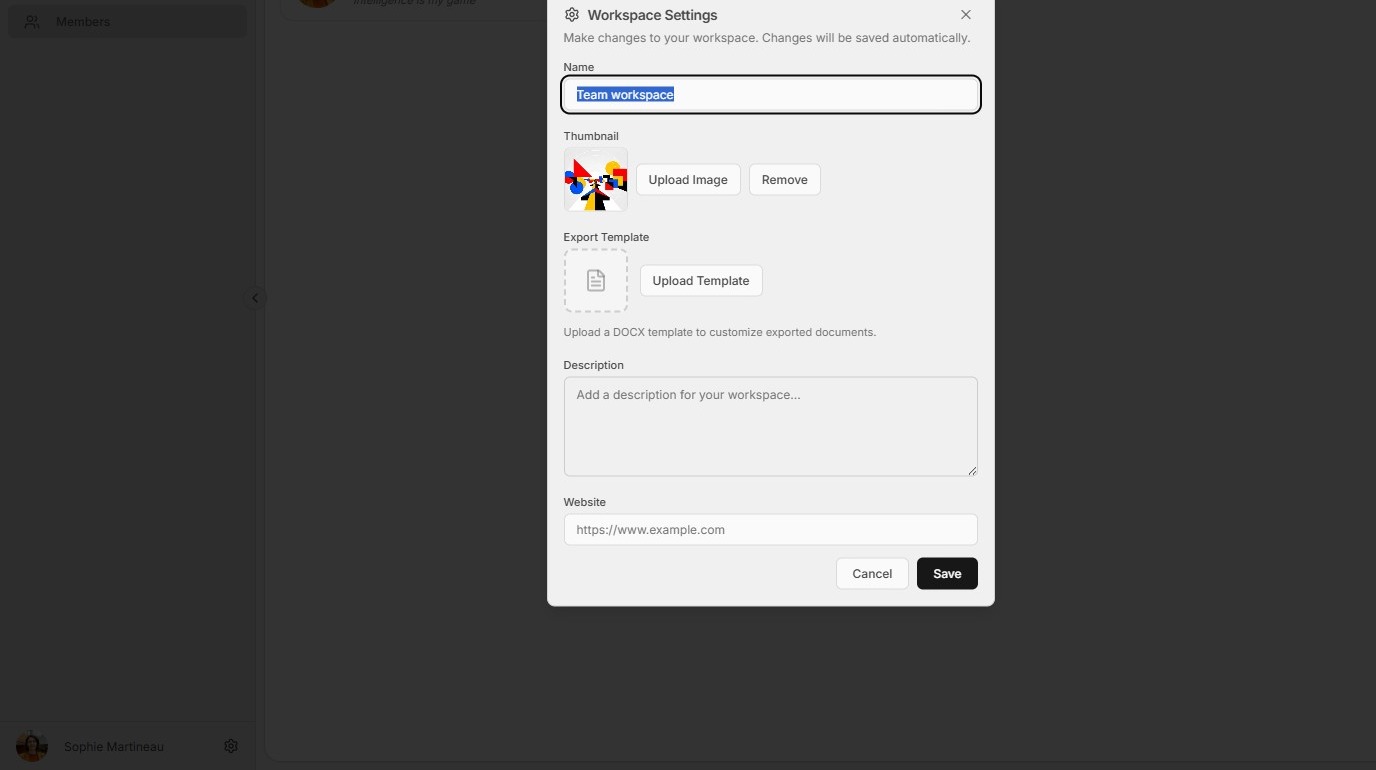
In the dialog, you can modify the name, icon, and description of the workspace, as well as provide a URL associated with the team or organization the workspace belongs to.
The Export Template button allows you to upload a .docx file to be used when exporting and downloading files from the workspace. This template is specific to each workspace.
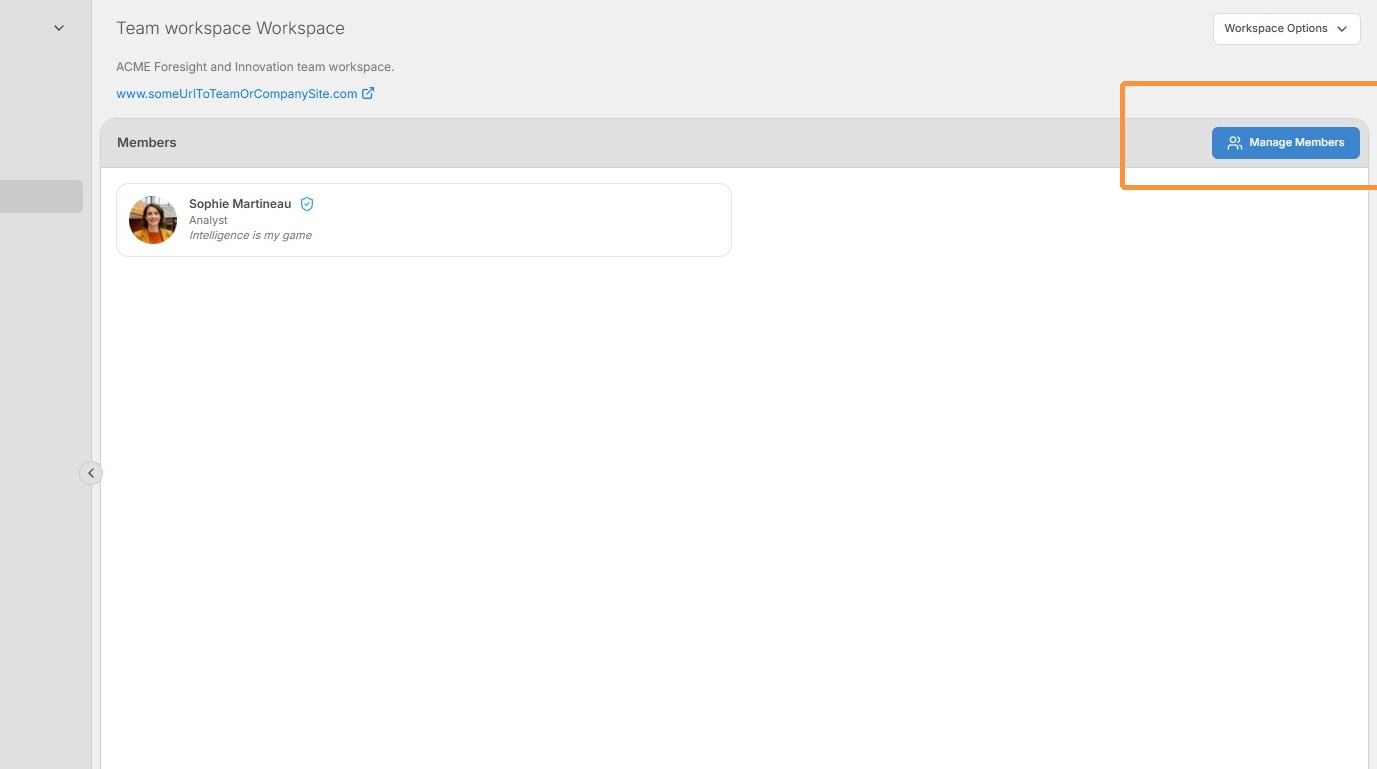
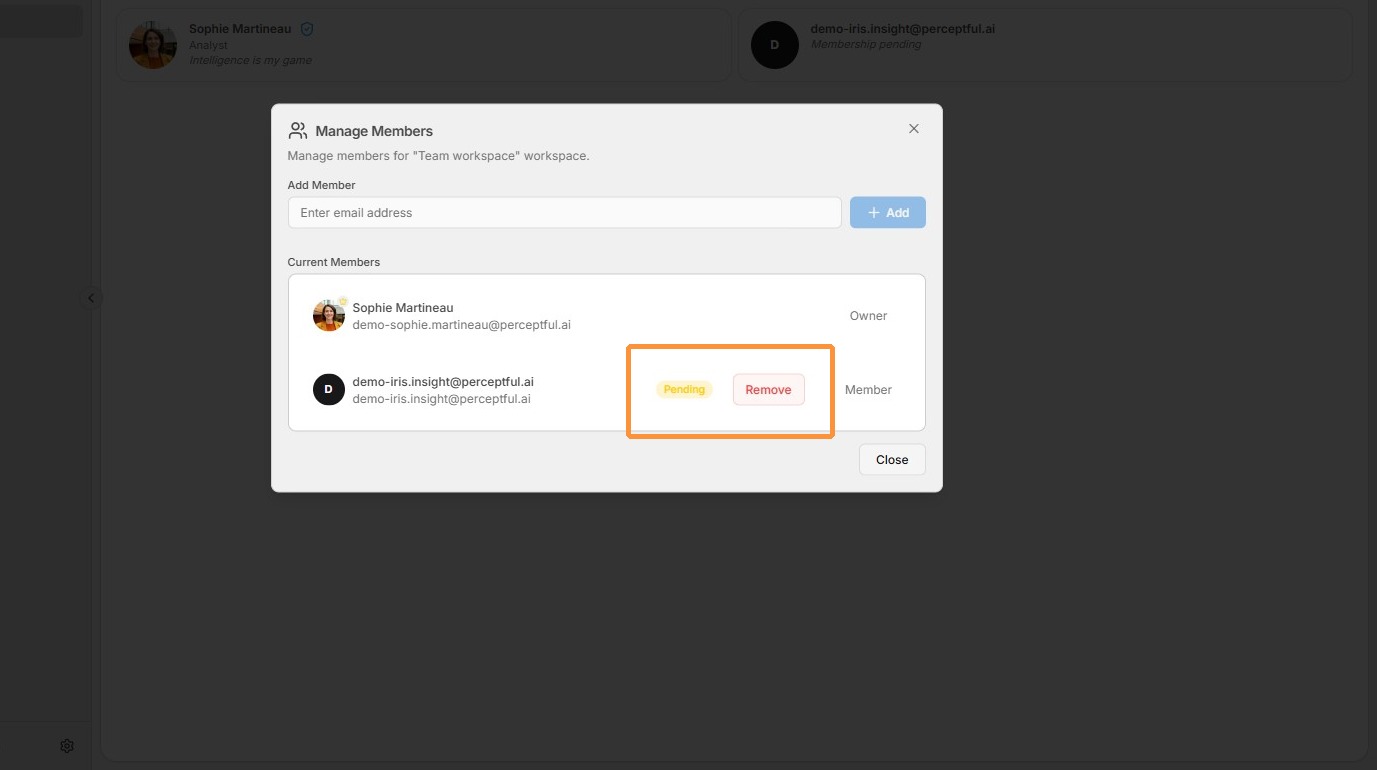
6. To add and remove users from the workspace, click the Manage Members button.
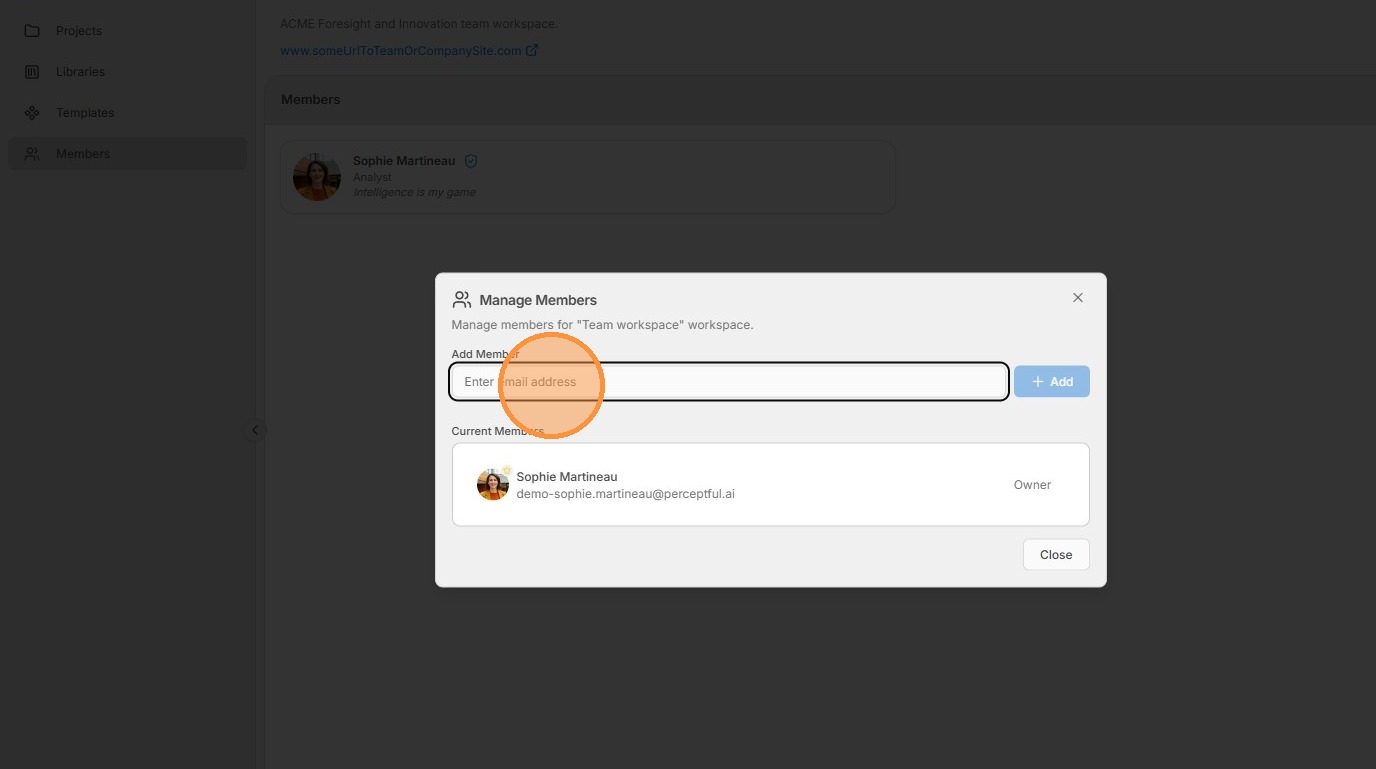
7. To add a member, enter the email address associated with the user's Perceptful.AI account and click the + Add button. This will send a system email to the user notifying them of the invitation.
8. Once a user is added, you can see the status of their membership beside their name. You can also remove members from the workspace by clicking Remove.
9. Users invited to a workspace will see a blue dot on the workspace menu and beside the workspace icon in the dropdown. This blue dot indicates they have a pending invitation to the workspace.
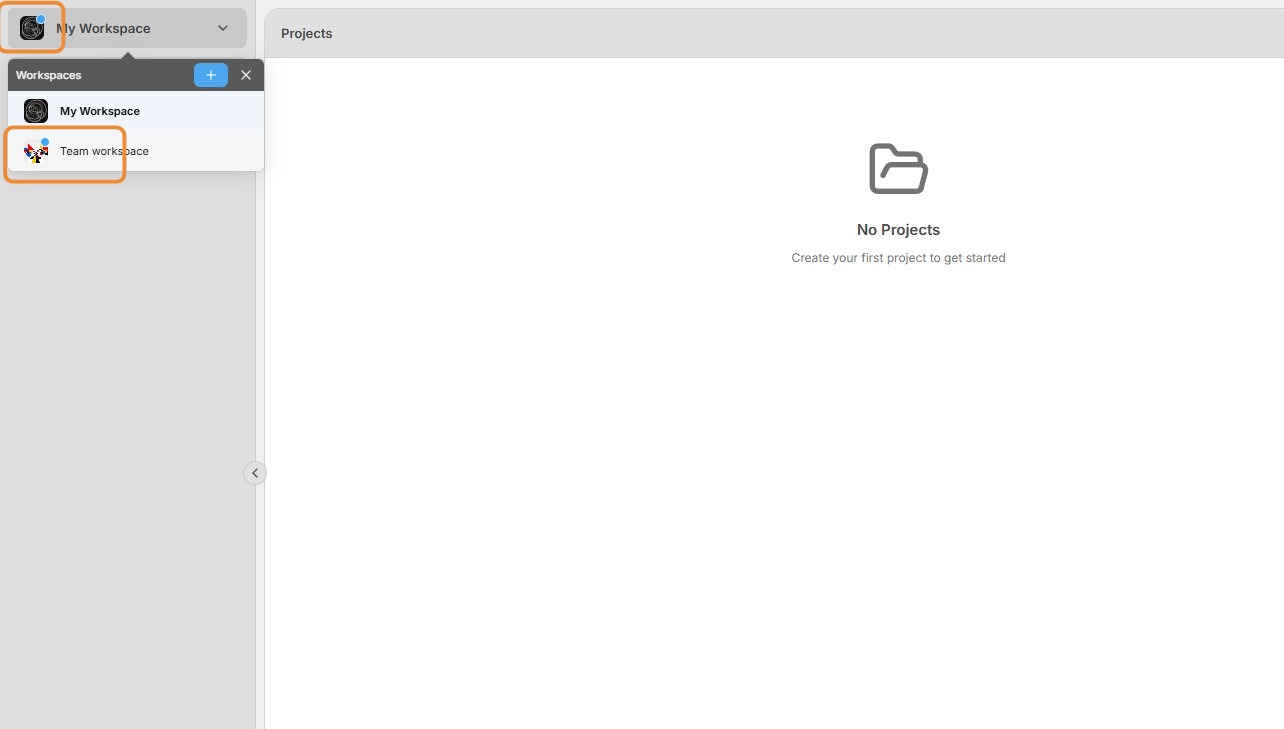
10.
When the invited user navigates to the workspace, they are taken directly to a screen showing the name, details, and members of the workspace.
If they choose to accept the invitation, the user becomes a member of the workspace with full access to its projects, libraries, and templates.