
Learn how to effectively create document and whiteboard templates for your workspace. This guide provides step-by-step instructions for naming, configuring, and adding AI instructions to streamline your project workflows.
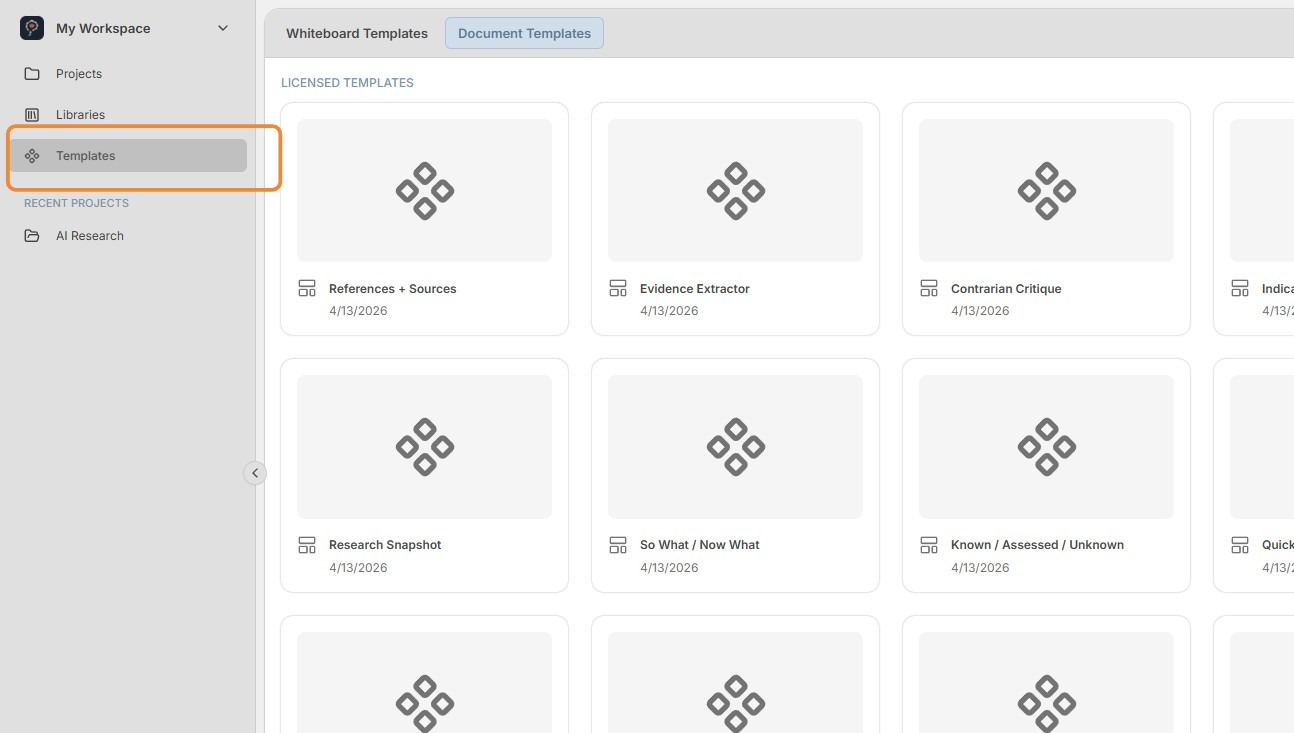
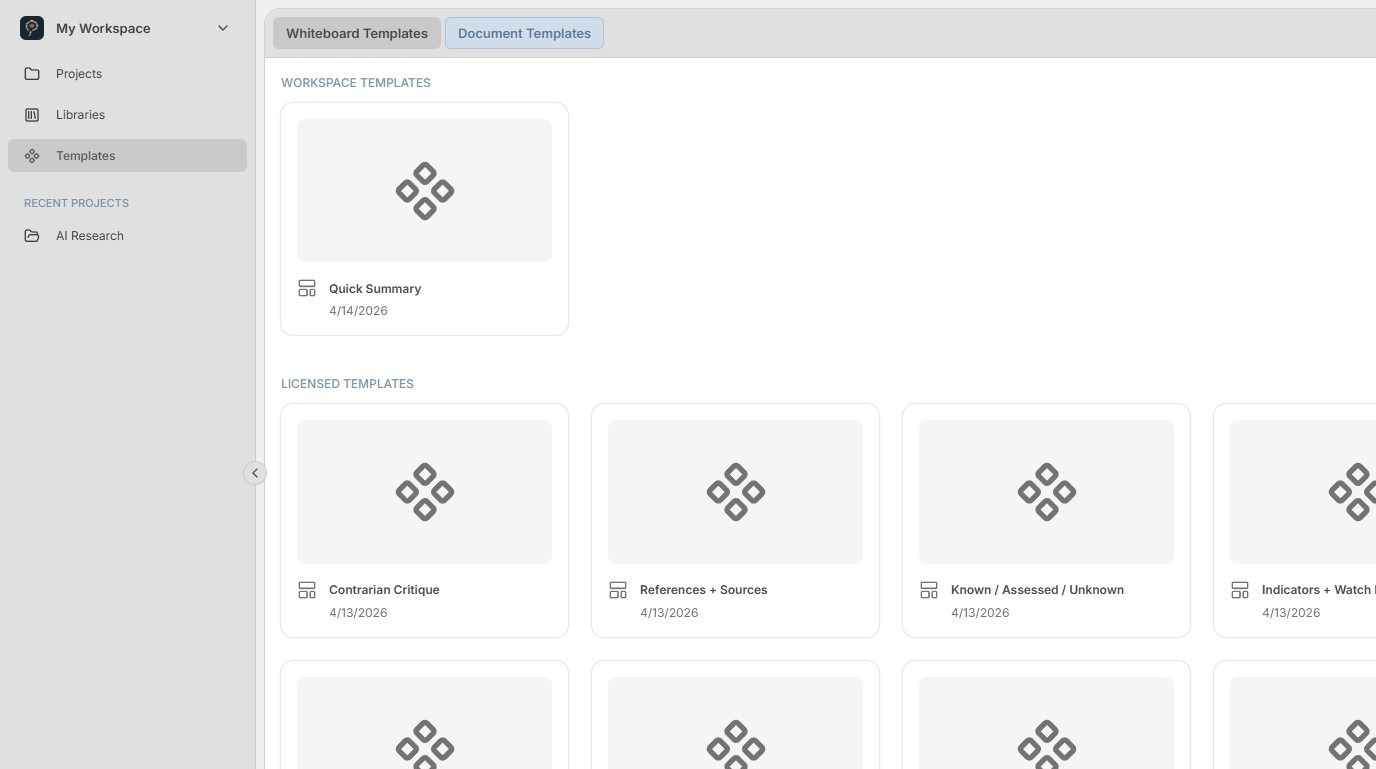
1. You can create templates for your workspaces by clicking Templates in the left navigation bar. The first time you navigate to Templates, you will see a list of licensed templates that you can use.
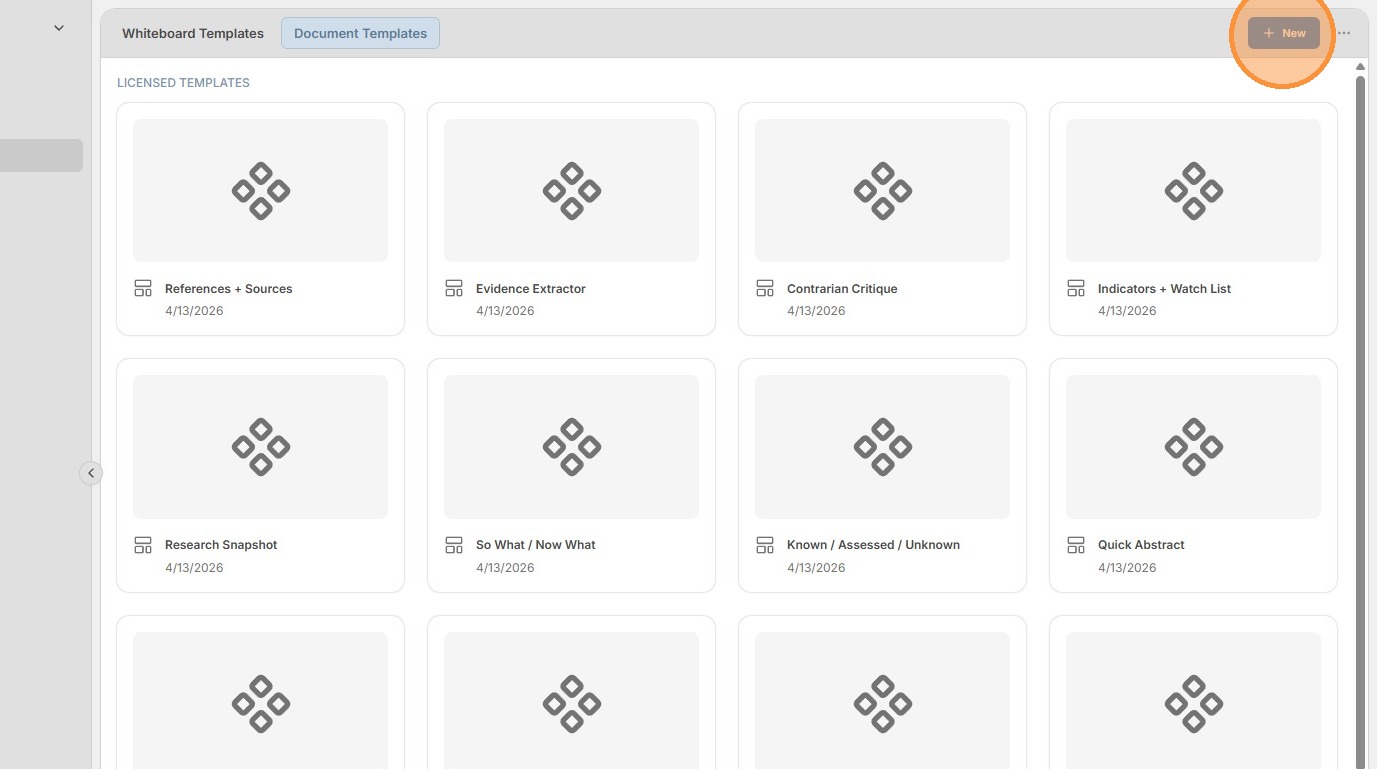
2. To create a new document template, click New in the top-right corner of the screen.
3.
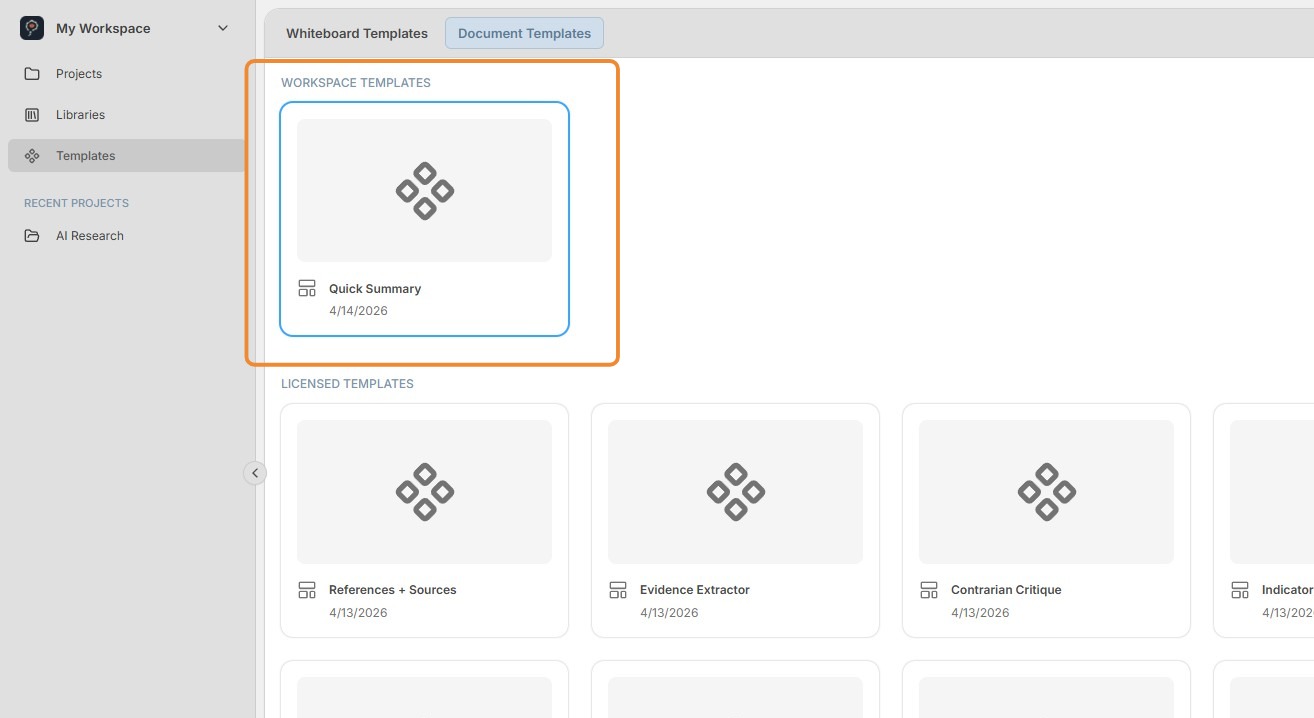
Your new template will now appear in the list of Workspace Templates.
Double-click the template to open the editor.
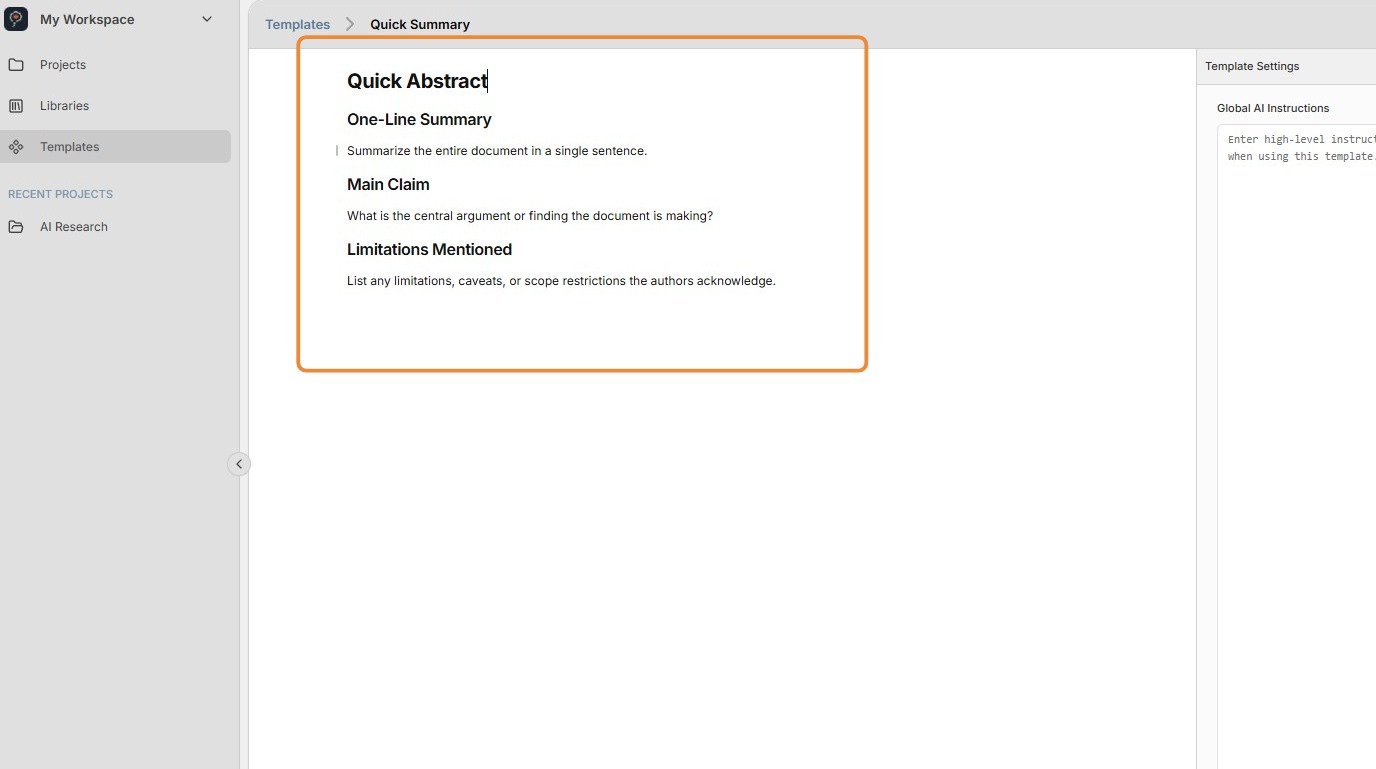
4. Begin editing your template. You have the full capabilities of the Perceptful.AI text editor, as outlined in the Documents: UI Overview user guide.
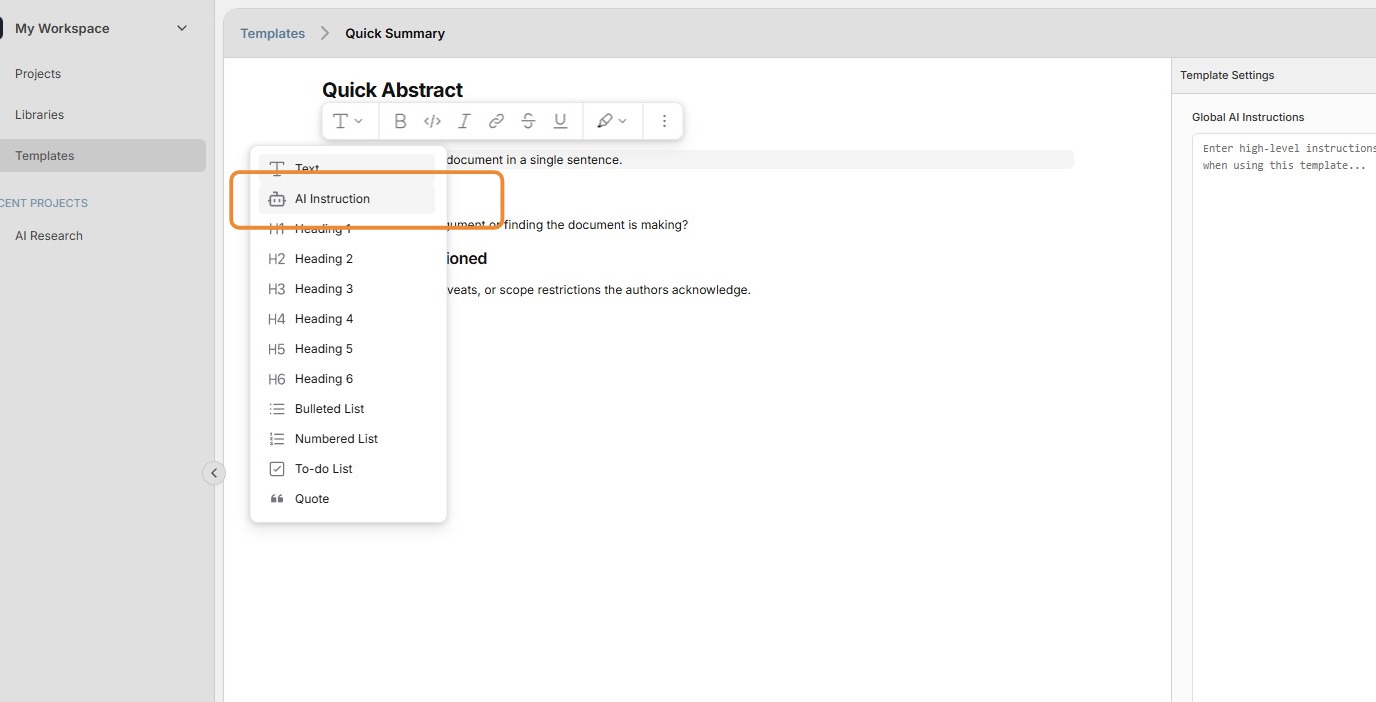
5. To convert written instructions into AI agent instructions, type the instructions first. Then open the formatting menu and select AI Instruction. This places the text in an AI instructions block. Alternatively, create the AI Instruction block first and then write the instructions inside it.
6.
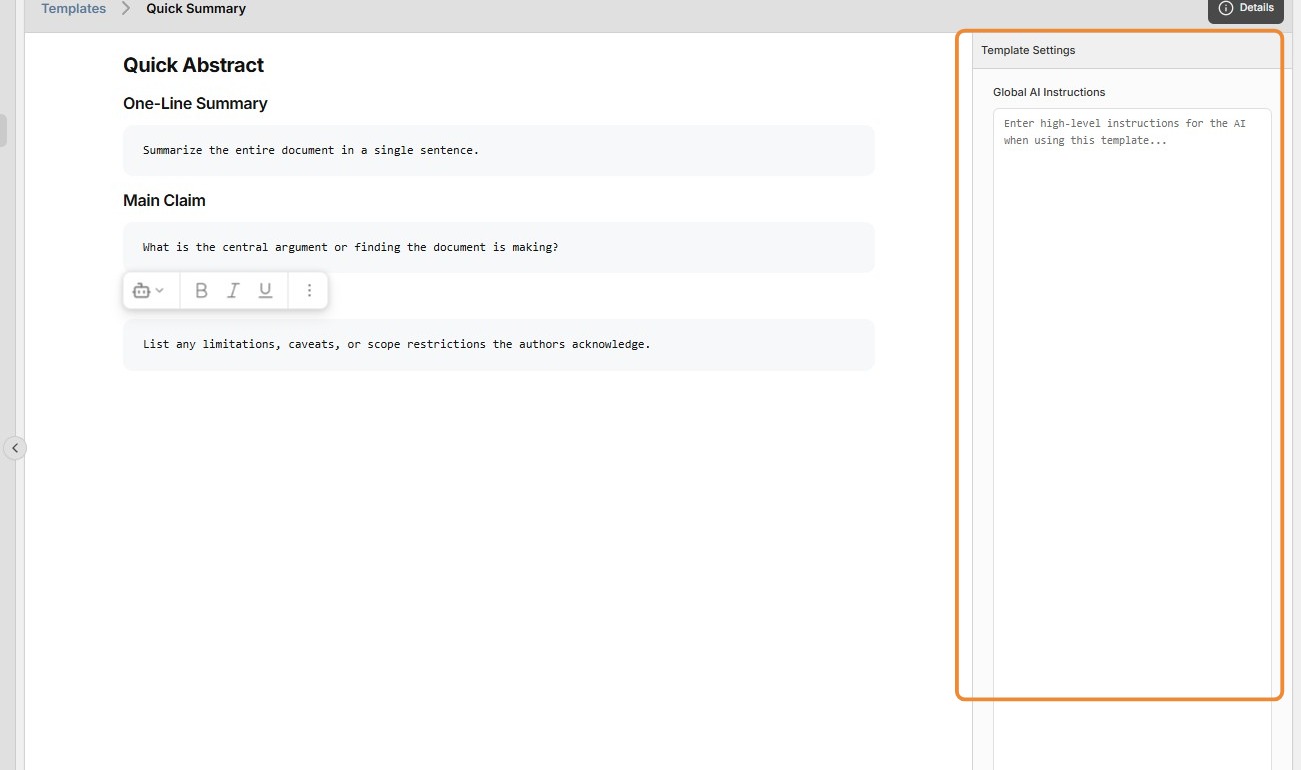
It is important to also provide initial, general instructions to the AI agents. Do this by typing your instructions into the Global AI Instructions field.
Important note: Perceptful.AI blocks any instructions that may be considered suspicious or dangerous. Specifically, avoid using role-based language in your instructions, such as "You are a…" or "Your task is…".
7. Your changes are automatically saved. Simply exit the template editor when you are done.
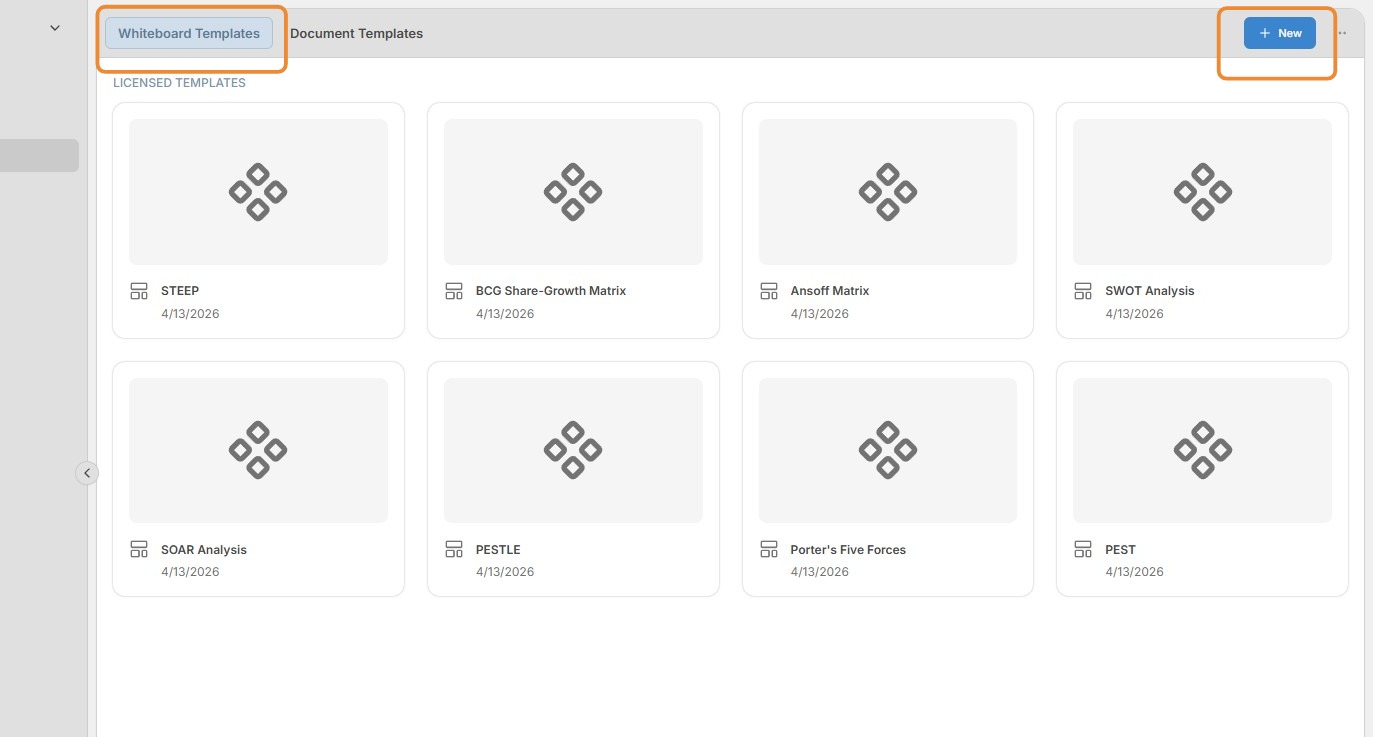
8. To create a new whiteboard template, click the + New button in the top-right corner from the Whiteboard Templates section.
9.
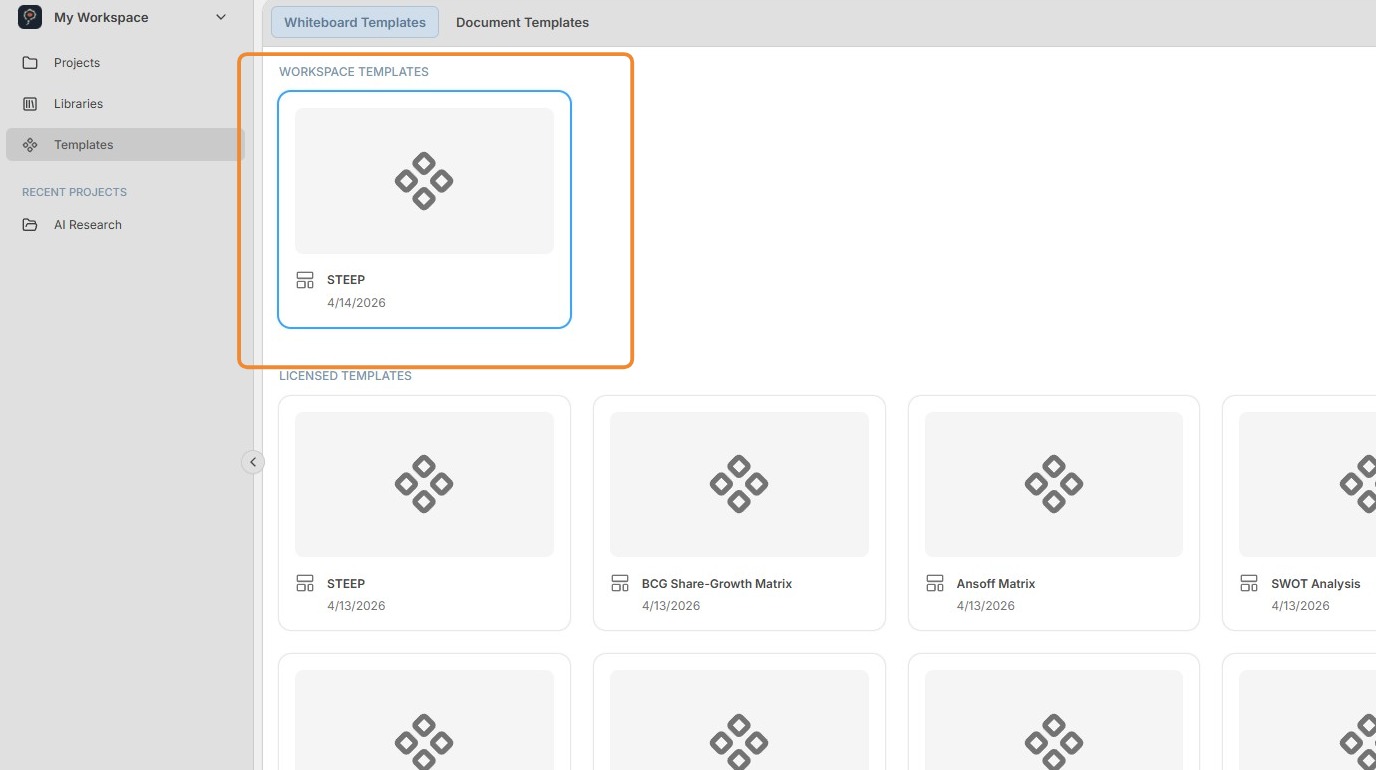
Your new whiteboard template will now appear in the Workspace Templates section.
To open the template editor, double-click the whiteboard template.
10.
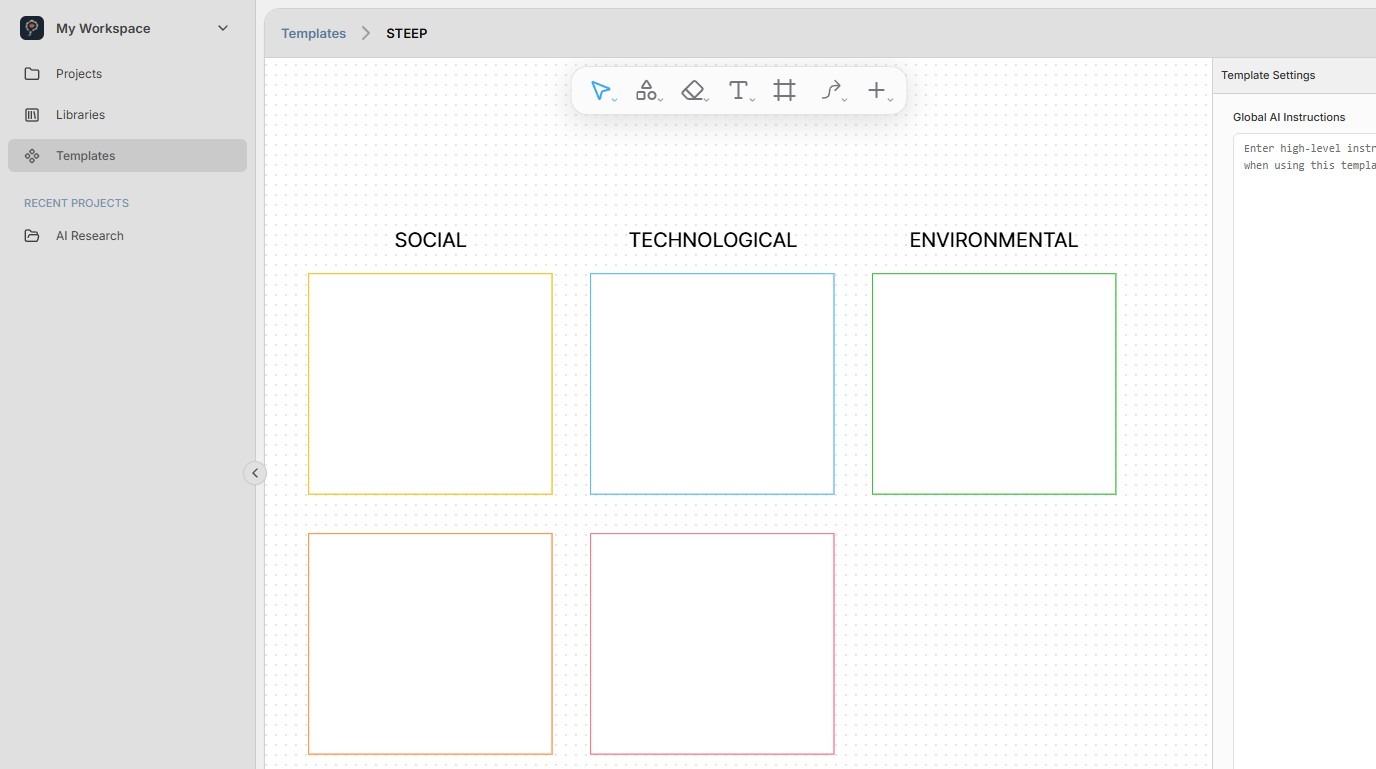
Begin by creating the shapes, text, and other objects for your whiteboard template. See the Whiteboards: UI Overview user guide for instructions on editing whiteboards.
For objects that will be used to group Perceptful Notes, be sure to create them on the larger side.
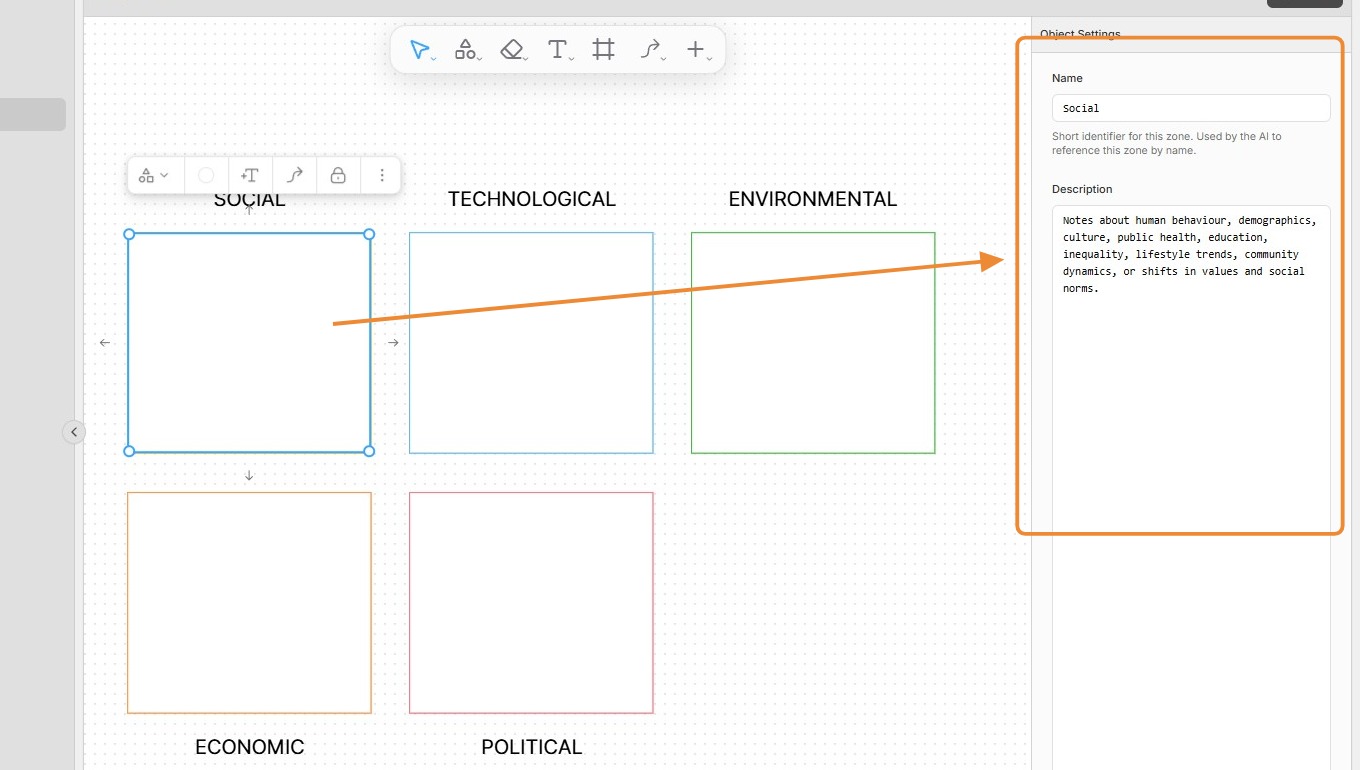
11. Any object on a whiteboard can be given context and instructions for AI agents. Simply select the object and provide a meaningful name and description in the Details pane on the far right. The AI agent will use this information to determine which Perceptful Notes should be placed on each object.
12.
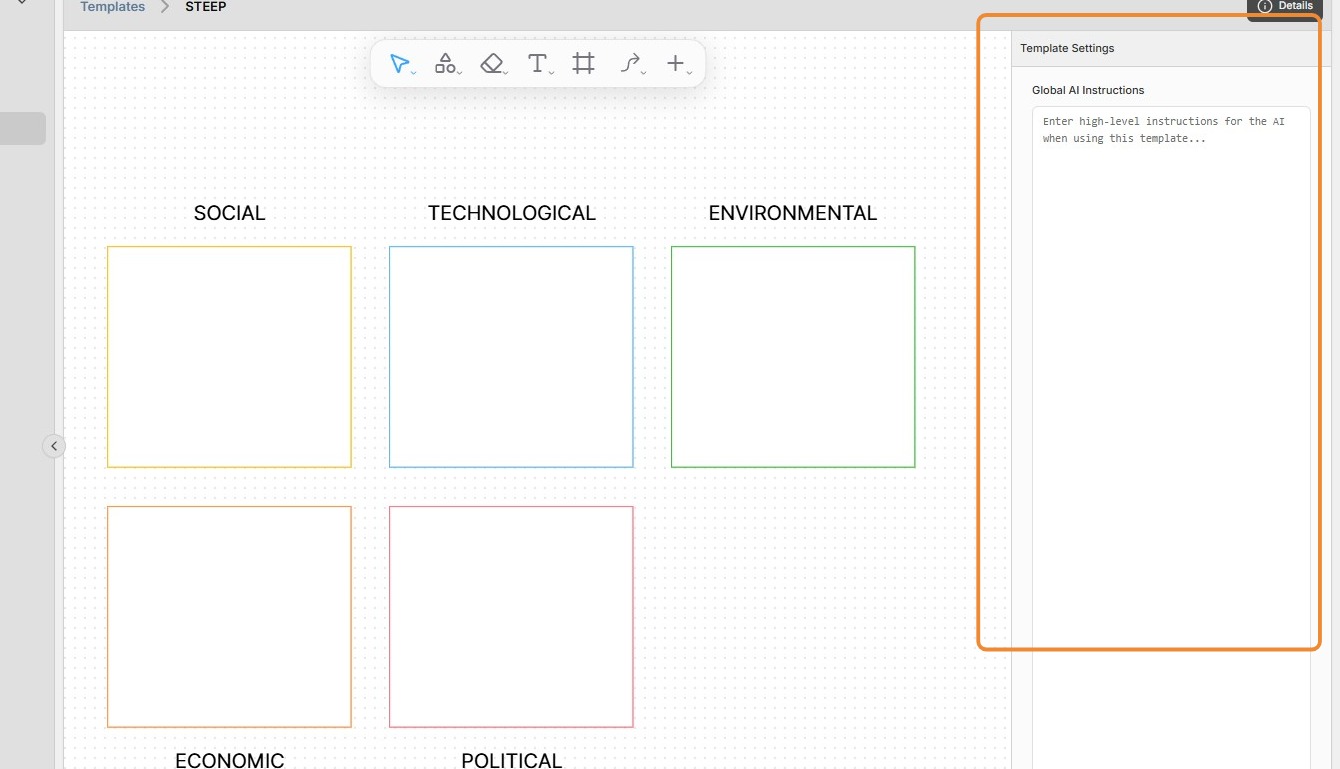
It is important to also provide initial, general instructions to the AI agents. Do this by typing your instructions into the Global AI Instructions field. This pane is shown when no objects are selected on the whiteboard.
Important note: Perceptful.AI blocks any instructions that may be considered suspicious or dangerous. Specifically, avoid using role-based language in your instructions, such as "You are a…" or "Your task is…".
13. Your changes are automatically saved. Simply exit the template editor when you are done.
