Learn how to log into and out of Perceptful.AI, to set up your initial user profile, to set user preferences, and to see usage statistics. This guide covers everything from logging in and verifying your credentials to uploading your avatar and setting your professional preferences.
1. Navigate to https://app.perceptful.ai.
2.
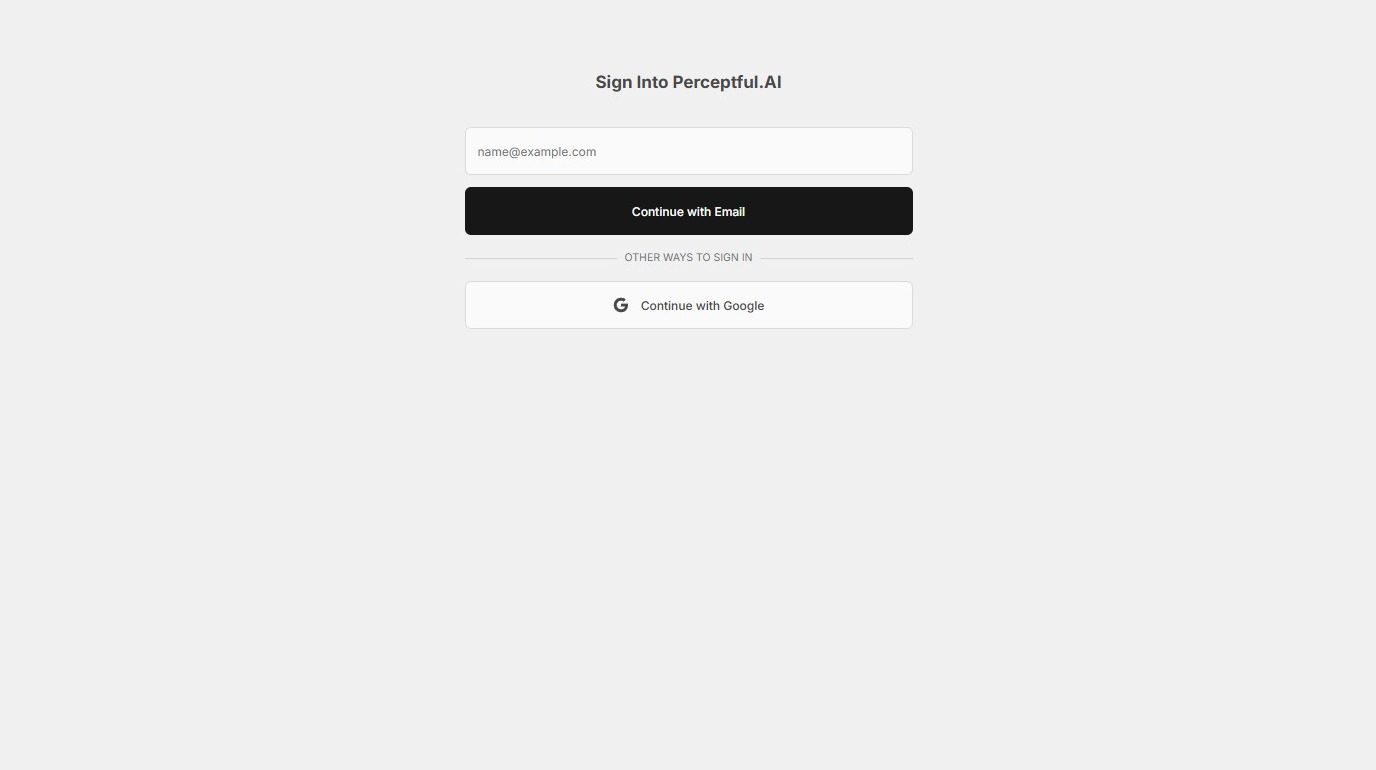
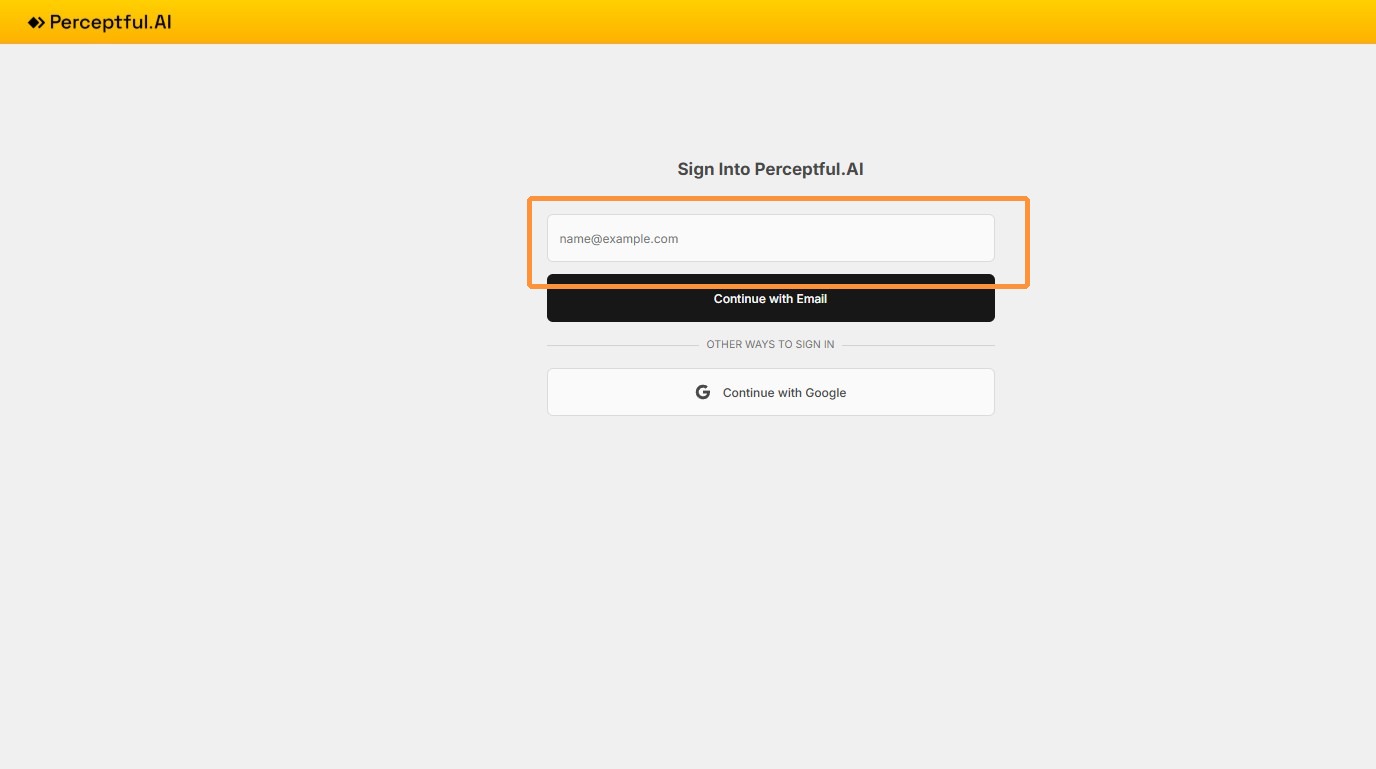
Fill in the email address and click Continue with Email, or simply click Continue with Google if it is a Gmail account.
Note: To successfully log in, the email address must be registered with Perceptful.AI.
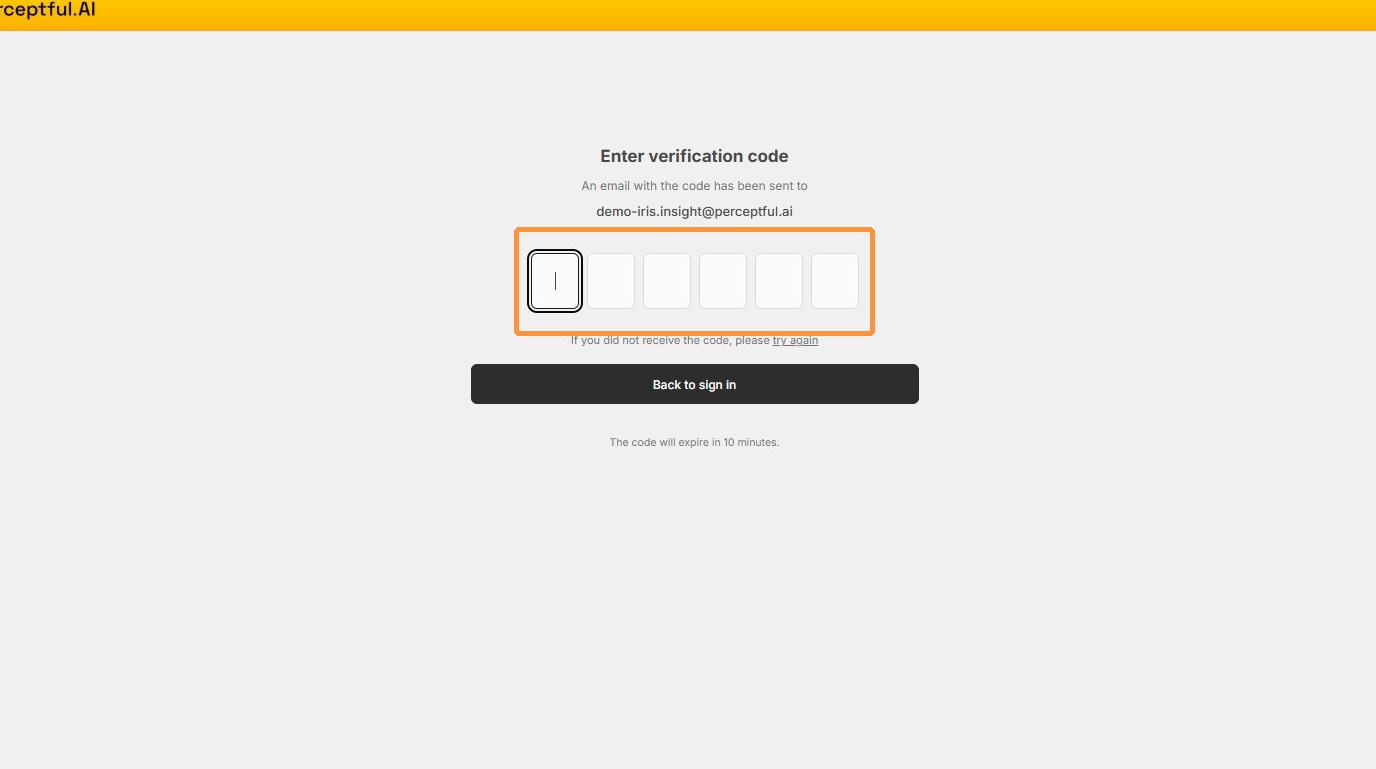
3. If you clicked Continue with Email, a one-time verification code will be sent to your email address. Fill in the 6-digit verification code. You will be automatically logged in.
4. Review the Terms of Use for Perceptful.AI before accepting and continuing.
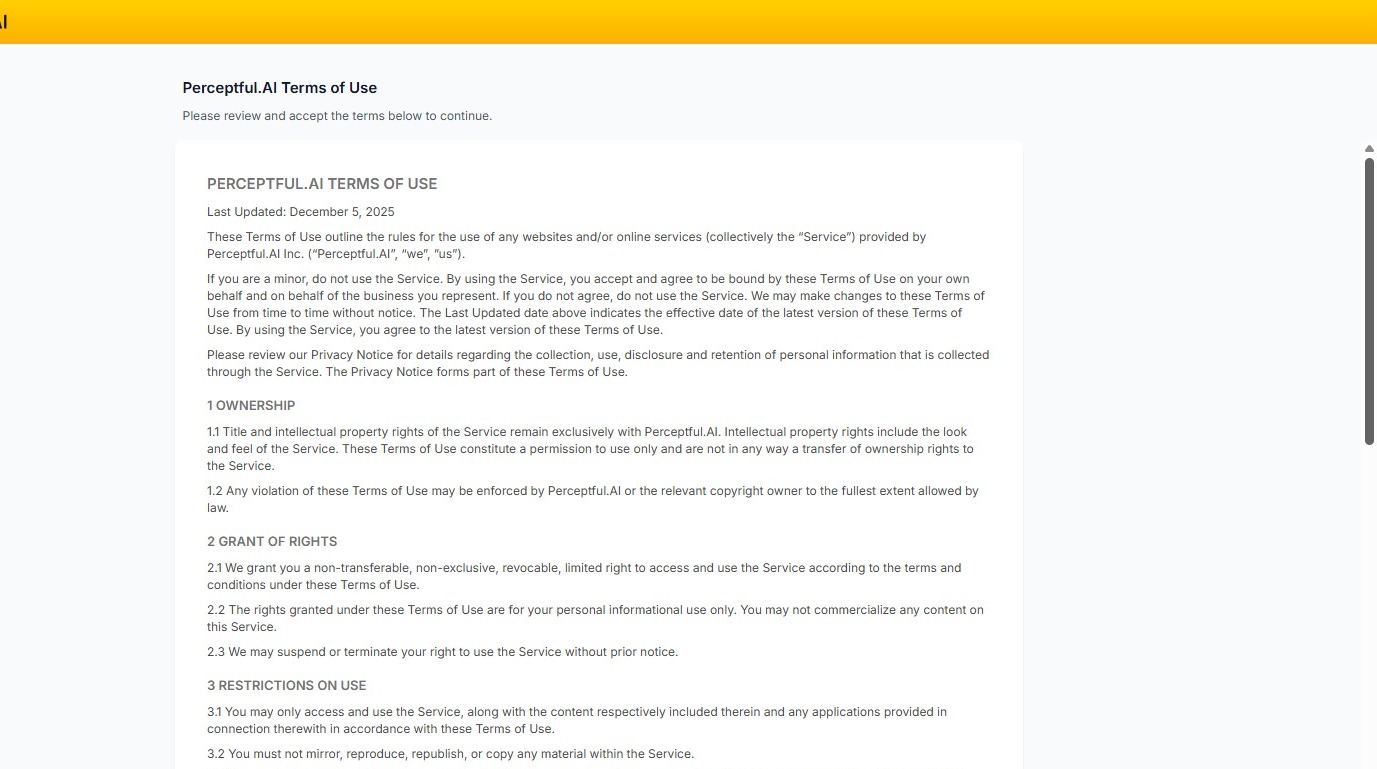
5. Click Accept & Continue →.
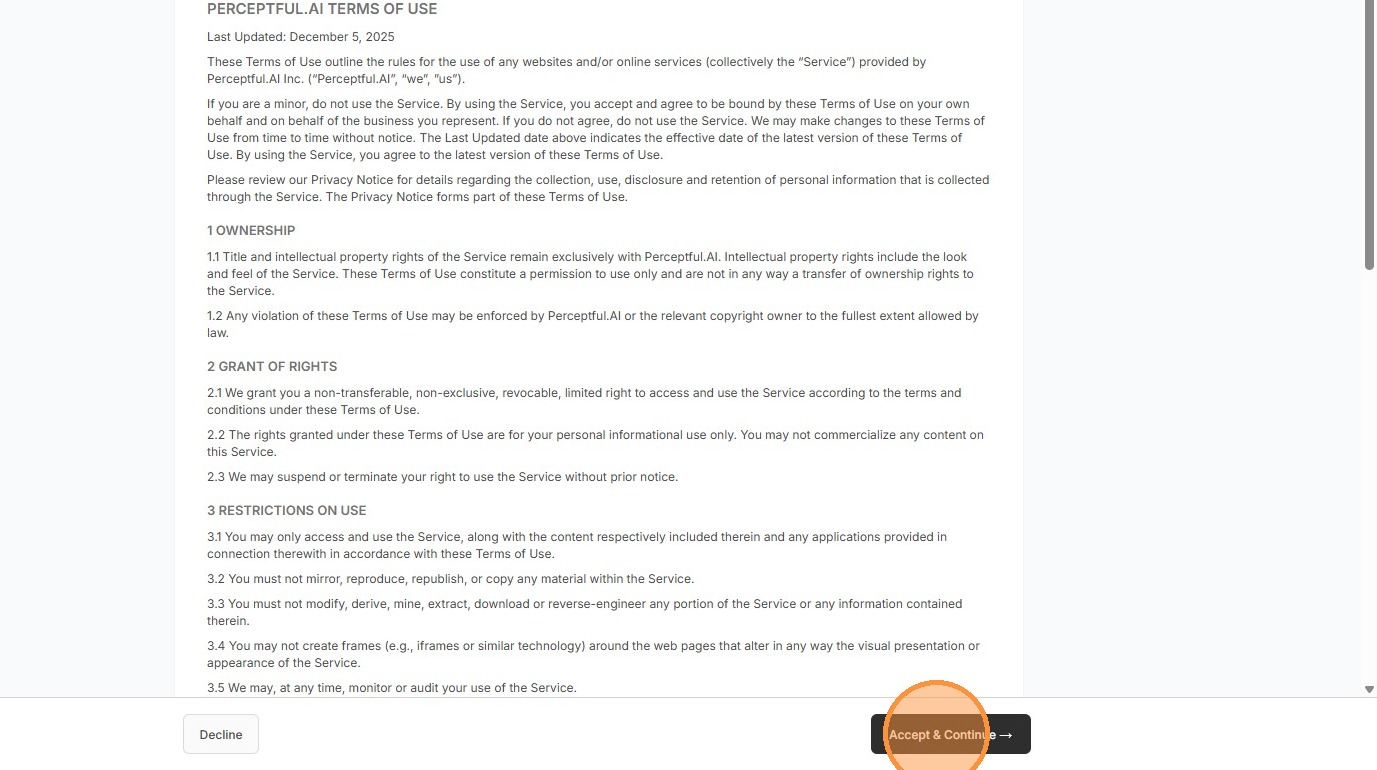
6. Review the Perceptful.AI Privacy Notice. If the terms are acceptable, click Accept & Continue →.
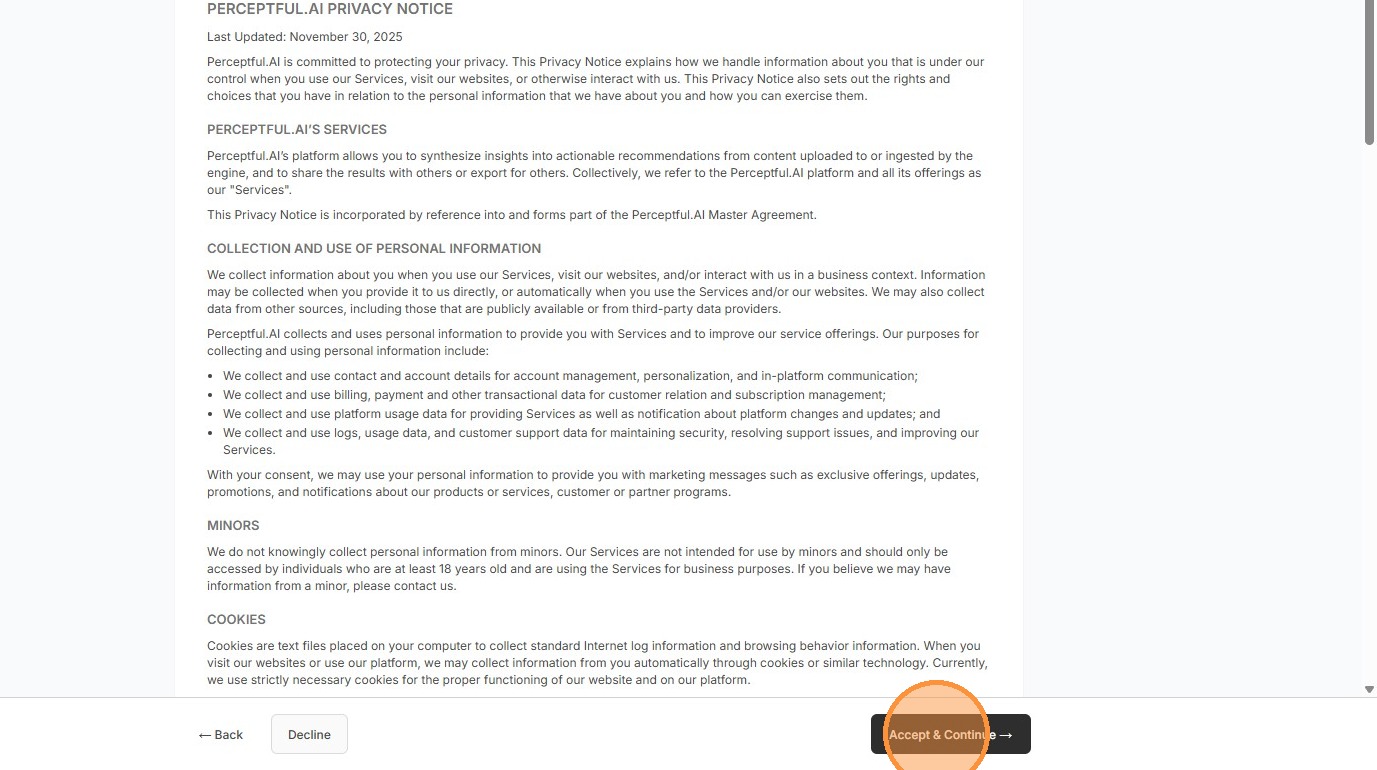
7.
Provide basic profile information that other users in shared workspaces may see.
Note: Your information is only seen by users who are members of the same workspaces you choose to join, or with whom you have otherwise shared it.
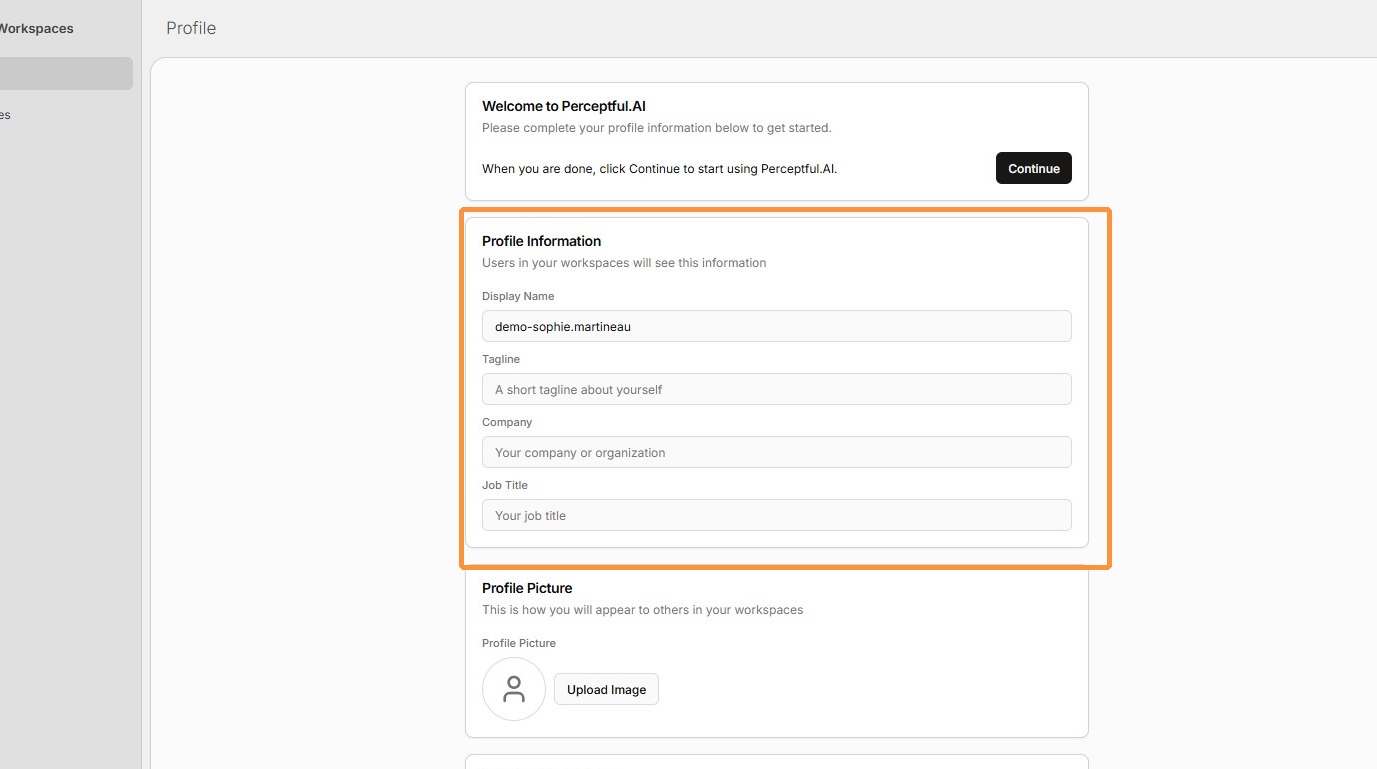
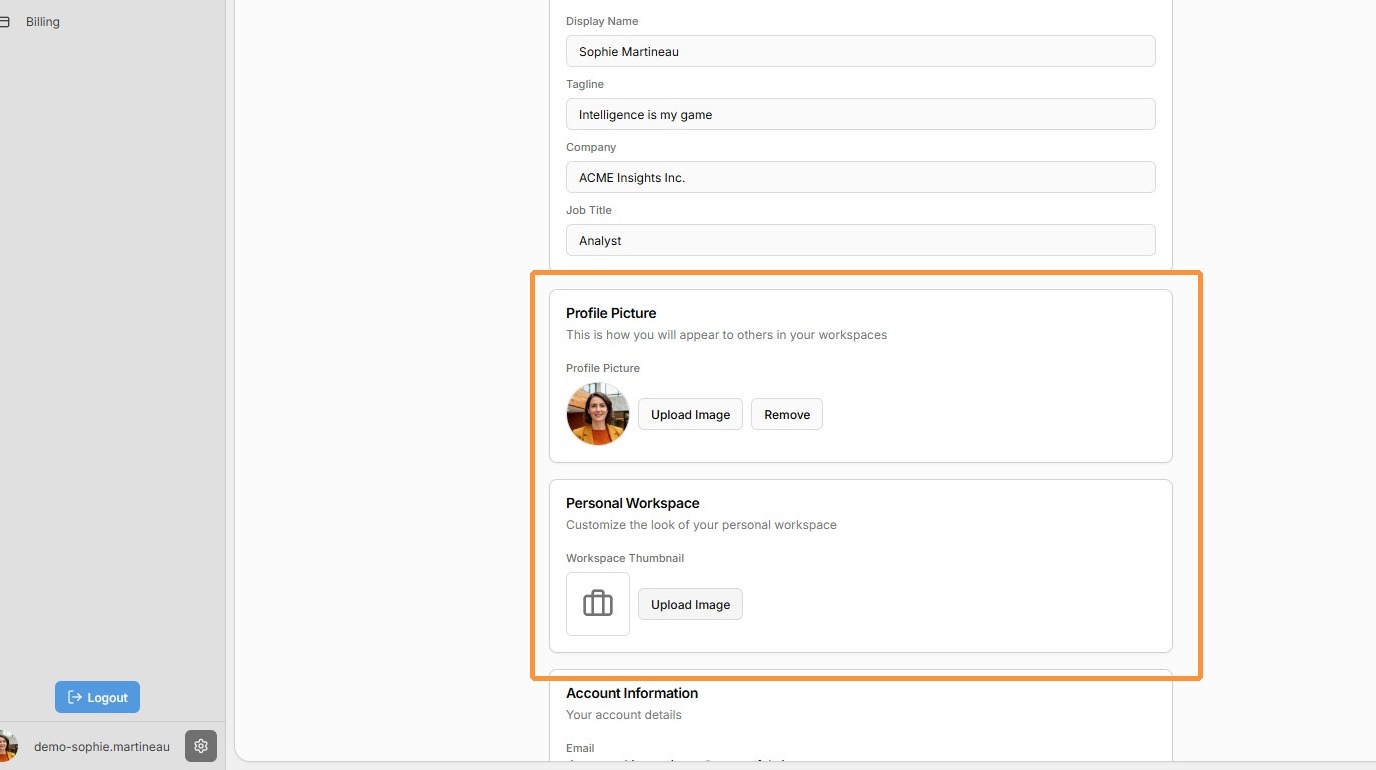
8. You can optionally upload a personal profile picture, as well as an image for your personal workspace — called My Workspace in the system.
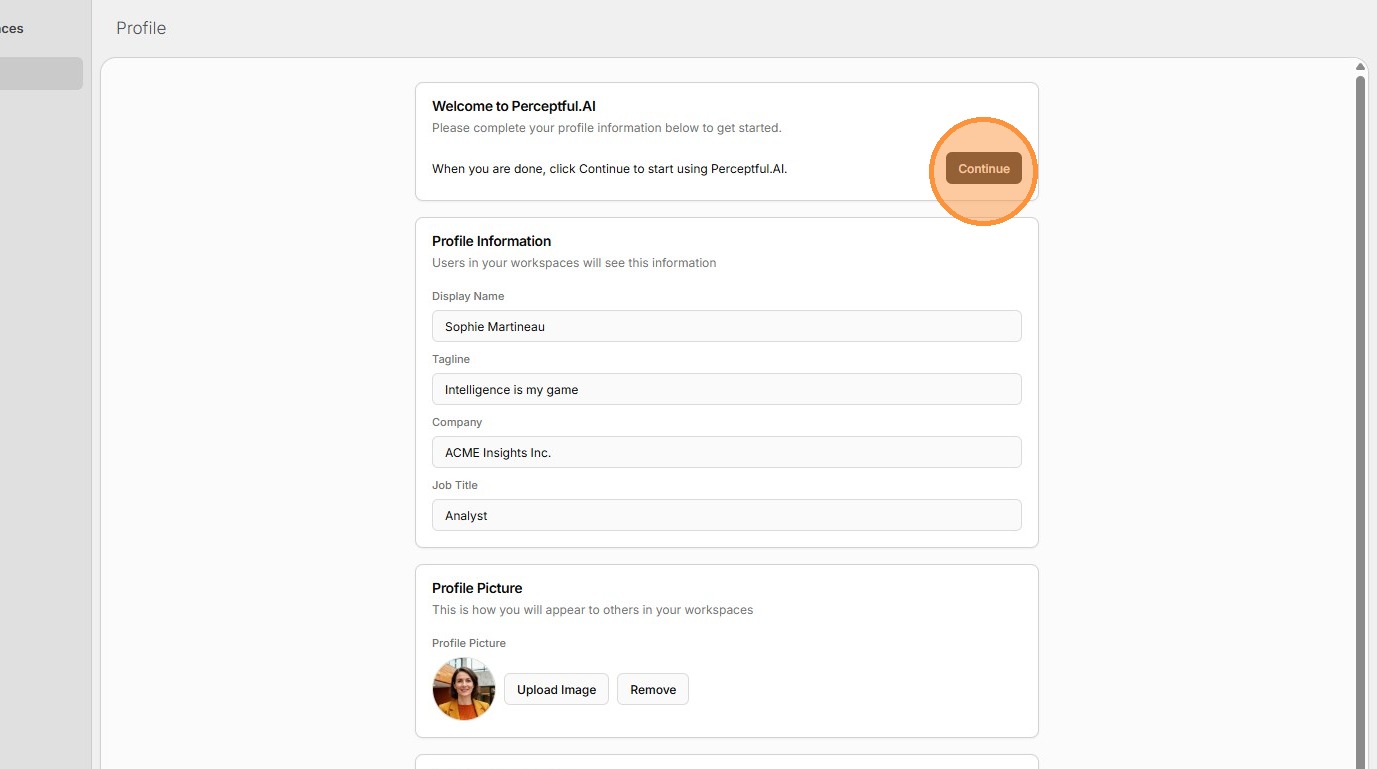
9. When you are finished creating your profile, return to the top of the page and click Continue.
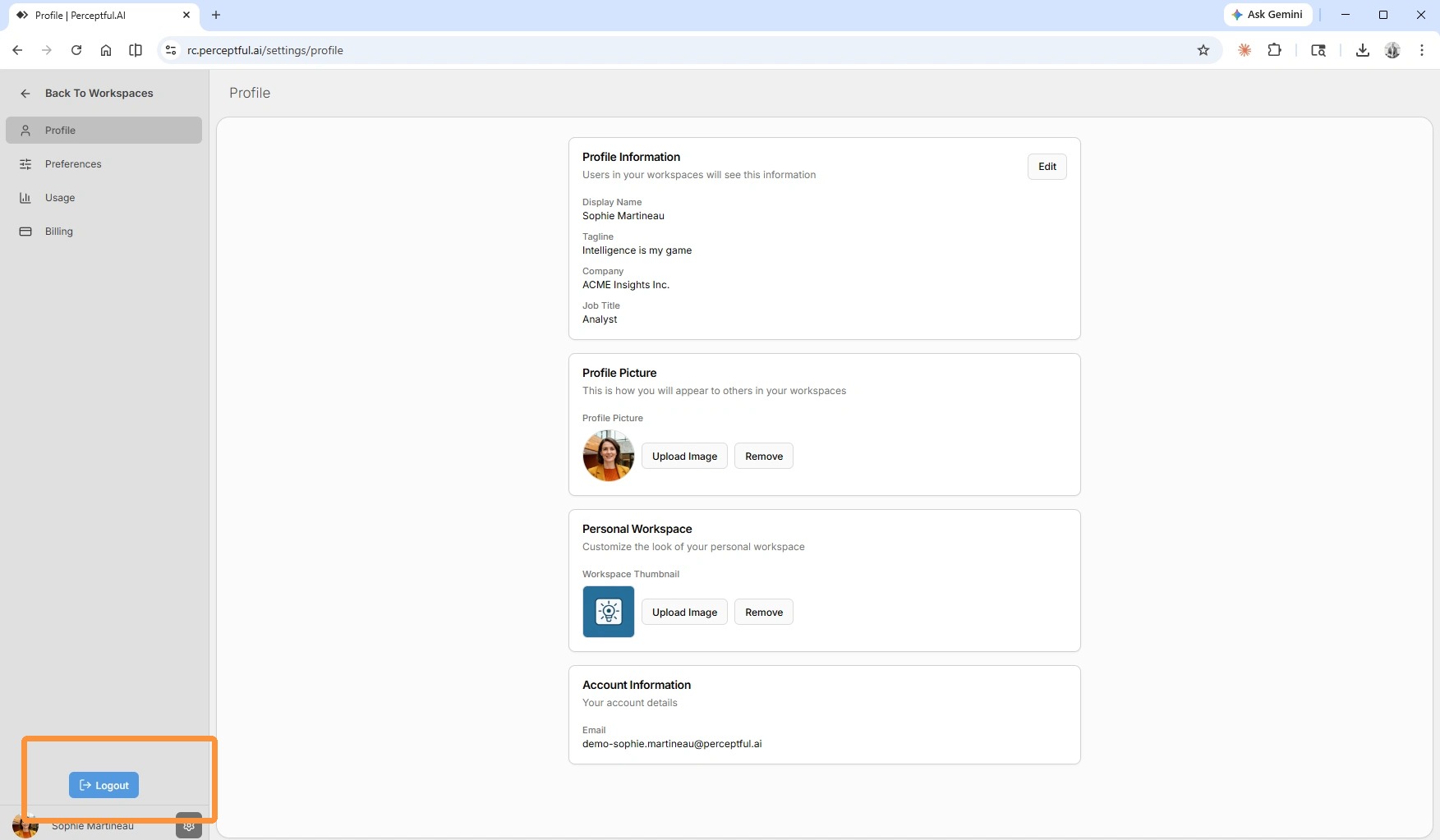
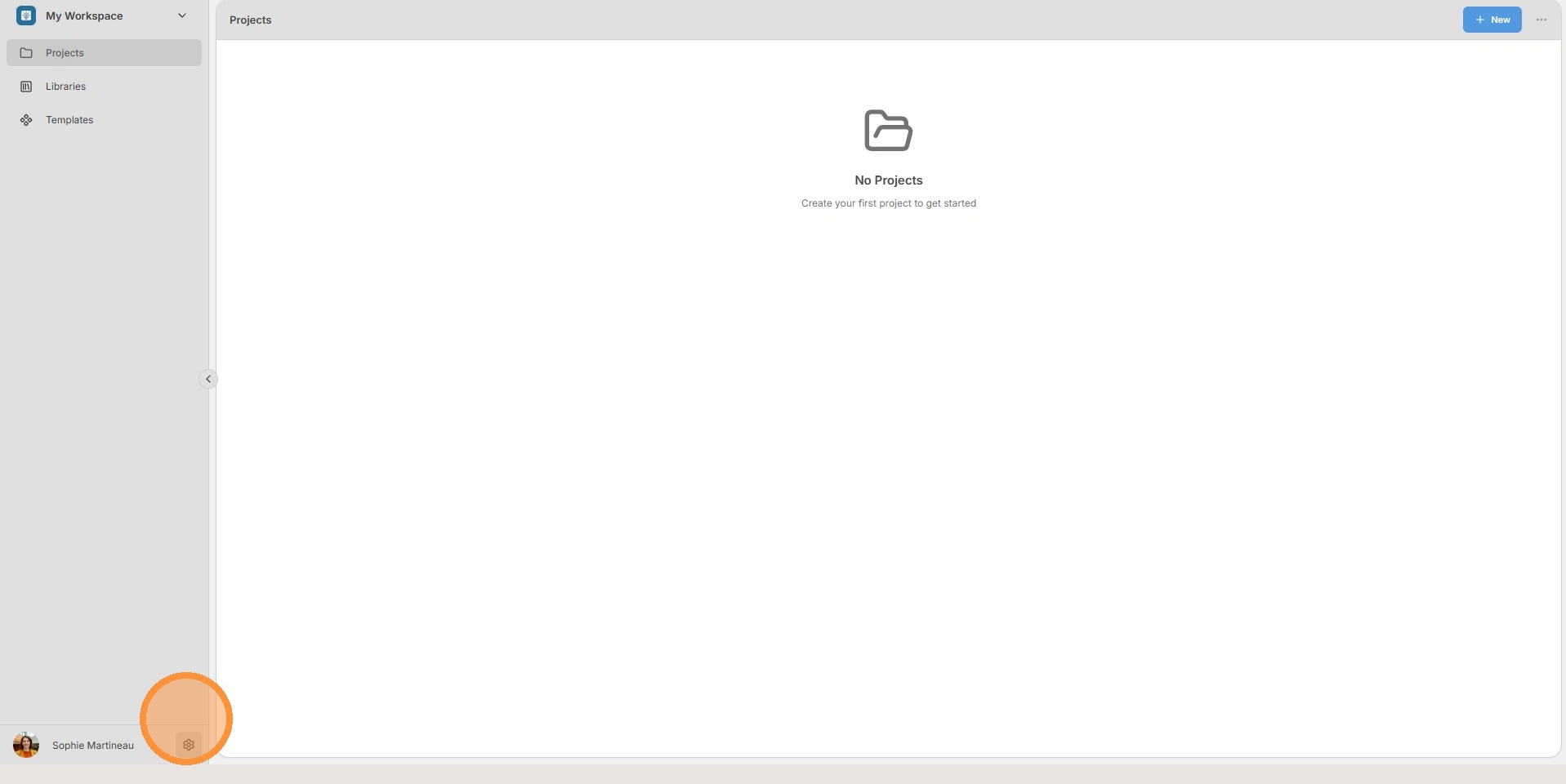
10. To return to your account information, click the gear icon near your photo in the bottom-left corner of the screen.
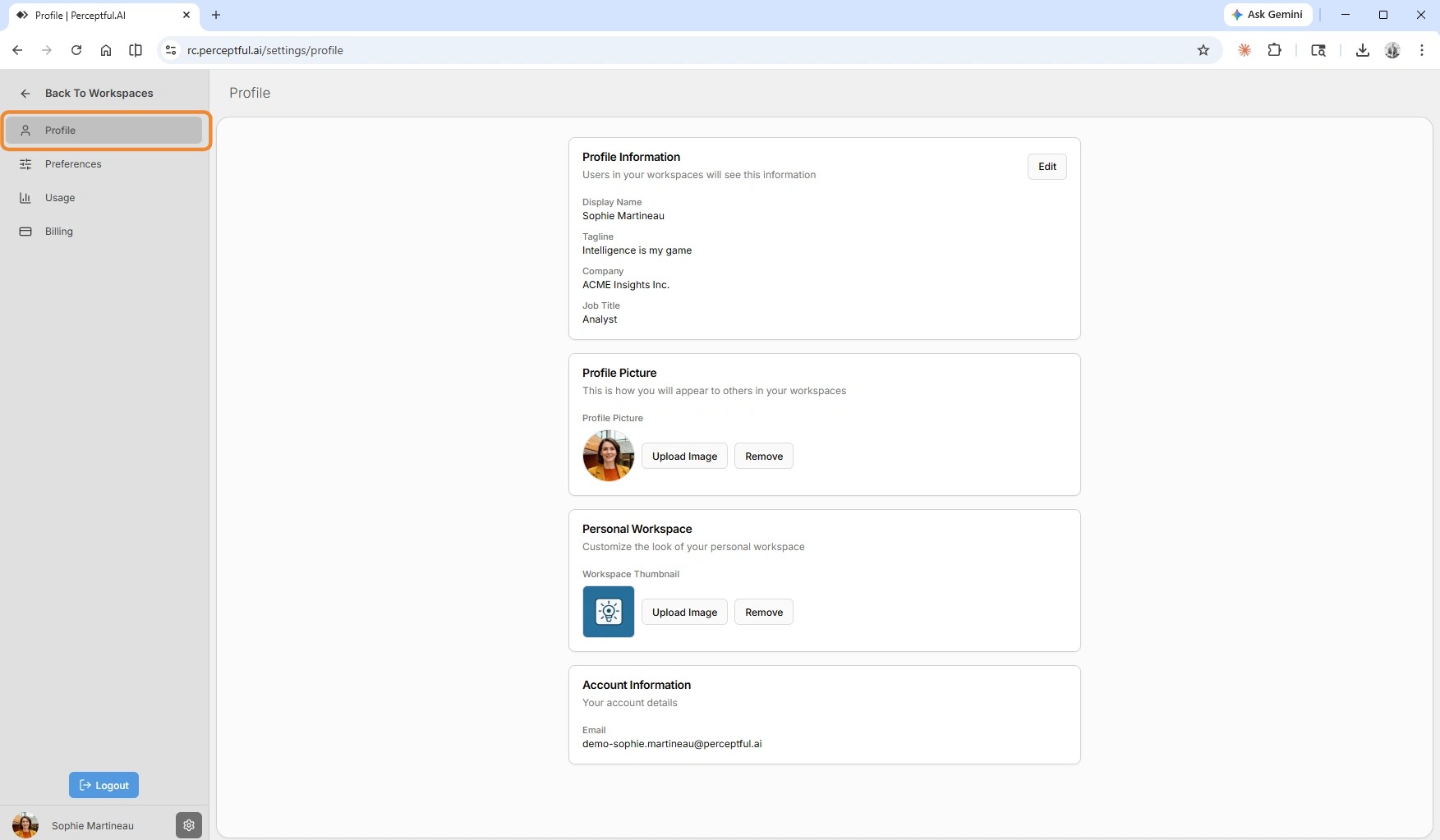
11. You can review and modify your personal profile by clicking on the Profile menu item.
12.
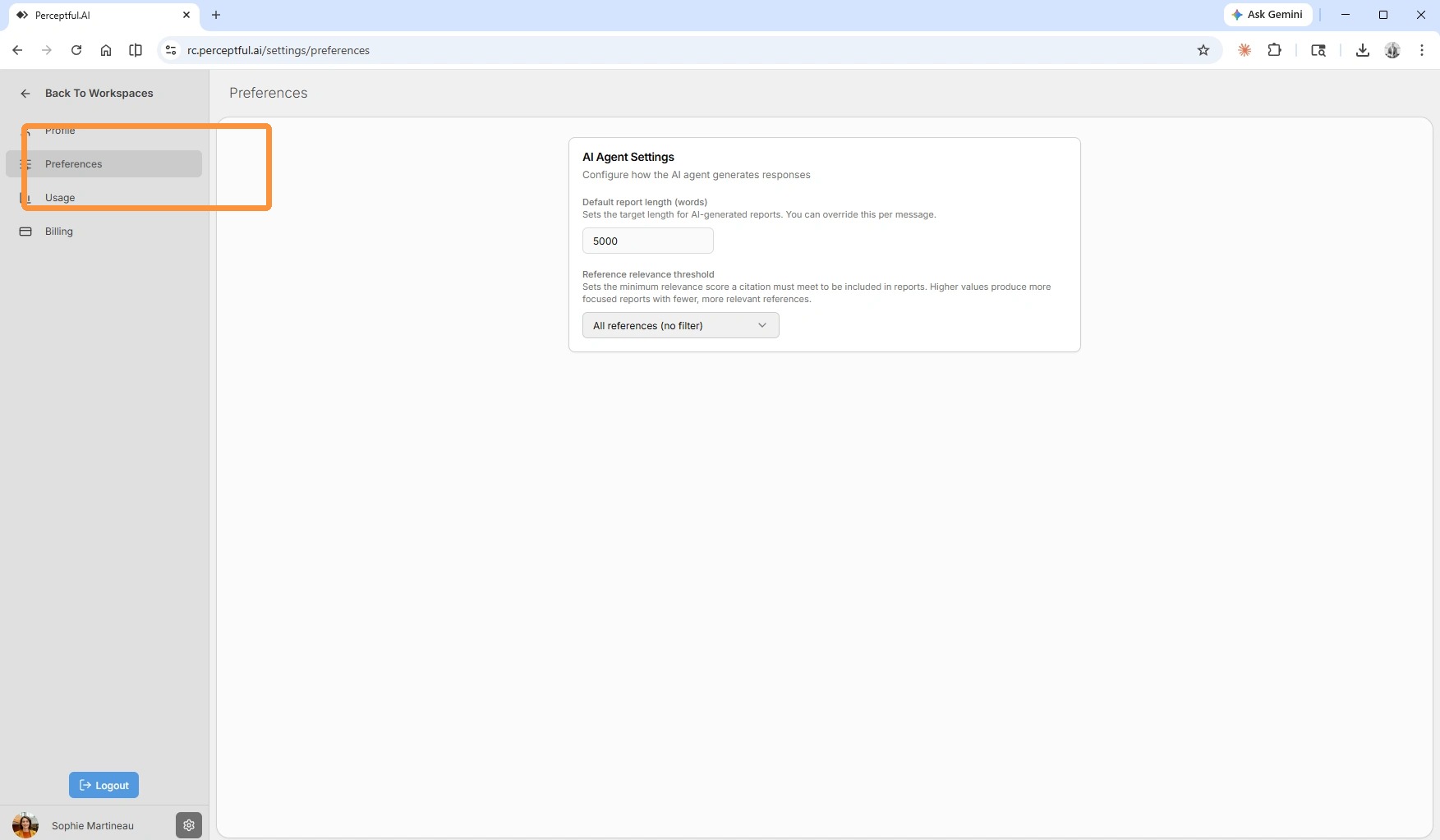
The Preferences section provides different settings for platform behavior. Currently, you can set:
Default report length: the default length of AI-generated reports when no length is specified.
Reference relevance threshold: the minimum relevance score for references to be included in task results generated by the AI research agent.
13. The Usage section outlines your current usage against the thresholds provided by your license. Currently, it displays AI Credits and Upload Volume.
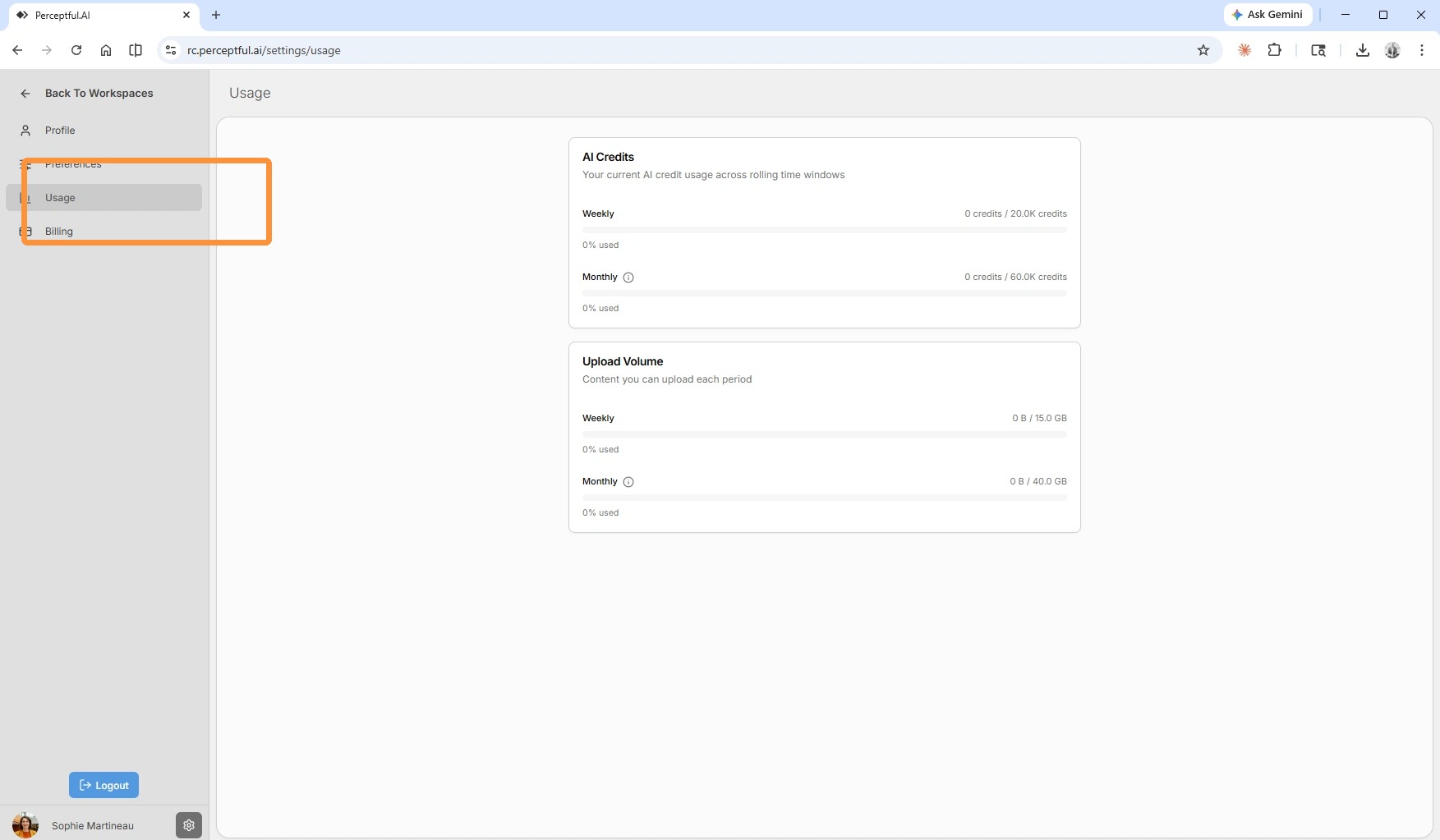
14. The Logout button is found in the bottom-left corner after clicking the gear icon.