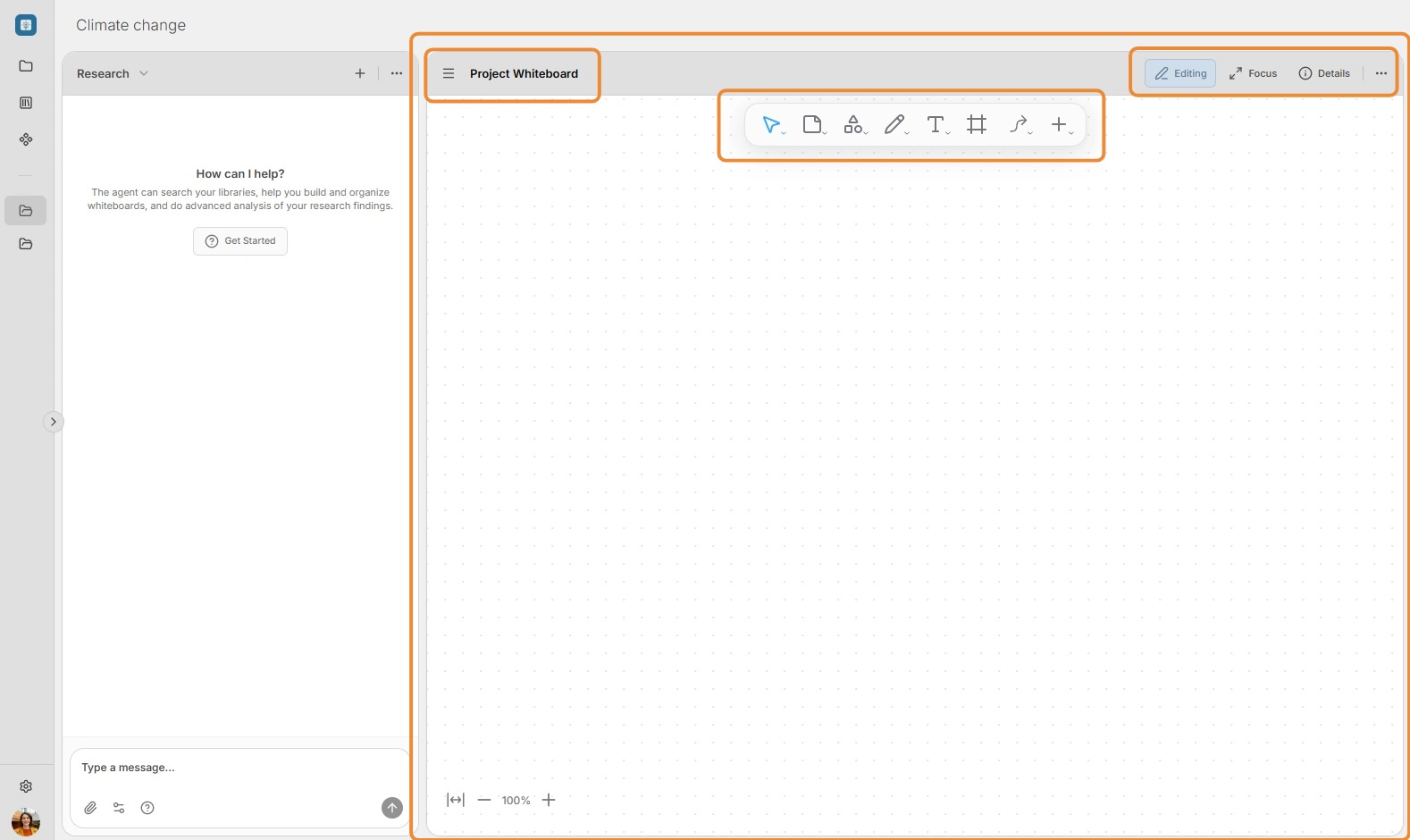
Create your first project and get a high-level overview of the UI, including the main navigation pane, AI chat pane, and main project window and its various menus.
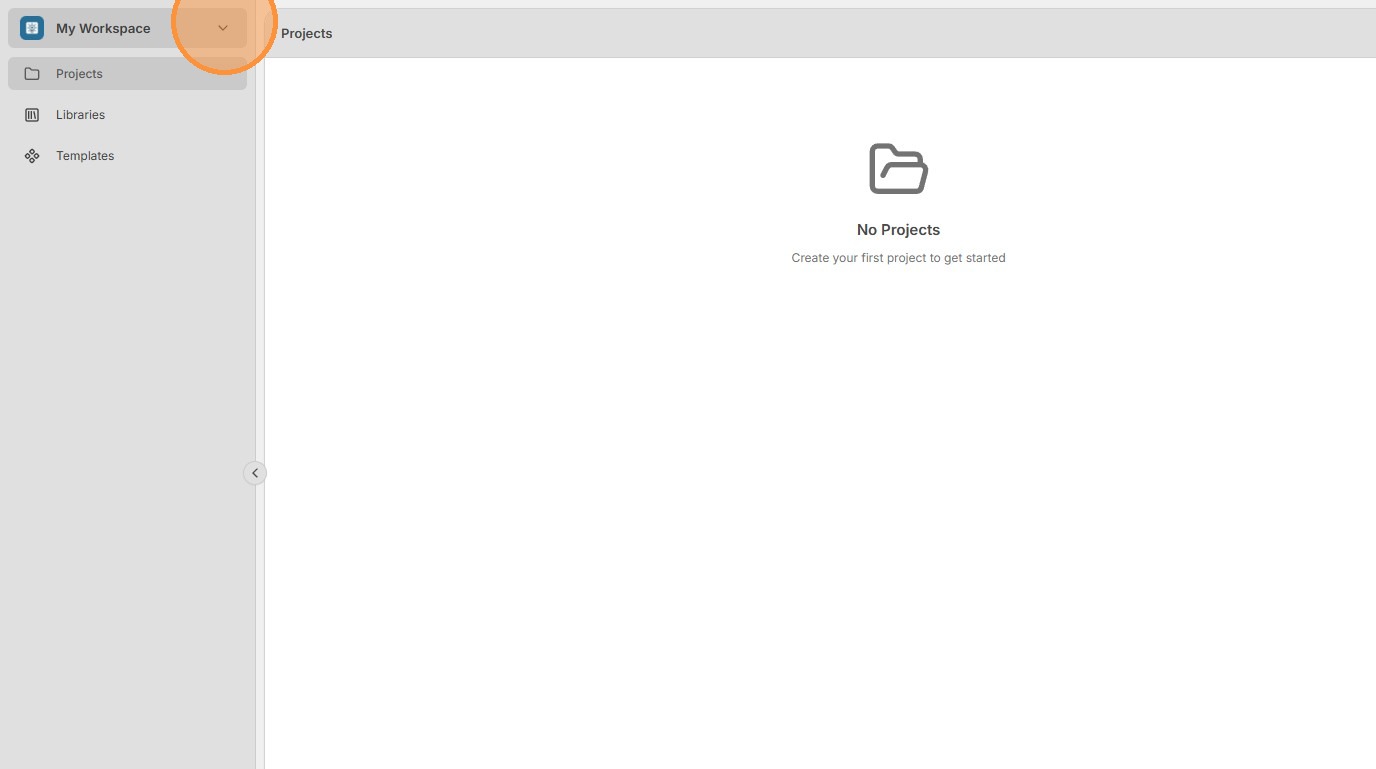
1. Ensure you are in My Workspace by clicking the menu in the top-left corner.
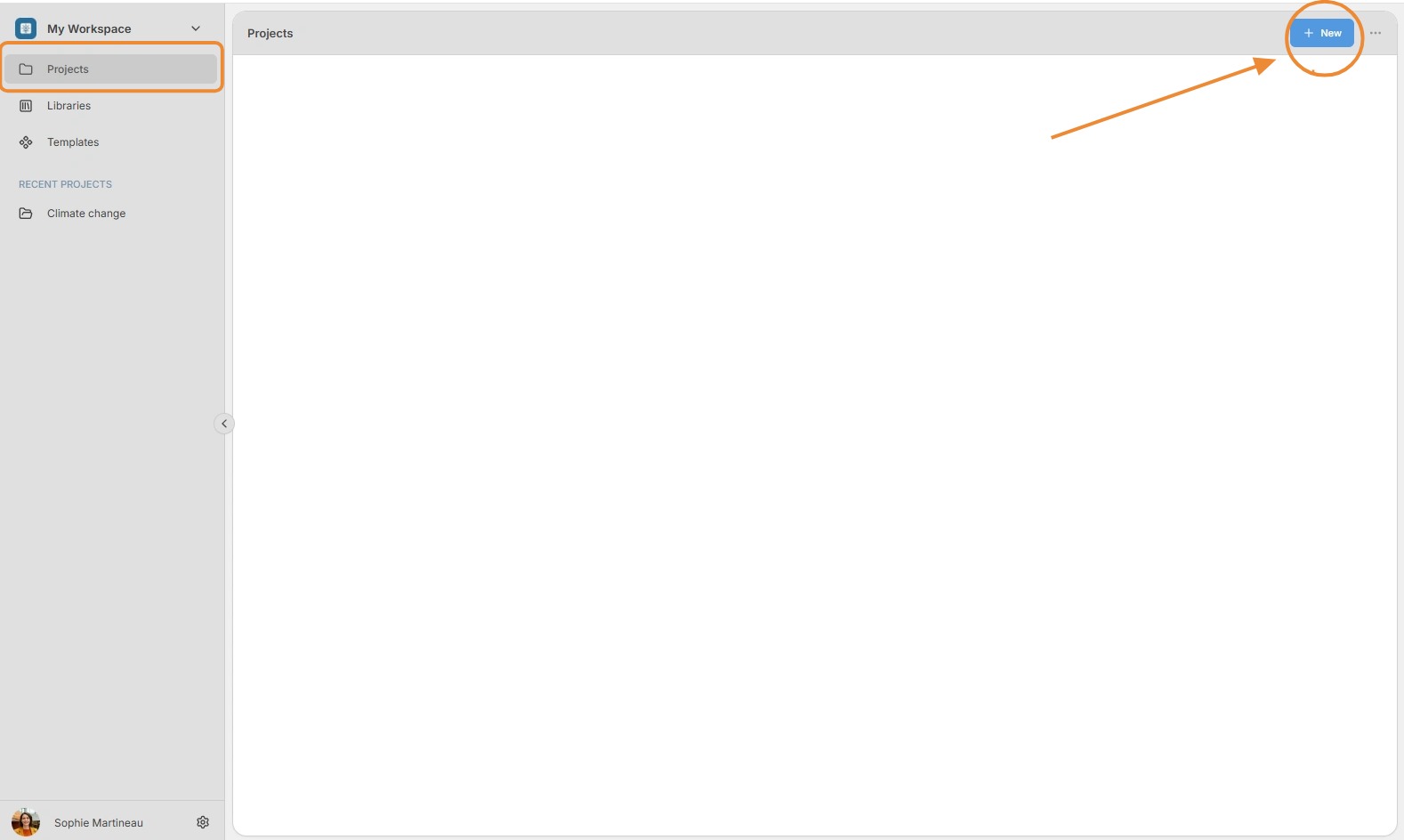
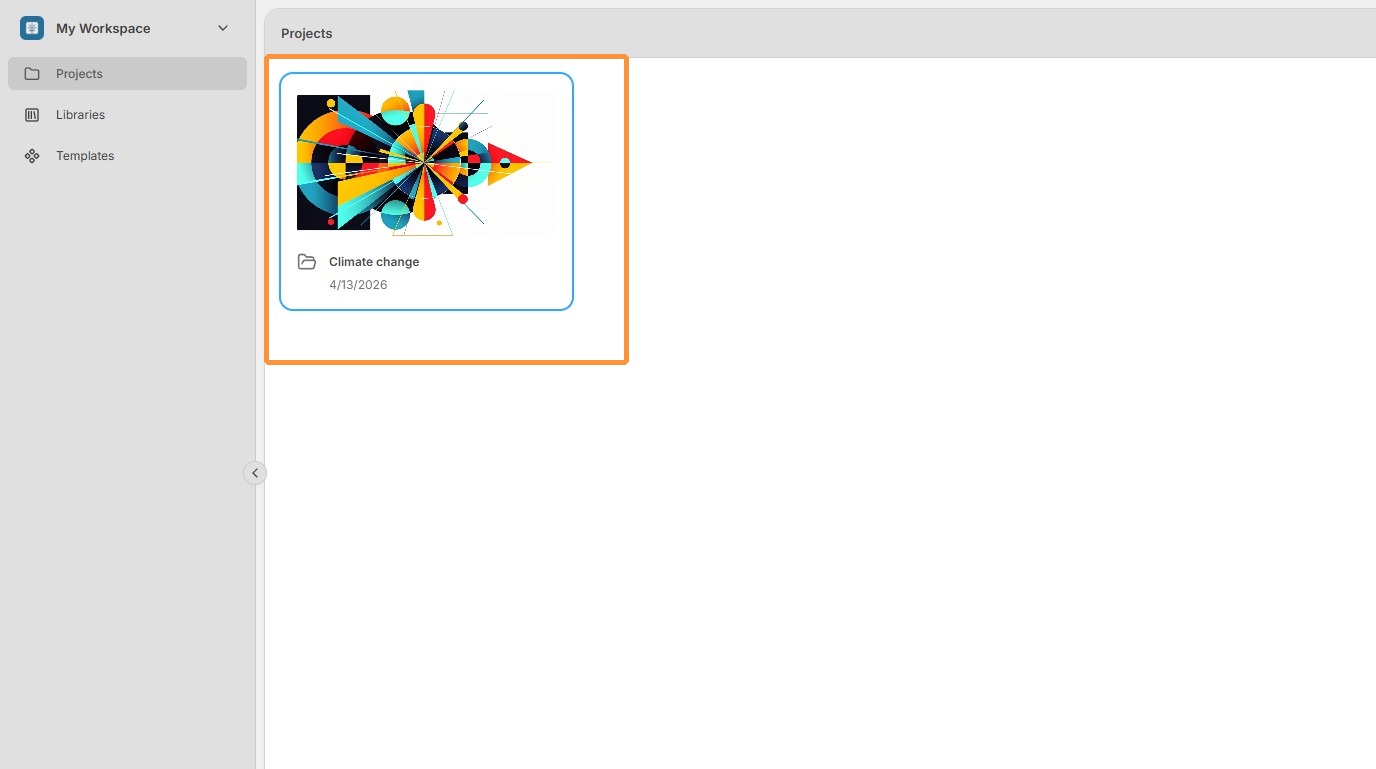
2. In the Projects section (click Projects in the left navigation panel), click the New button in the top-right corner.
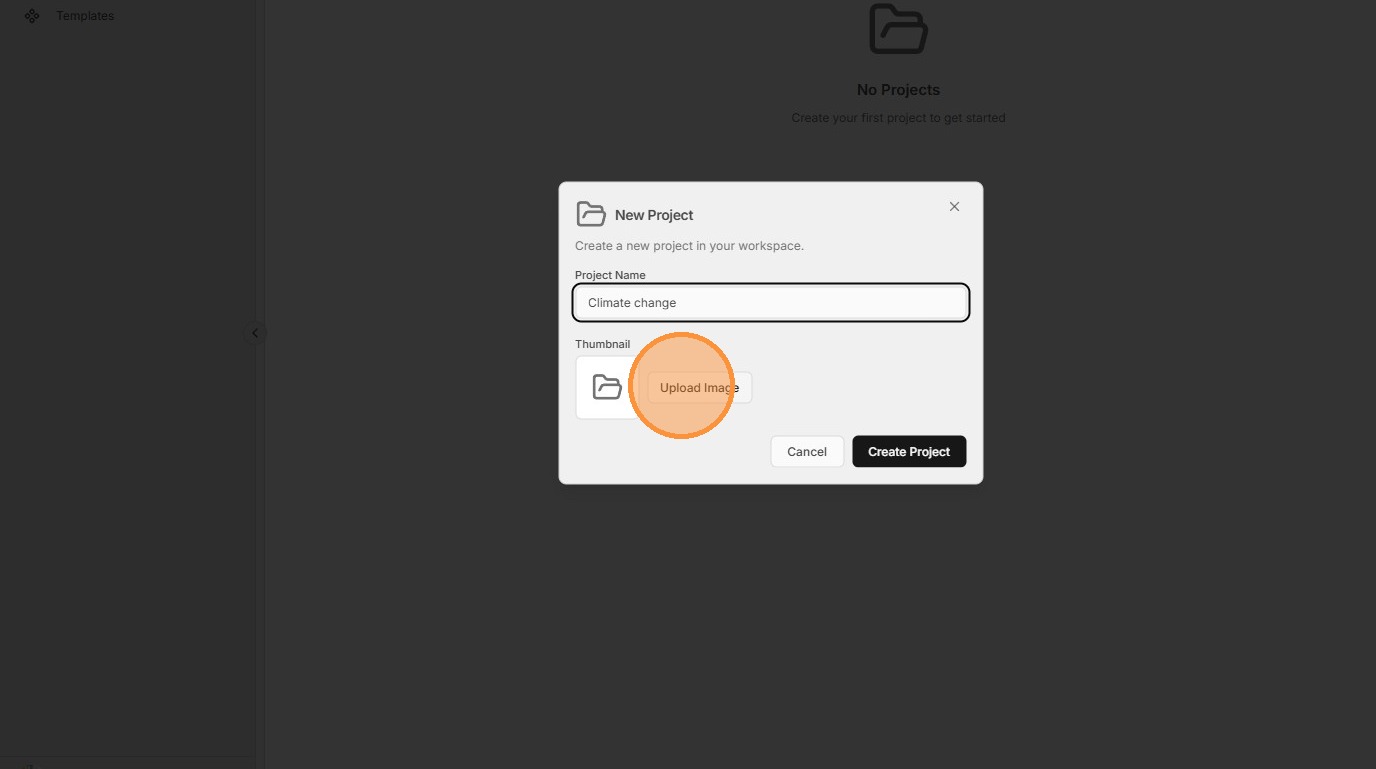
3. Give your project a name and an optional image, then click Create Project.
4. Double-click your new project to open it.
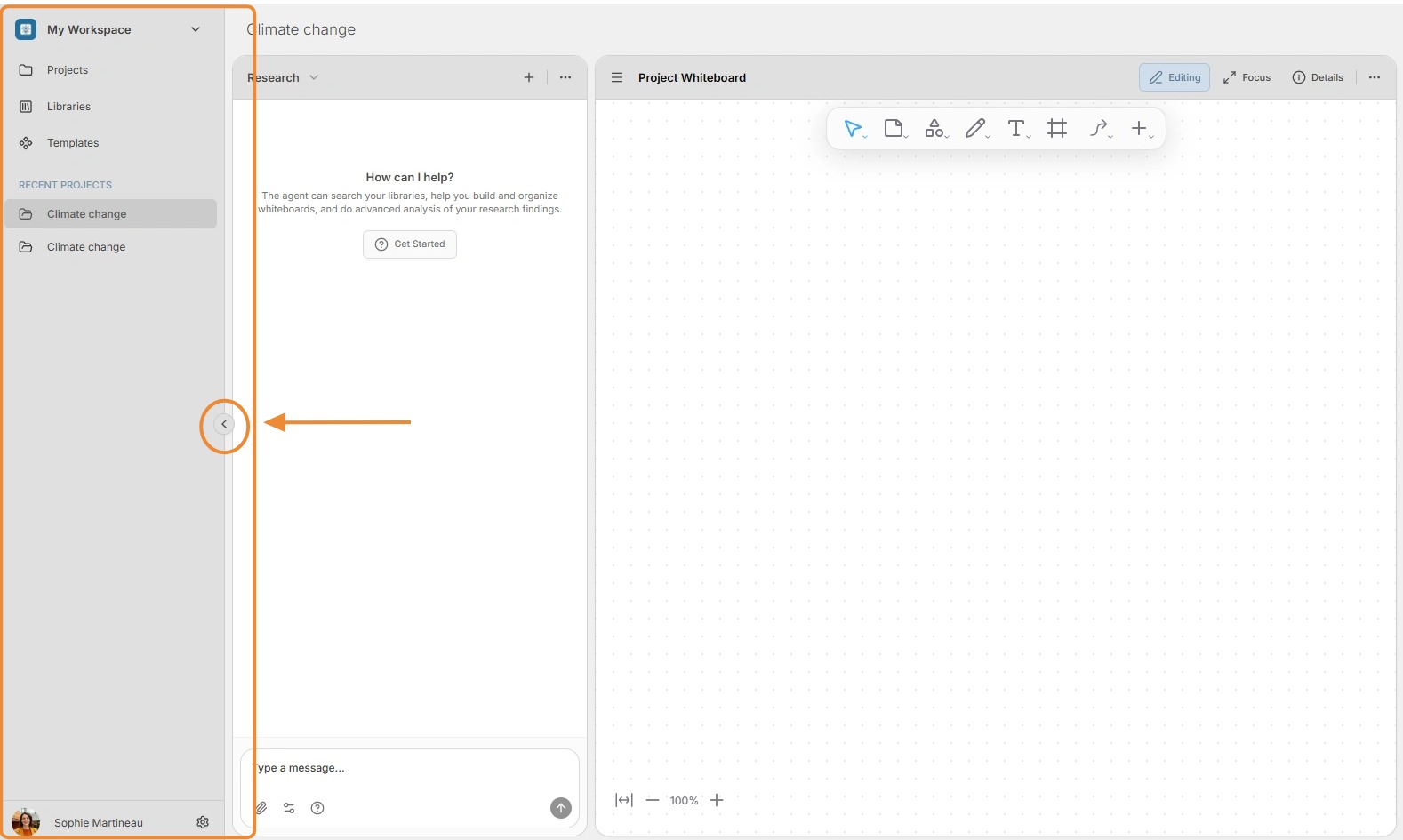
5. UI Tour: Main navigation pane.
This is the main navigation menu, where you can access your workspaces as well as the projects, libraries, templates, and members of a given workspace. You can also access your account in the lower-left corner.
You can minimize the main navigation pane by clicking the small button in the middle (see arrow below).
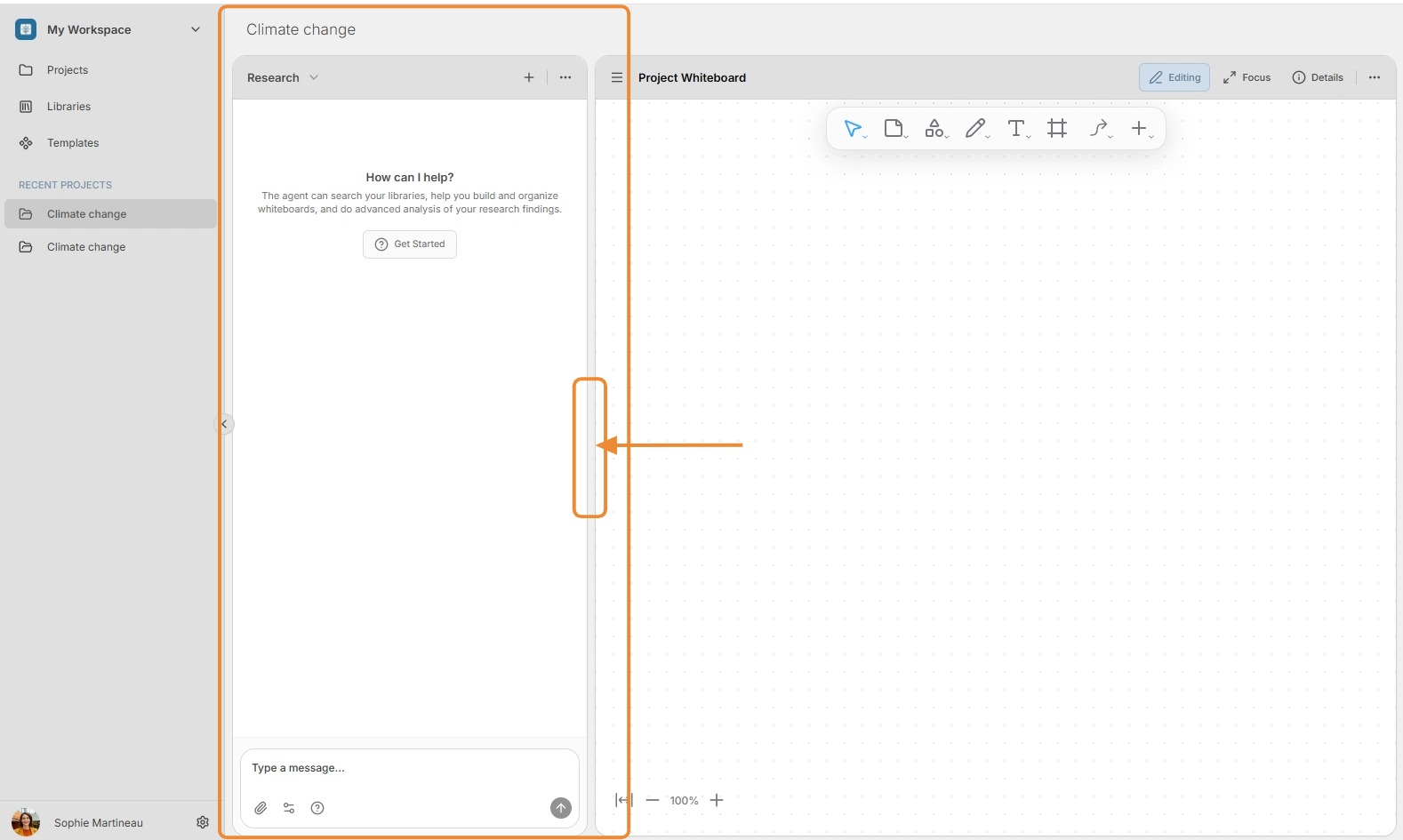
6. UI Tour: AI chat pane.
All your interactions with AI agents take place in the chat pane.
At the bottom of the screen is a text box for typing your instructions to the AI agents. It includes a number of buttons to provide help or give the agents additional context.
At the top of the AI chat pane are menu options for creating, managing, and switching between different conversations with AI agents. Your conversations with AI agents are private to you — even in shared projects and workspaces.
You can resize the AI chat pane by pressing the mouse button on the right side of the pane and dragging left and right (see arrow below).
7. UI Tour: Main project pane.
Your own work is primarily done in the main project pane. This is where you manage artifacts such as documents and whiteboards, synthesize findings, and review, annotate, write, and edit.
Clicking the button in the top-left corner opens a list of existing artifacts. To begin, the only artifact is the Project Whiteboard. The name of the currently opened artifact is displayed beside the menu, and the artifact's contents are loaded in the main window.
The top-right corner provides buttons to manage the main pane, including a button to toggle the document between editing and viewing modes, a Focus button that hides the AI chat pane, a Details button to show more information about any selected object, and the ... menu to export and rename the artifact.
The menu in the center of the main window provides options to add, remove, and edit elements in the open project window. This menu changes based on the type of artifact.