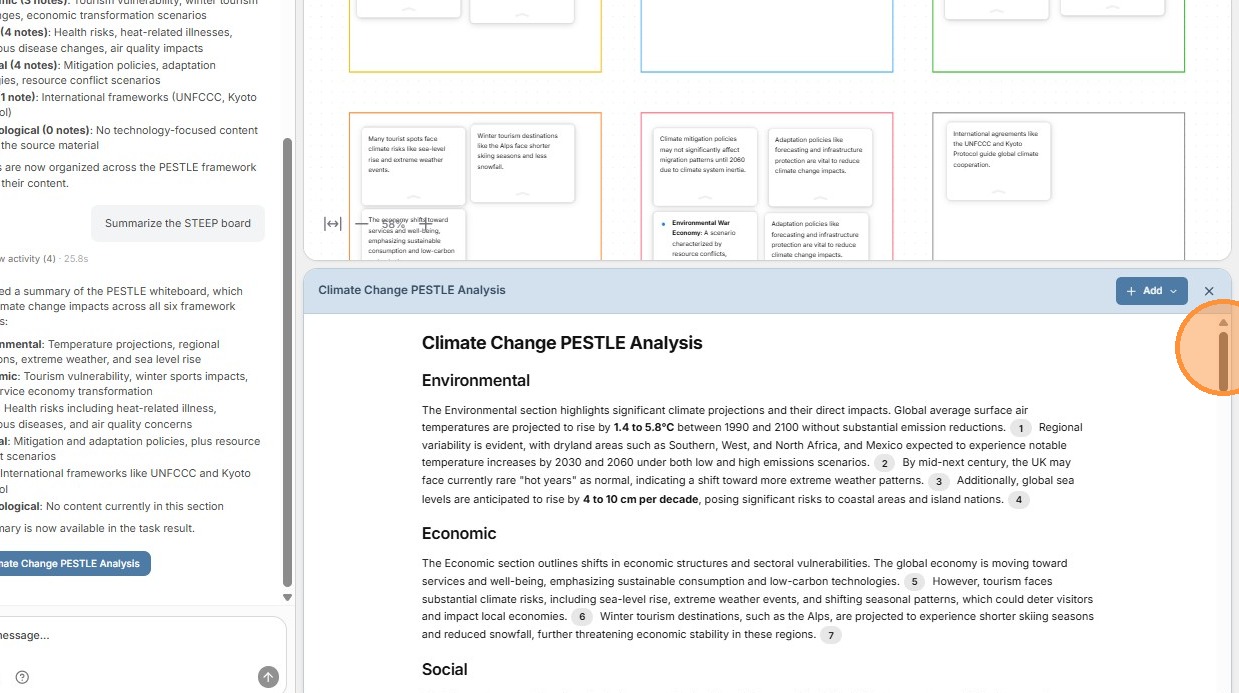
Learn how to use AI agents to find and extract insights, and then organize them on a whiteboard using a PESTLE framework.
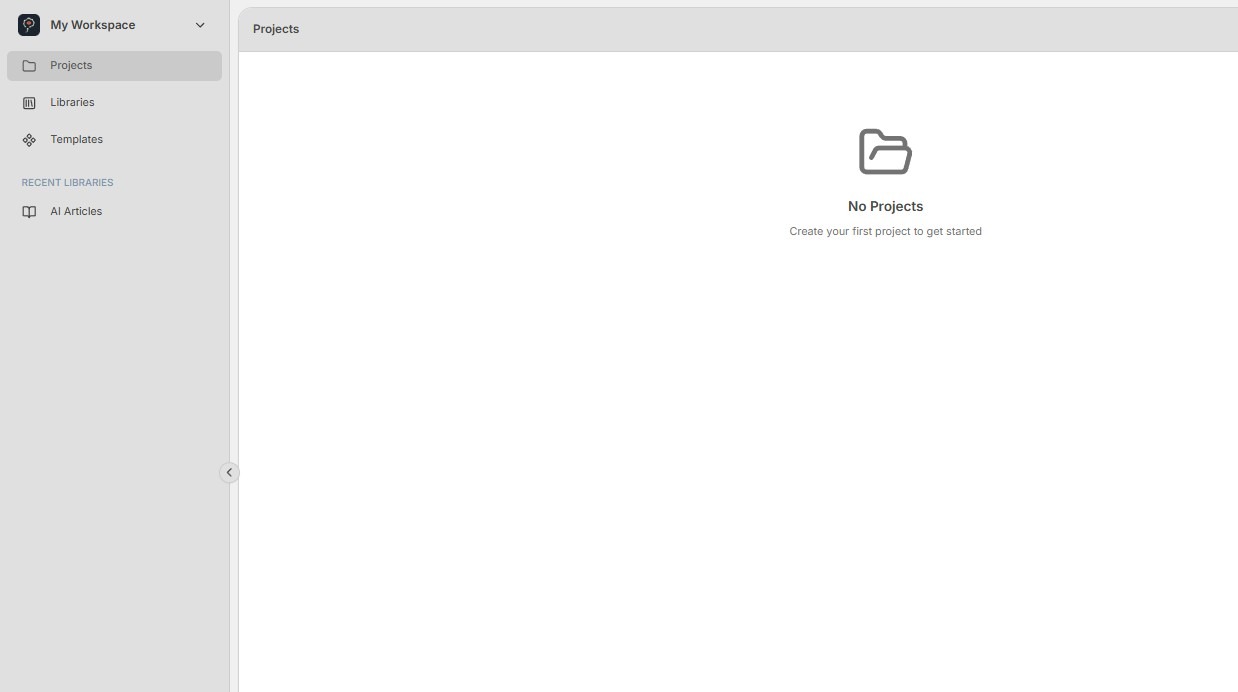
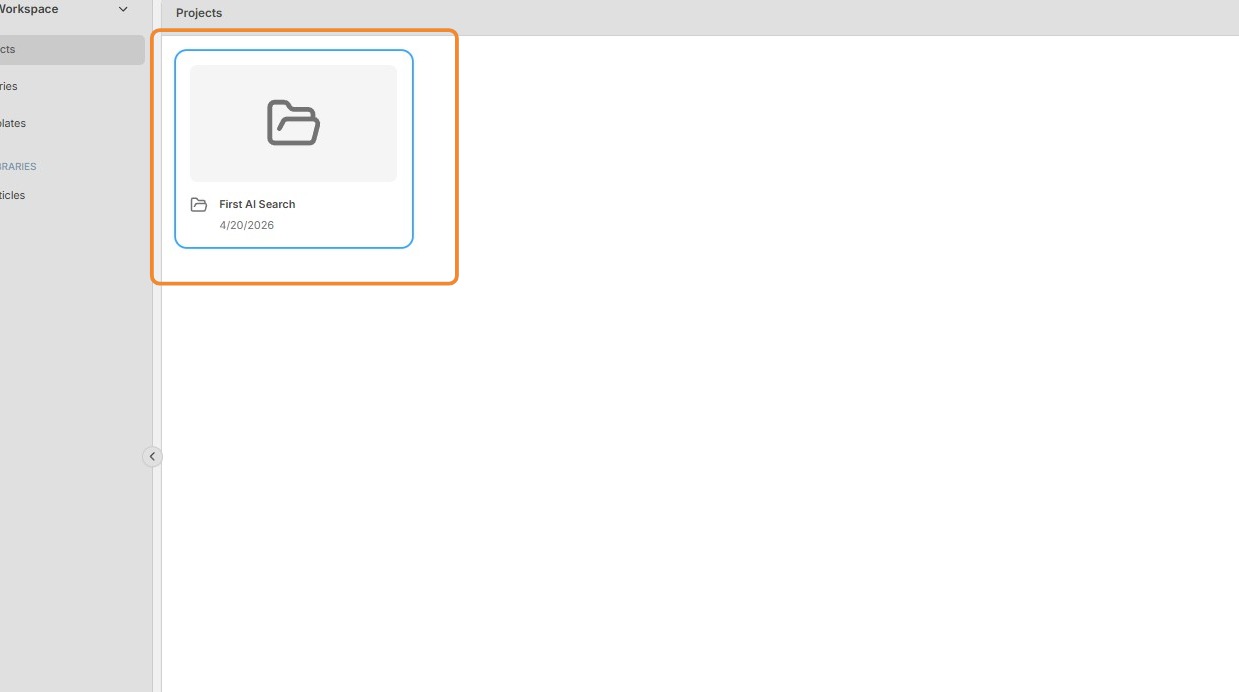
1. Navigate to the Projects section of My Workspace.
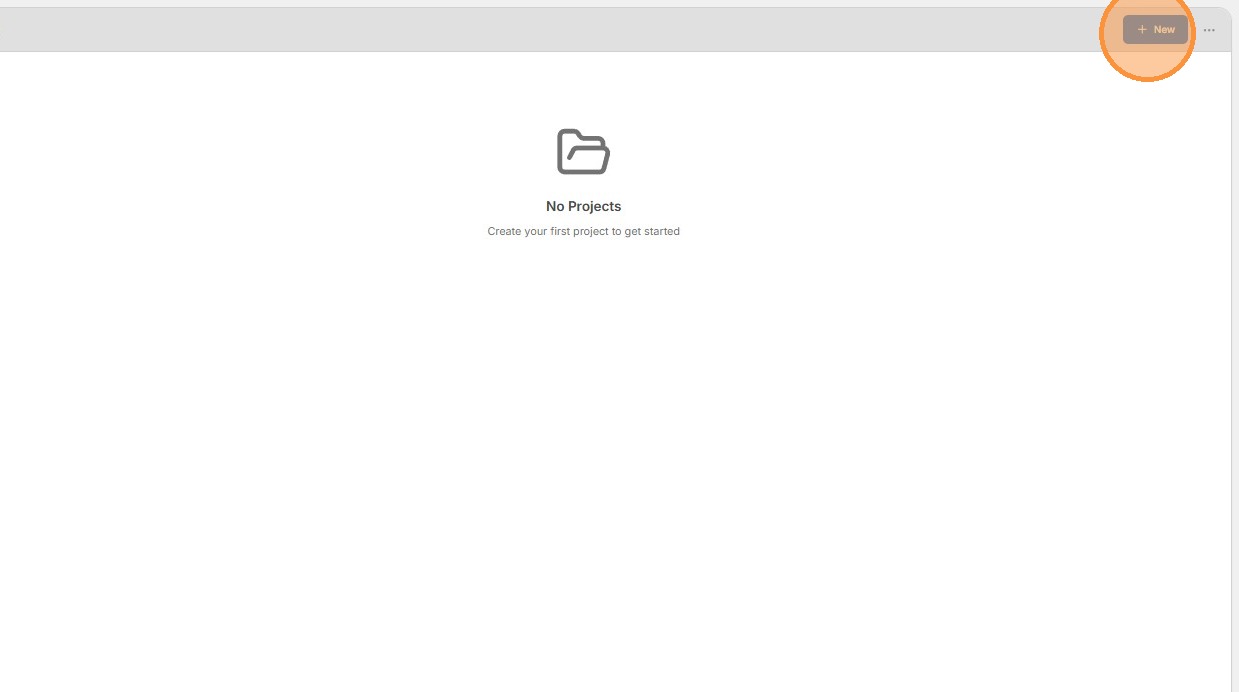
2. Click the + New button in the top-right corner to create a new project.
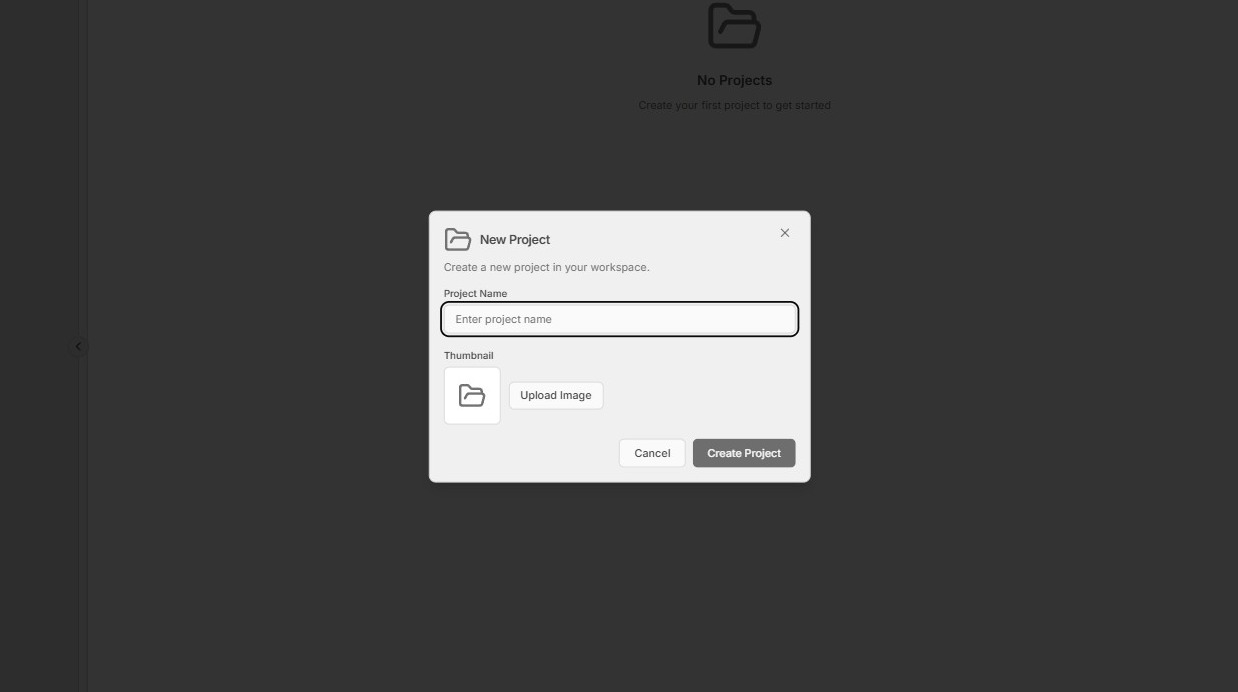
3. Provide a name for the project and click Create Project.
4. Double-click your new project to open it.
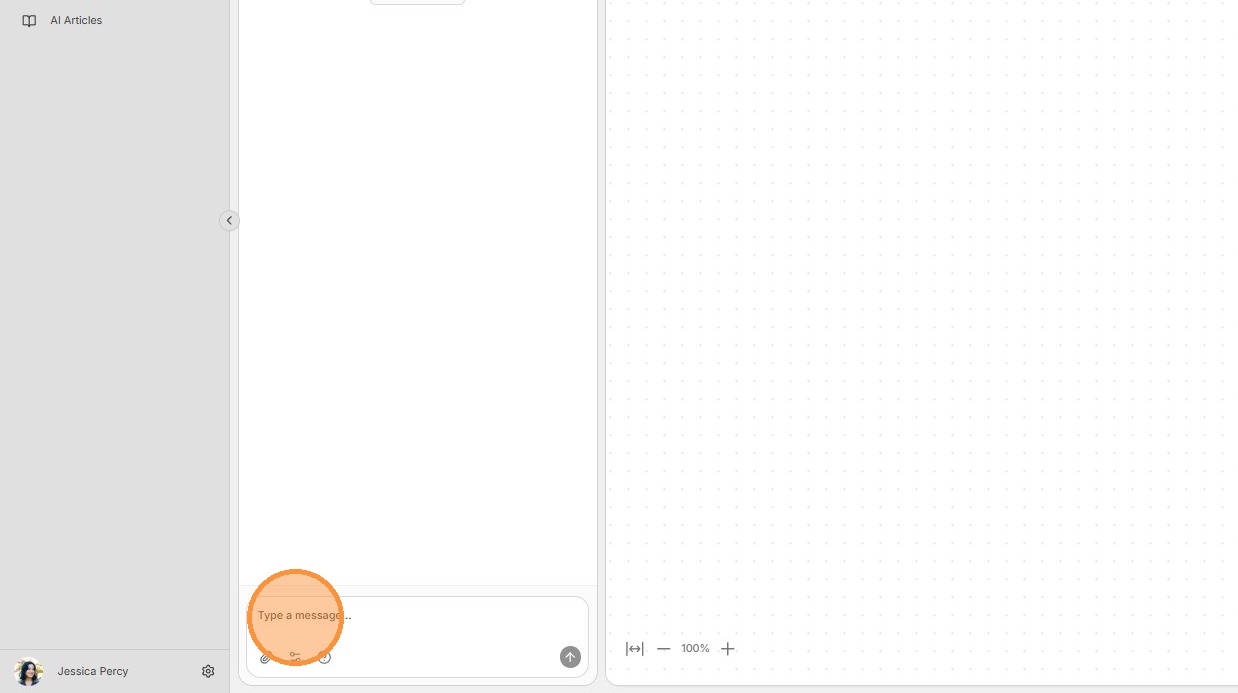
5. In the AI chat pane, type "Find trends related to climate change".
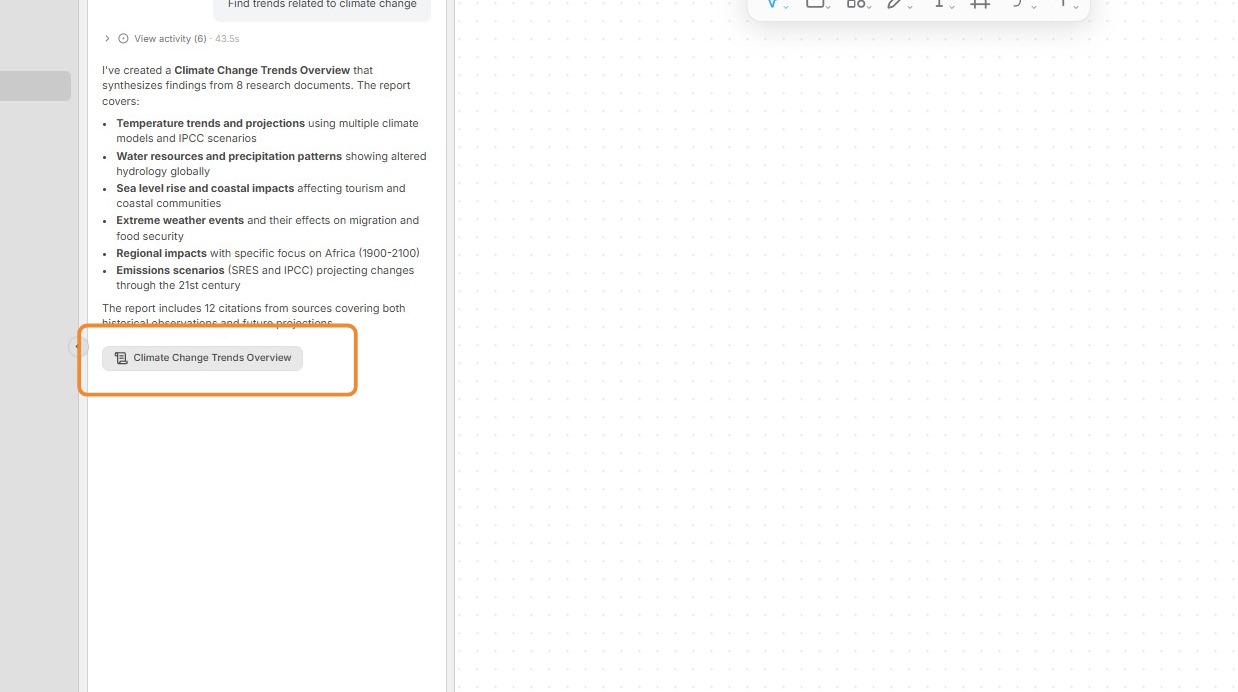
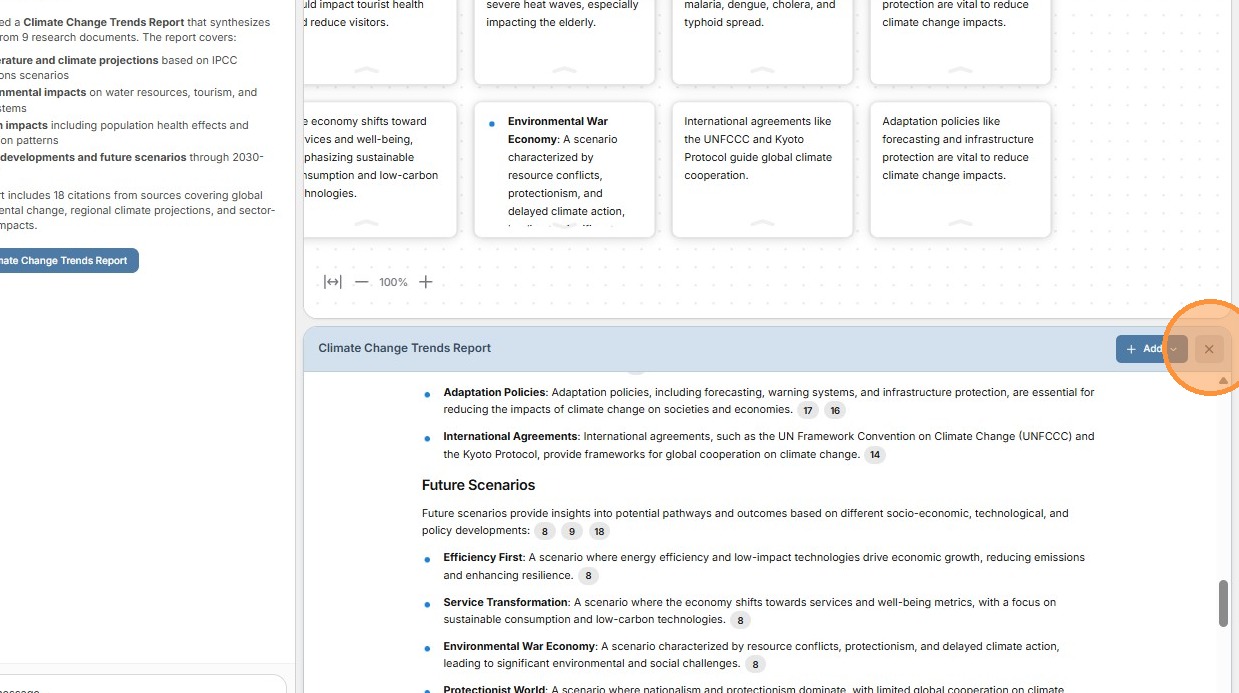
6. Open the Task Result in the AI chat window once the AI agent has completed the task. This will open a document in the bottom half of the main pane.
7.
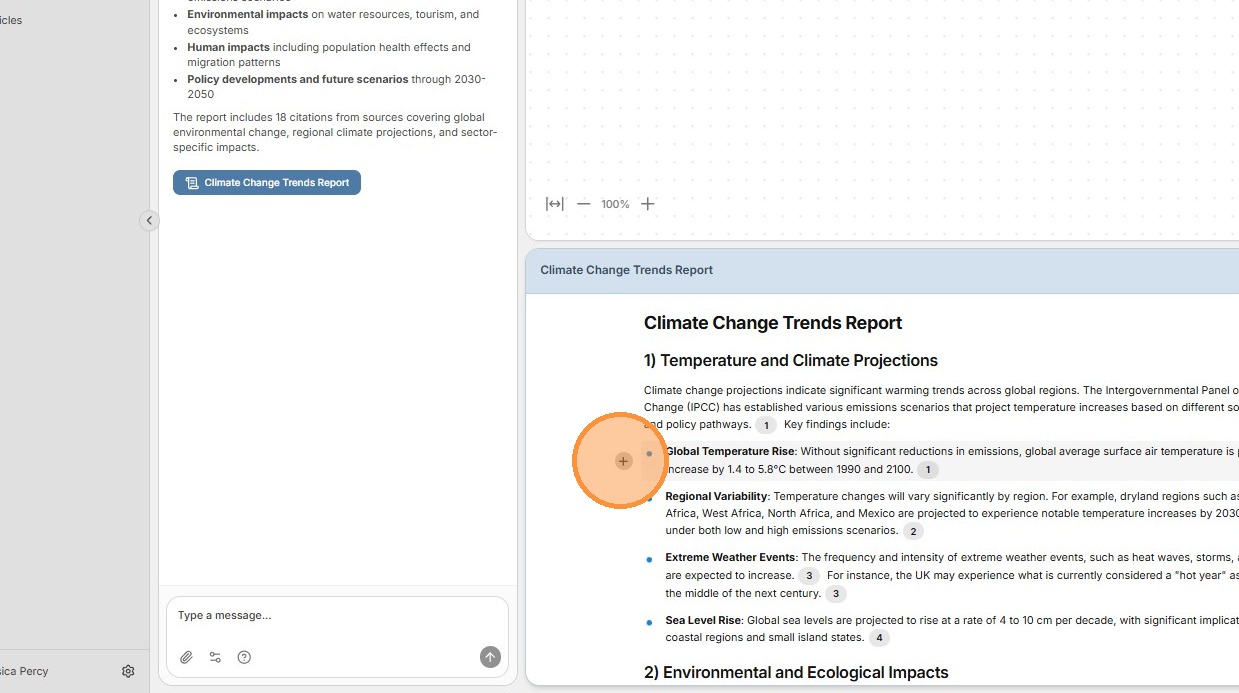
Move your mouse to the left of any paragraph and click the + sign to add that excerpt to the Project Whiteboard.
You can group multiple paragraphs together by pressing the mouse button on the first + sign, dragging the mouse up or down, and then releasing the mouse button.
You can also highlight text and click the Add Note button in the context menu.
8. Close the Task Result document once you have collected a series of excerpts.
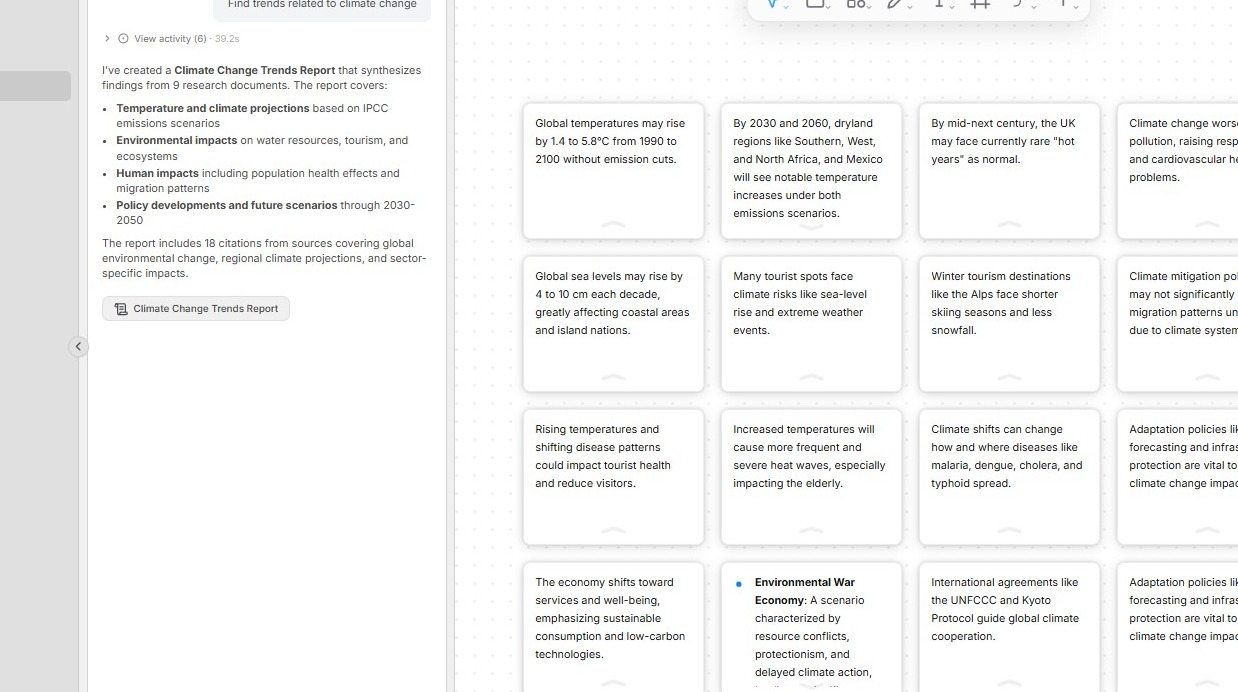
9. Your Project Whiteboard should now have a collection of Perceptful Notes, similar to the screenshot below.
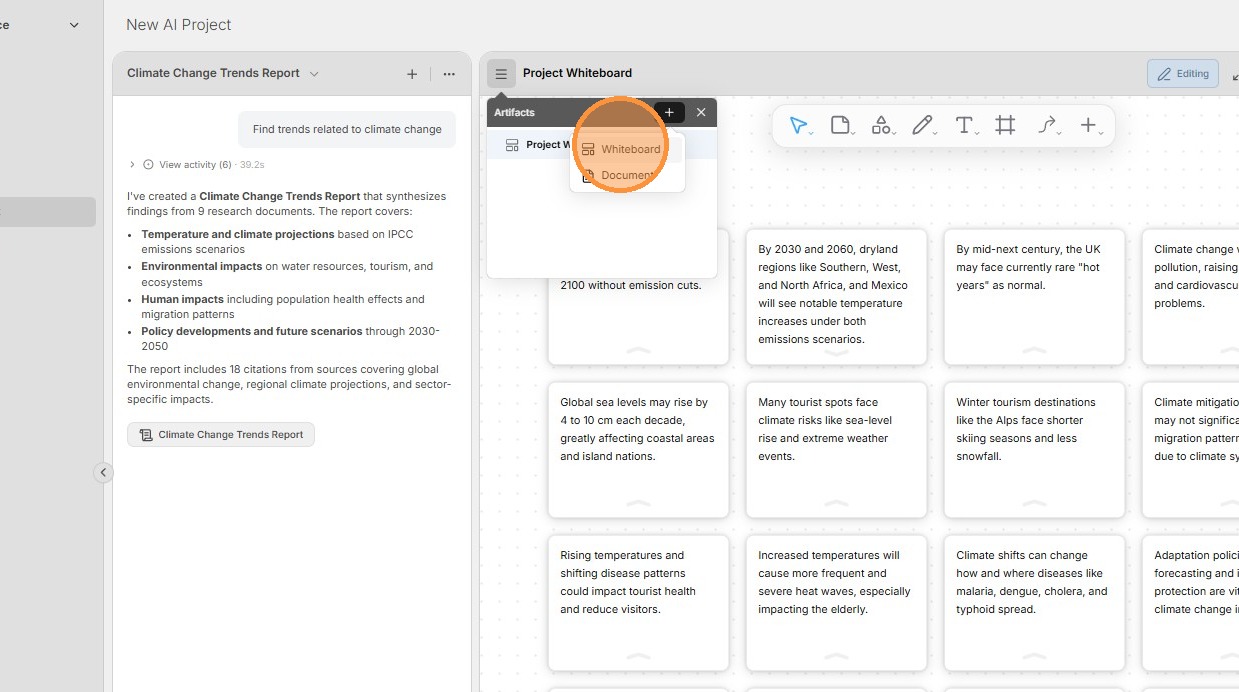
10. Create a new whiteboard by opening the menu beside the Project Whiteboard title in the top-left corner, clicking the + sign, and selecting Whiteboard.
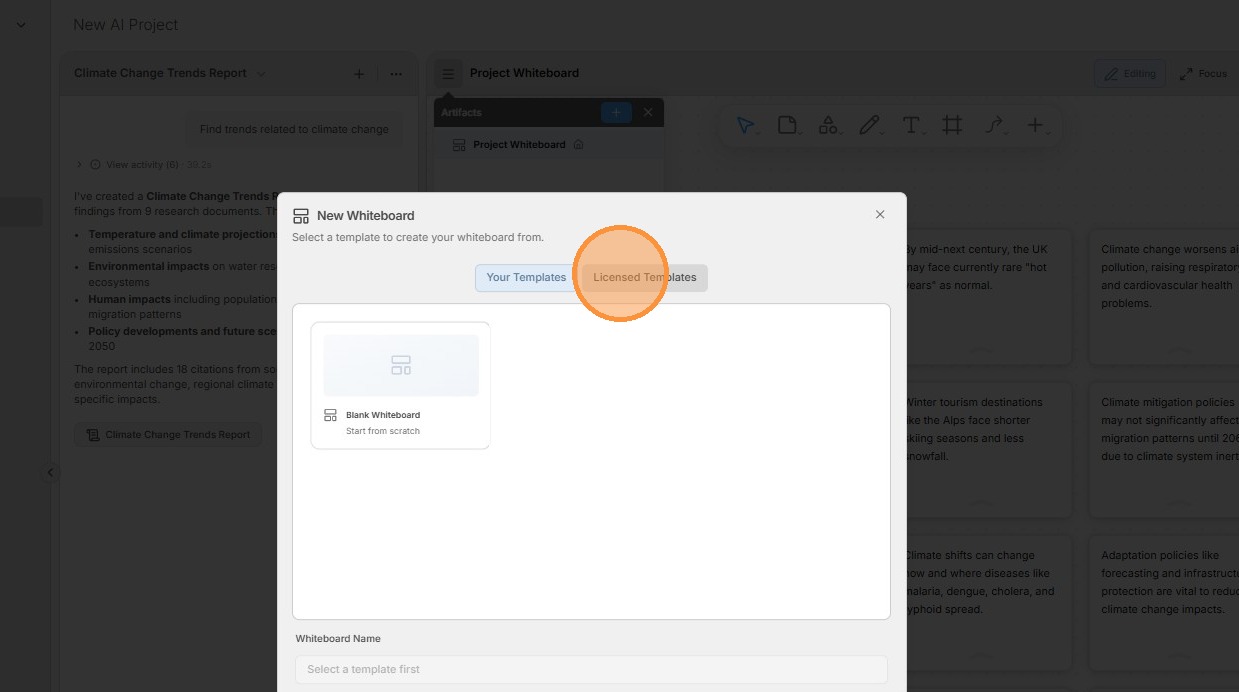
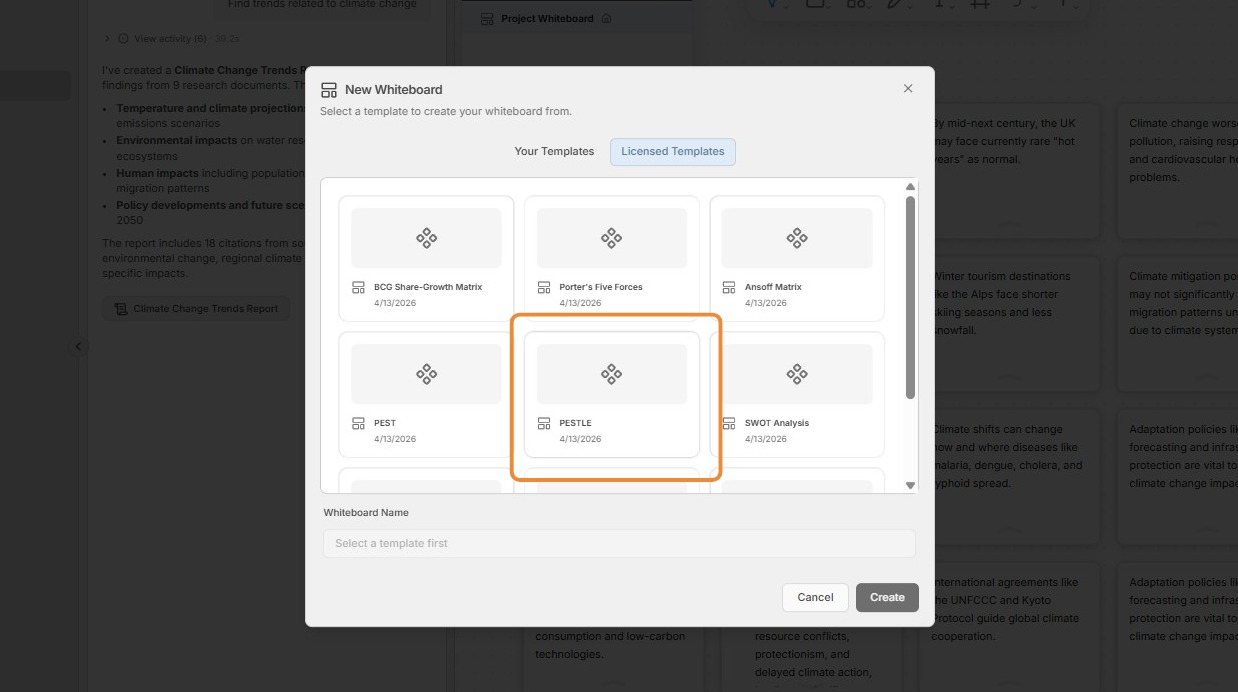
11. Open the Licensed Templates section.
12. Select the PESTLE whiteboard from the list and click Create. This will open the PESTLE whiteboard in the main pane.
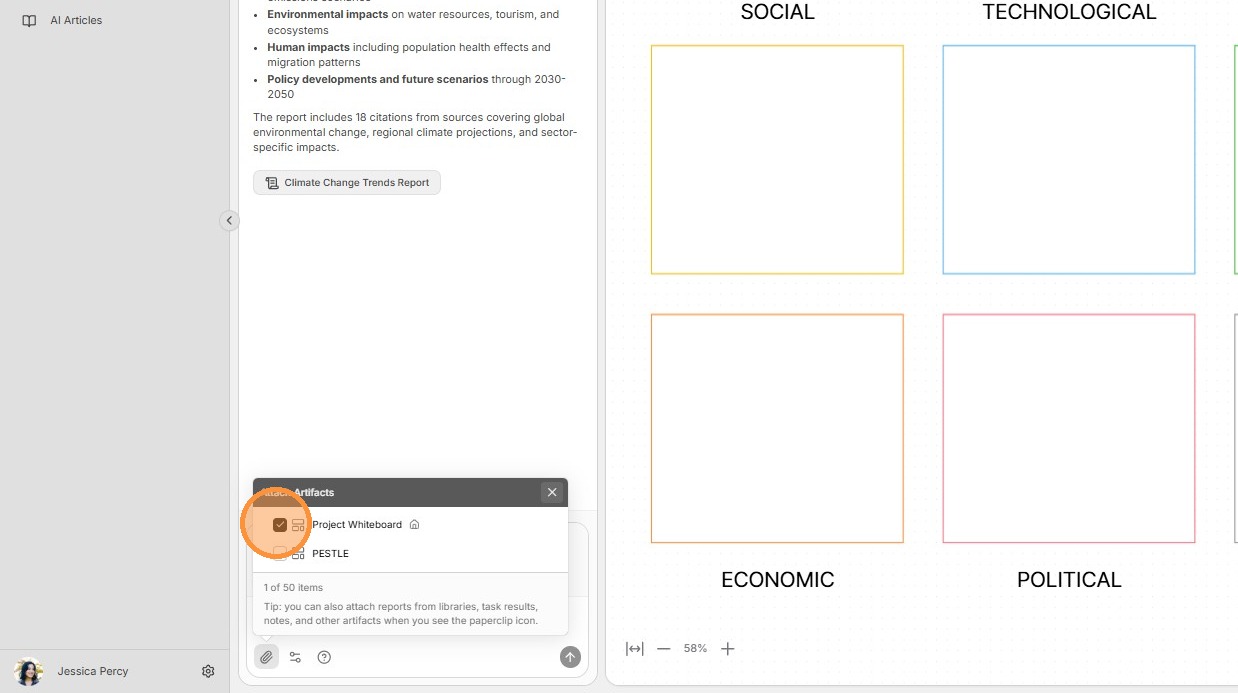
13. Attach the Project Whiteboard to the AI chat textbox by clicking the paperclip icon in the bottom-left corner and then selecting Project Whiteboard.
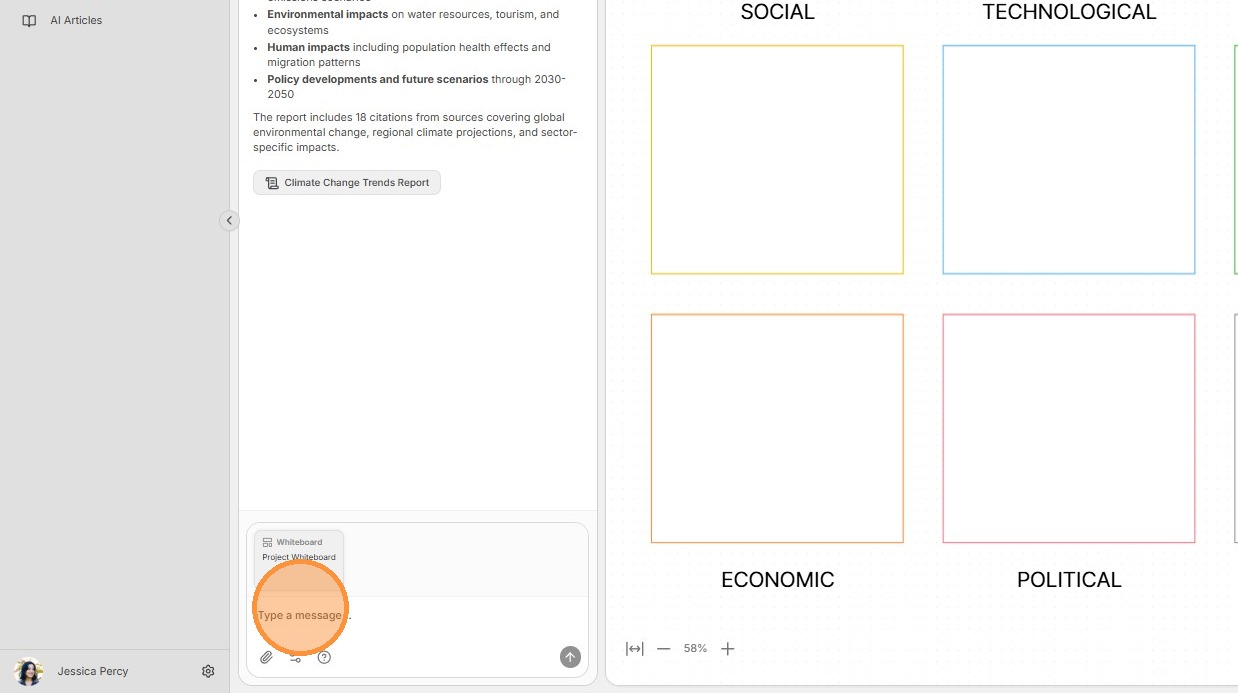
14. In the AI chat textbox, type: "Add the notes from Project Whiteboard to PESTLE".
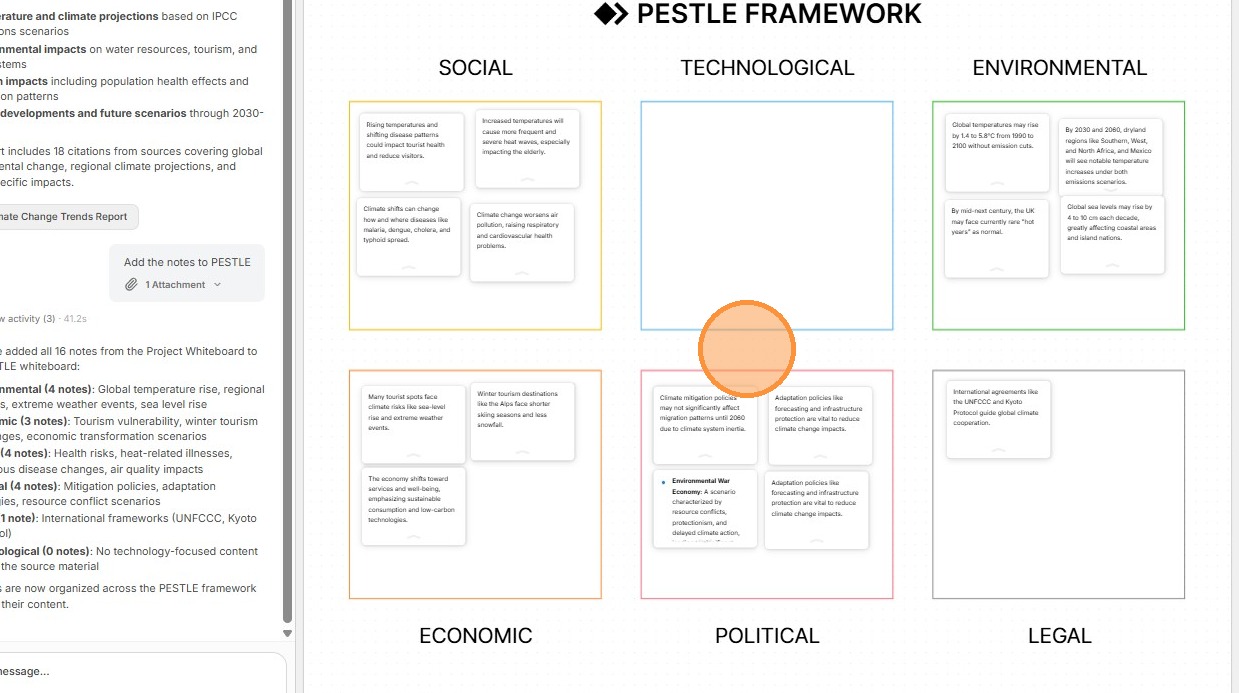
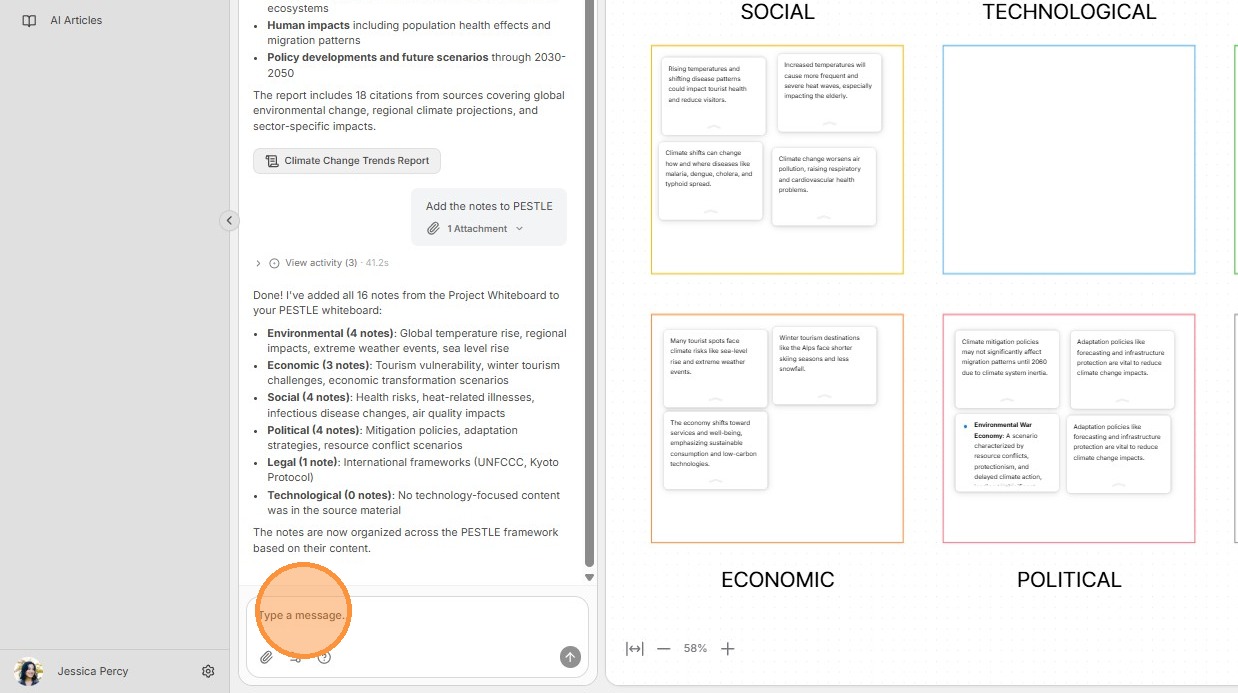
15. The AI agent will populate the PESTLE framework based on the themes of each Perceptful Note, similar to the screenshot below.
16. In the AI chat textbox, type: "Summarize the PESTLE board".
17. Once the AI agent is done, click the Task Result to open a document summarizing the whiteboard.
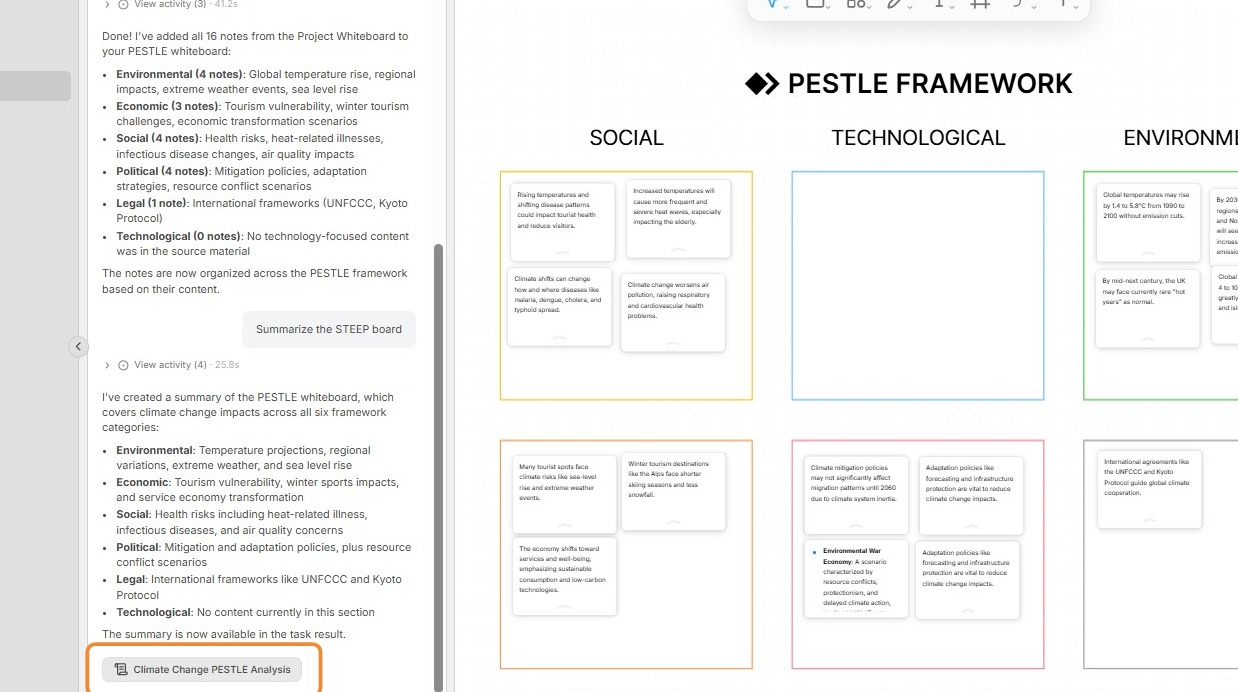
18. A document will open in the lower half of the main pane, summarizing the whiteboard by PESTLE category.