
Learn how to initiate a new project and perform a first search using integrated AI tools. This guide will help you navigate the platform interface to find and review relevant insights efficiently.
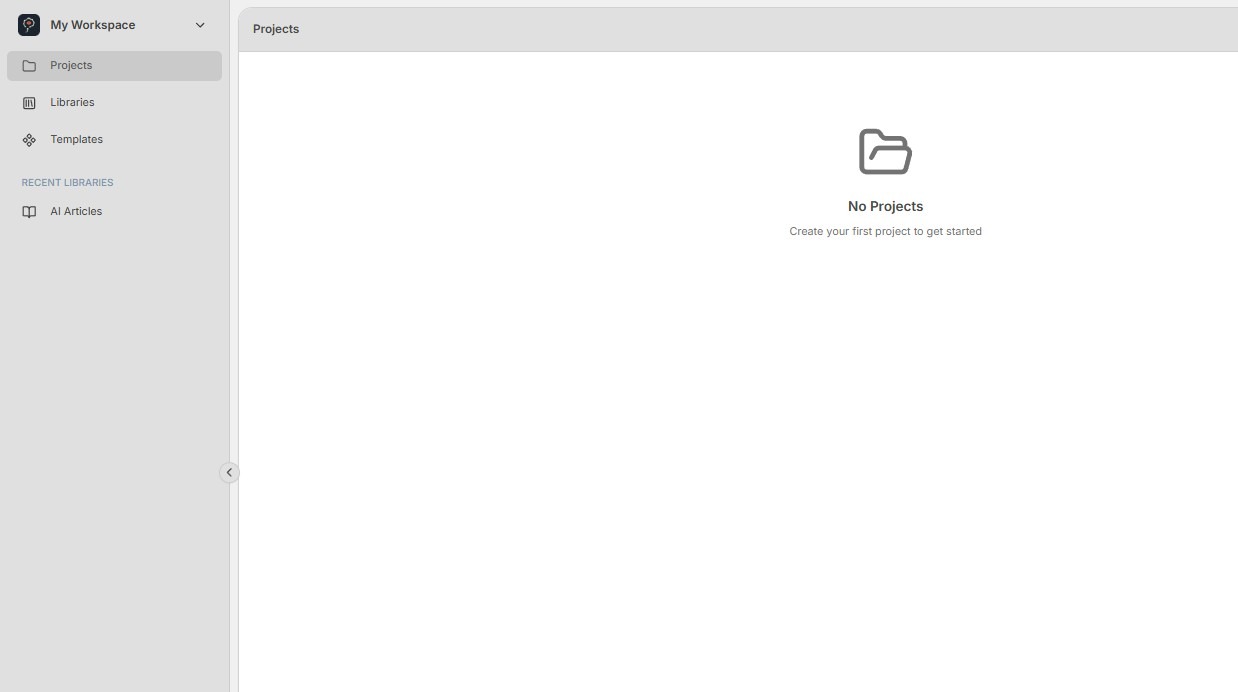
1. Navigate to the Projects section of My Workspace.
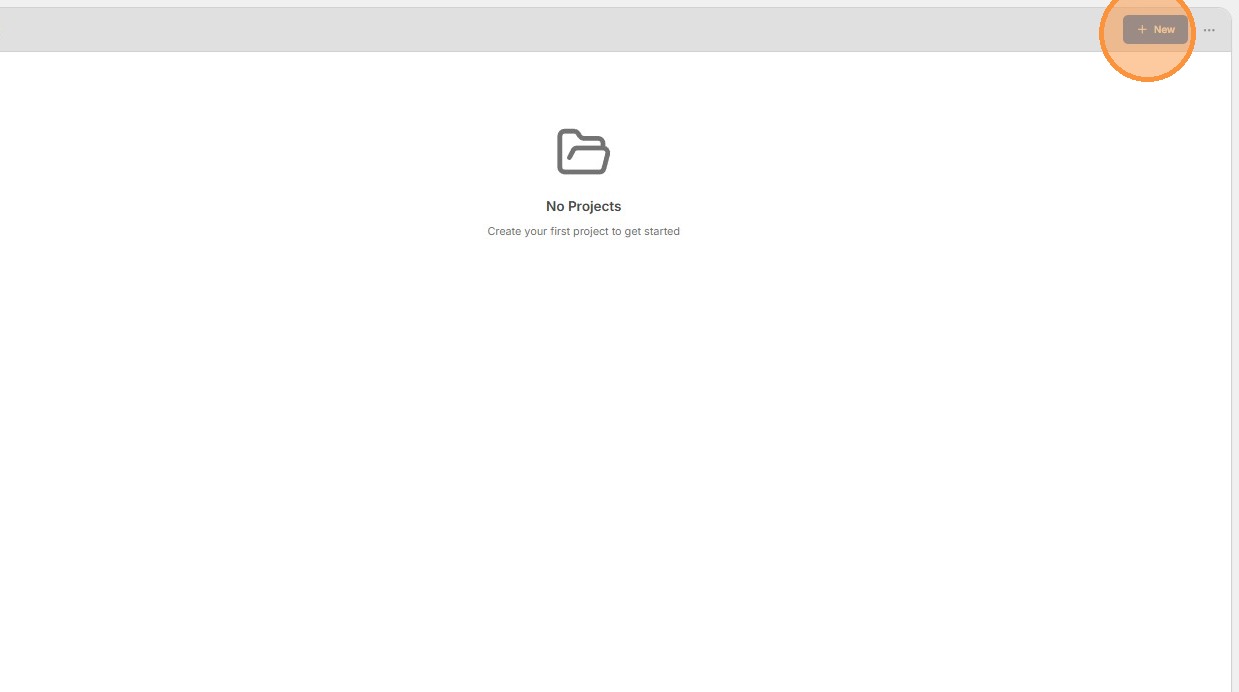
2. Click the + New button in the top-right corner to create a new project.
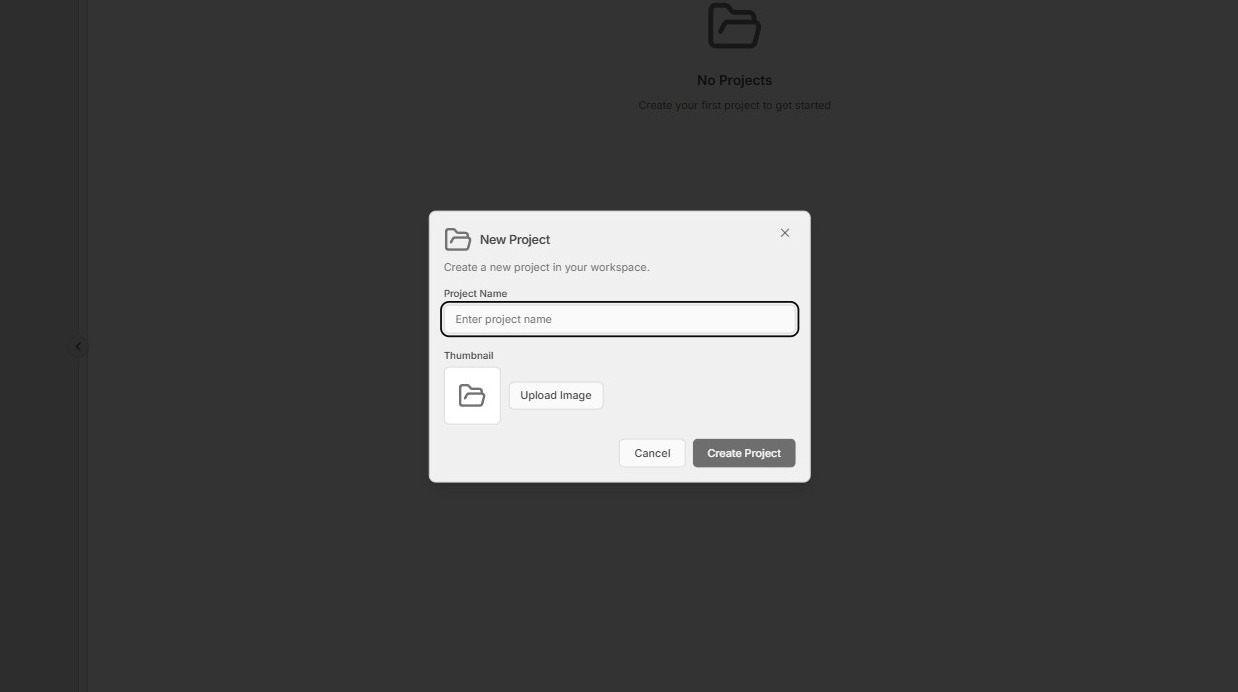
3. Provide a name for the project and click Create Project.
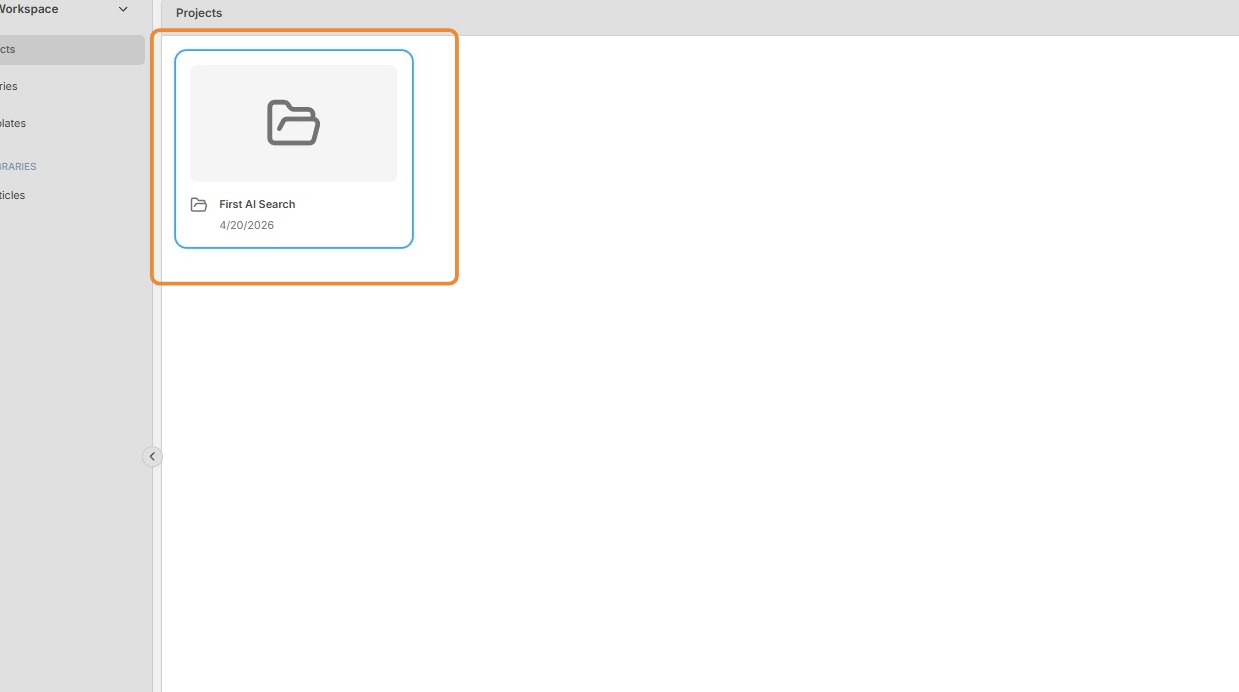
4. Double-click your new project to open it.
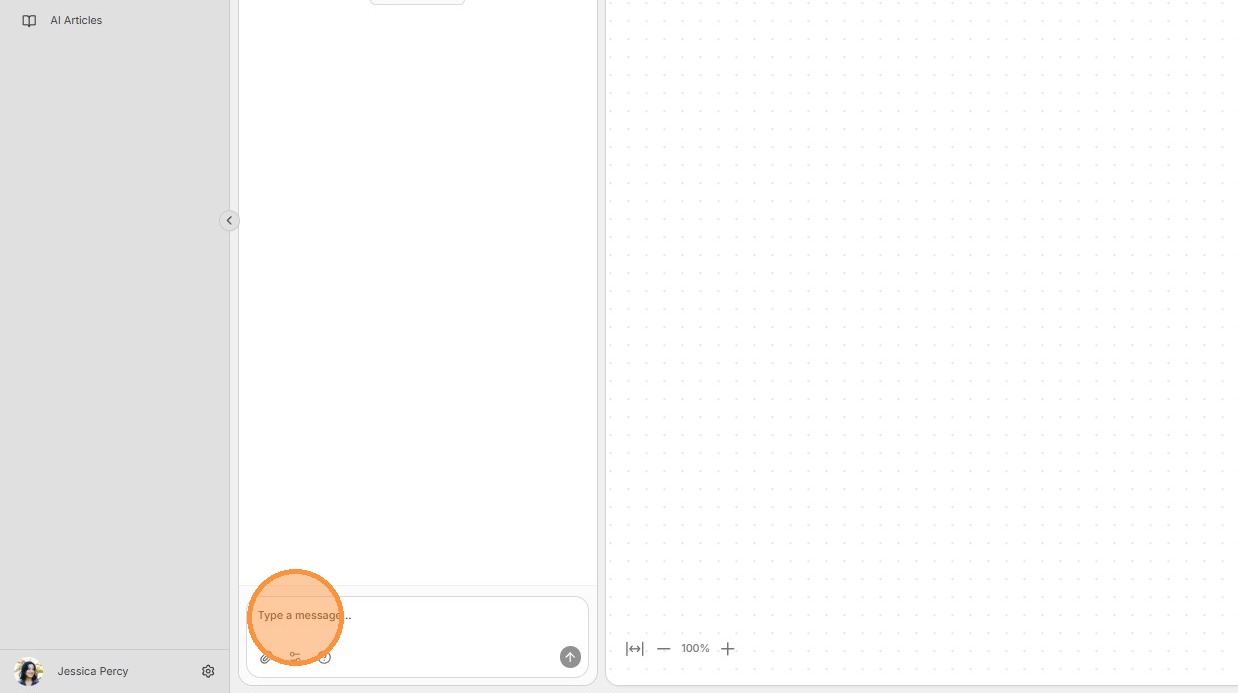
5. In the AI chat pane, type "Find trends related to climate change".
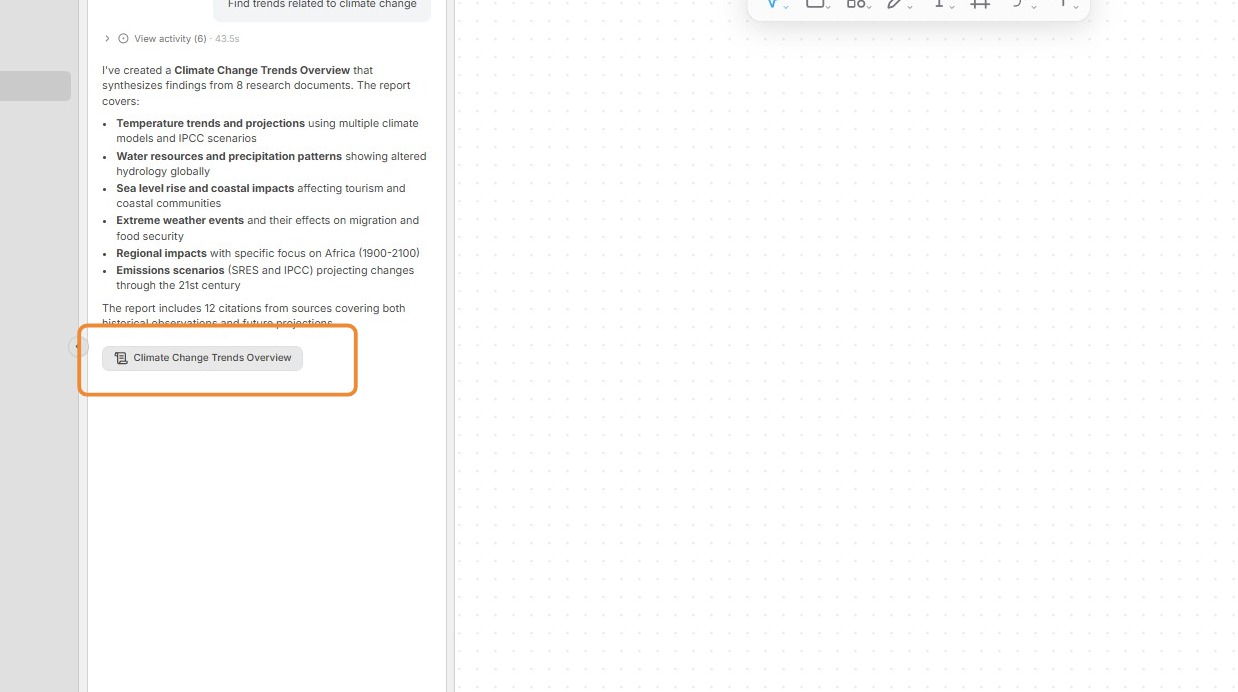
6. Open the Task Result in the AI chat window once the AI agent has completed the task. This will open a document in the bottom half of the main pane.
7.
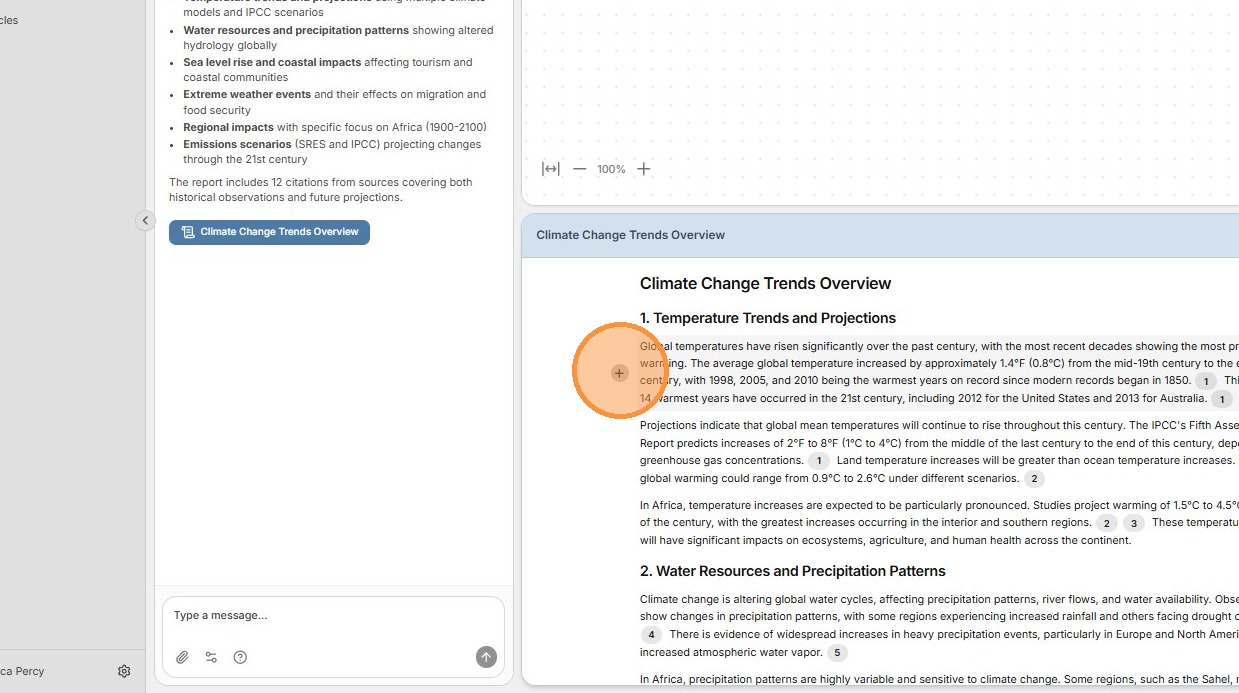
Move your mouse to the left of any paragraph and click the + sign to add that excerpt to the Project Whiteboard.
You can group multiple paragraphs together by pressing the mouse button on the first + sign, dragging the mouse up or down, and then releasing the mouse button.
You can also highlight text and click the Add Note button in the context menu.
8. You have now conducted a simple search, reviewed the resulting output, and extracted excerpts to the Project Whiteboard.