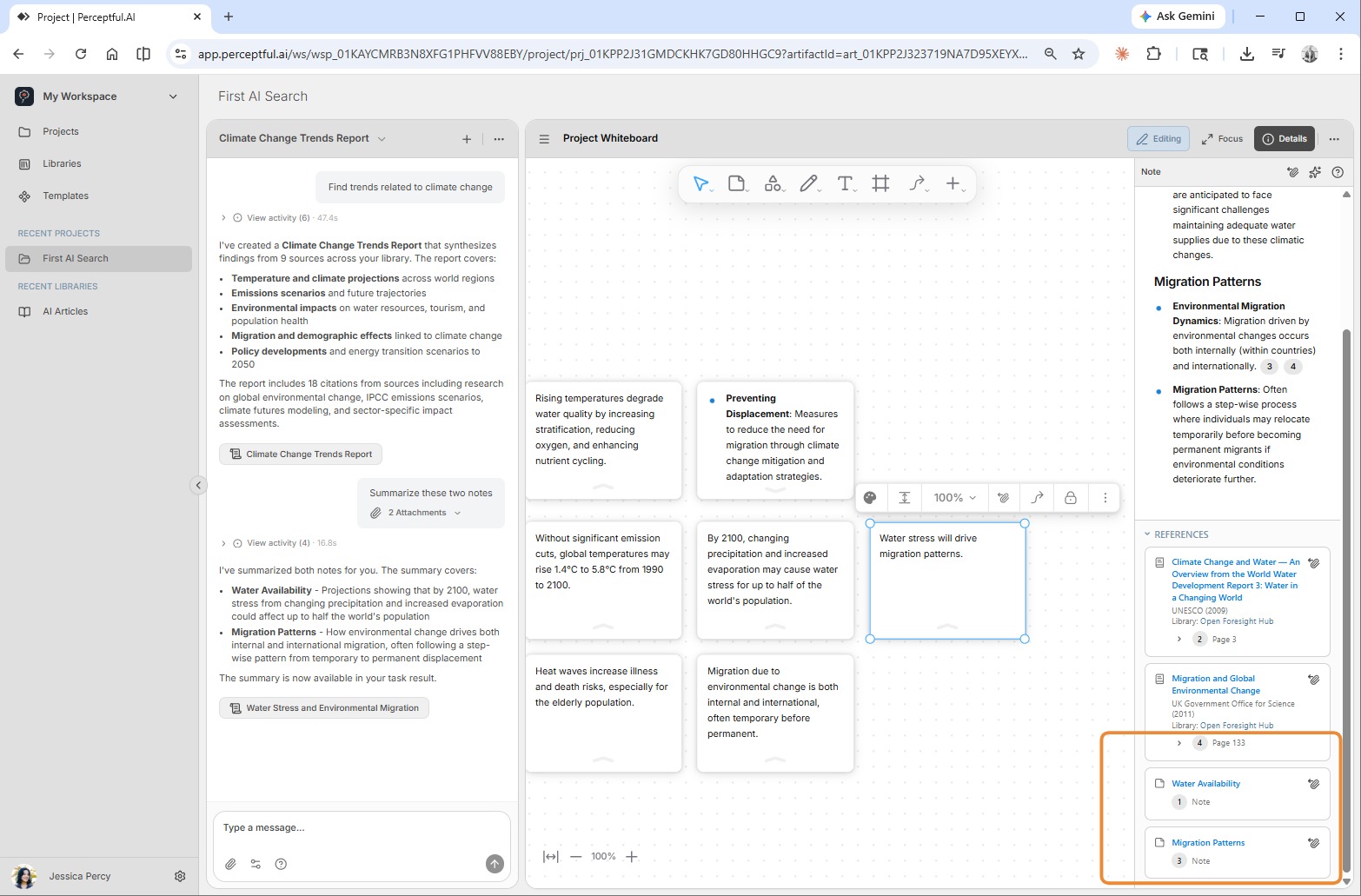
Learn how Perceptful Notes enable you to track insights back to their original sources and document the progression of your thoughts through your workflow.
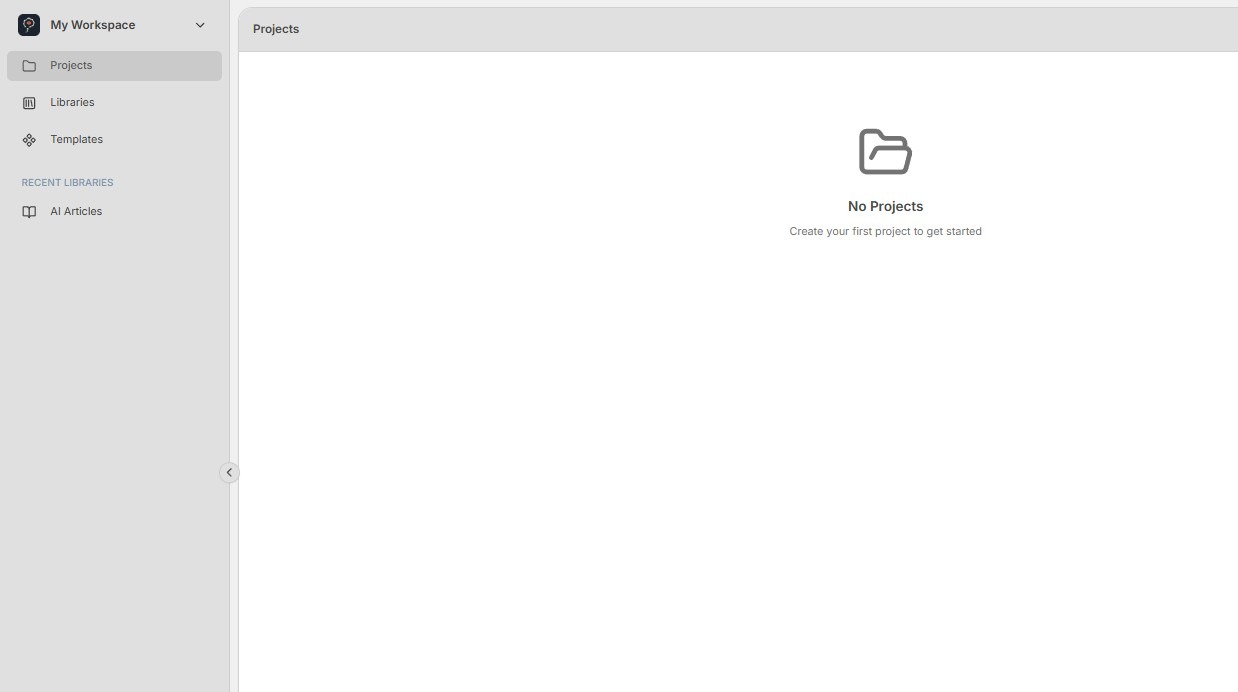
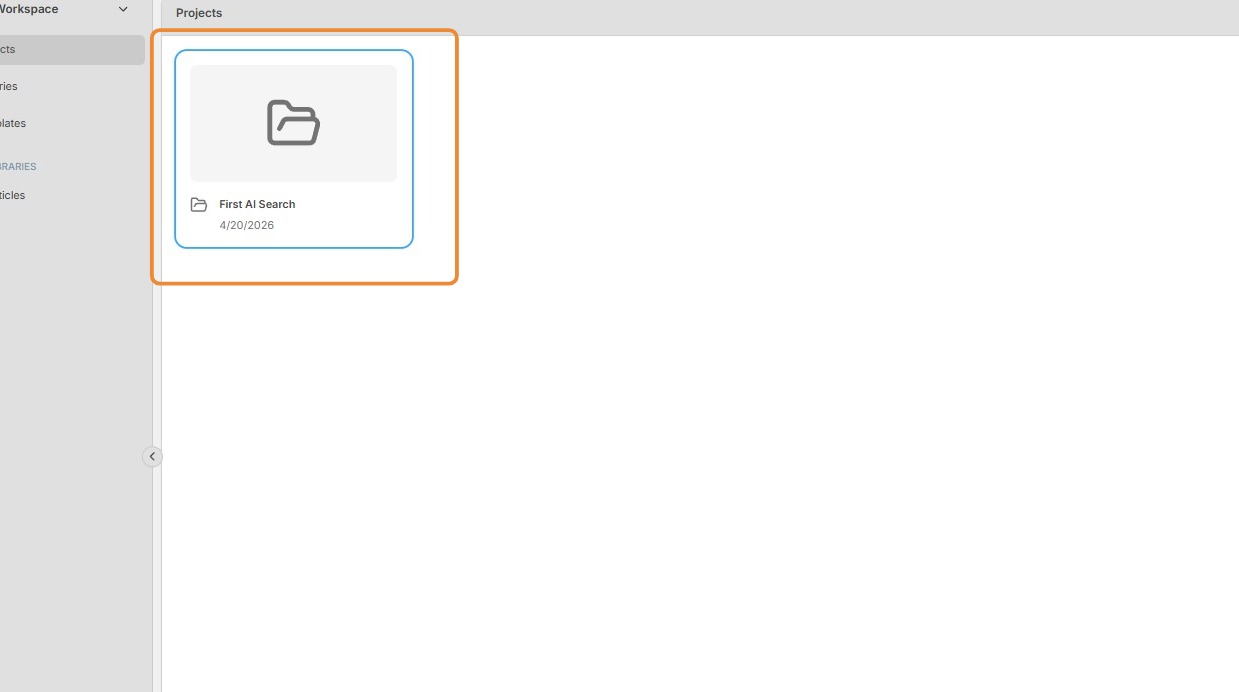
1. Navigate to the Projects section of My Workspace.
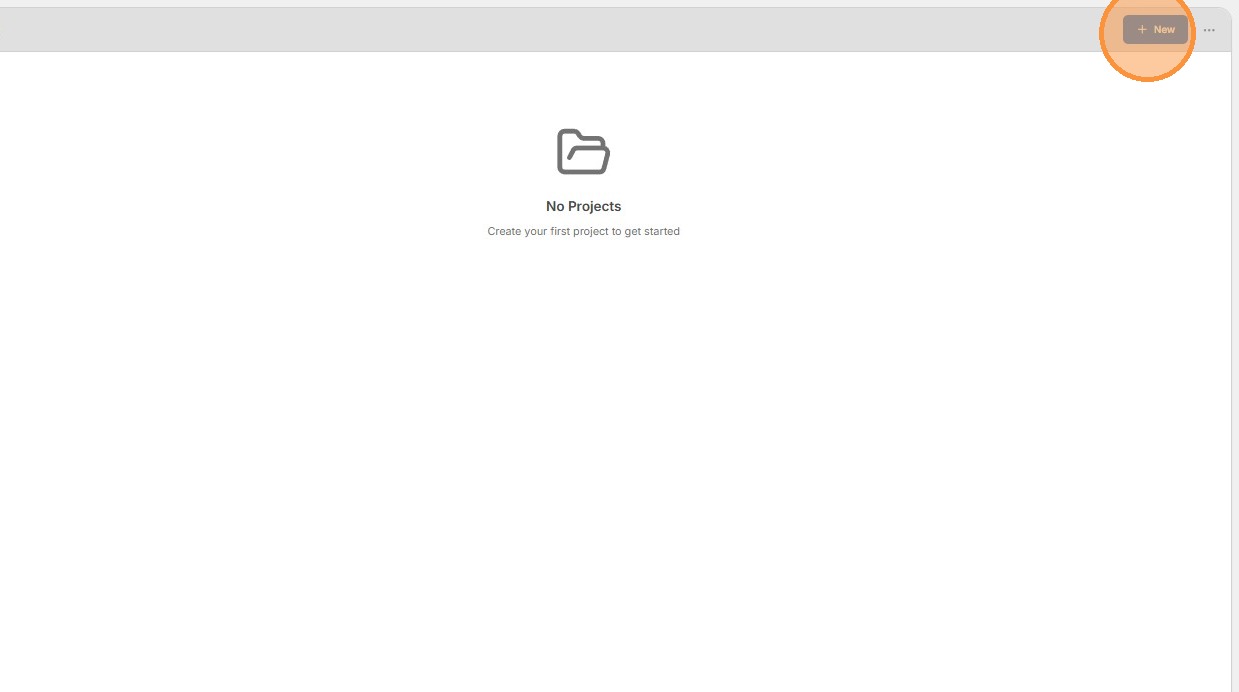
2. Click the + New button in the top-right corner to create a new project.
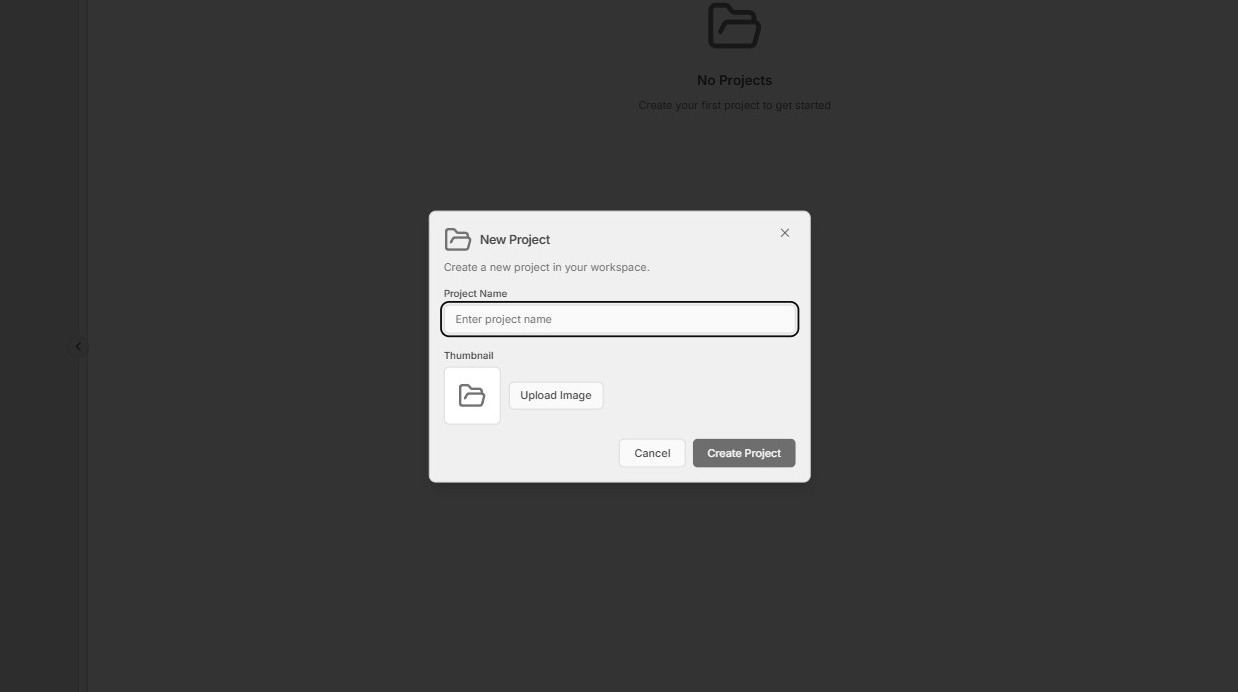
3. Provide a name for the project and click Create Project.
4. Double-click your new project to open it.
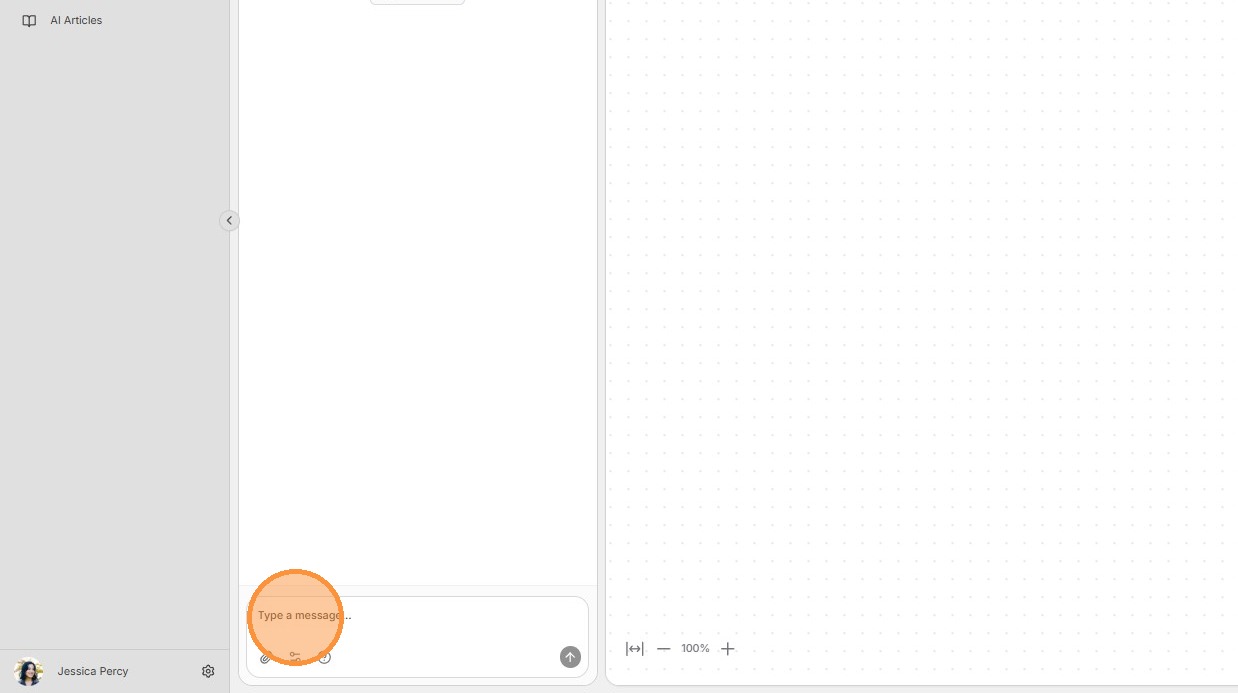
5. In the AI chat pane, type "Find trends related to climate change".
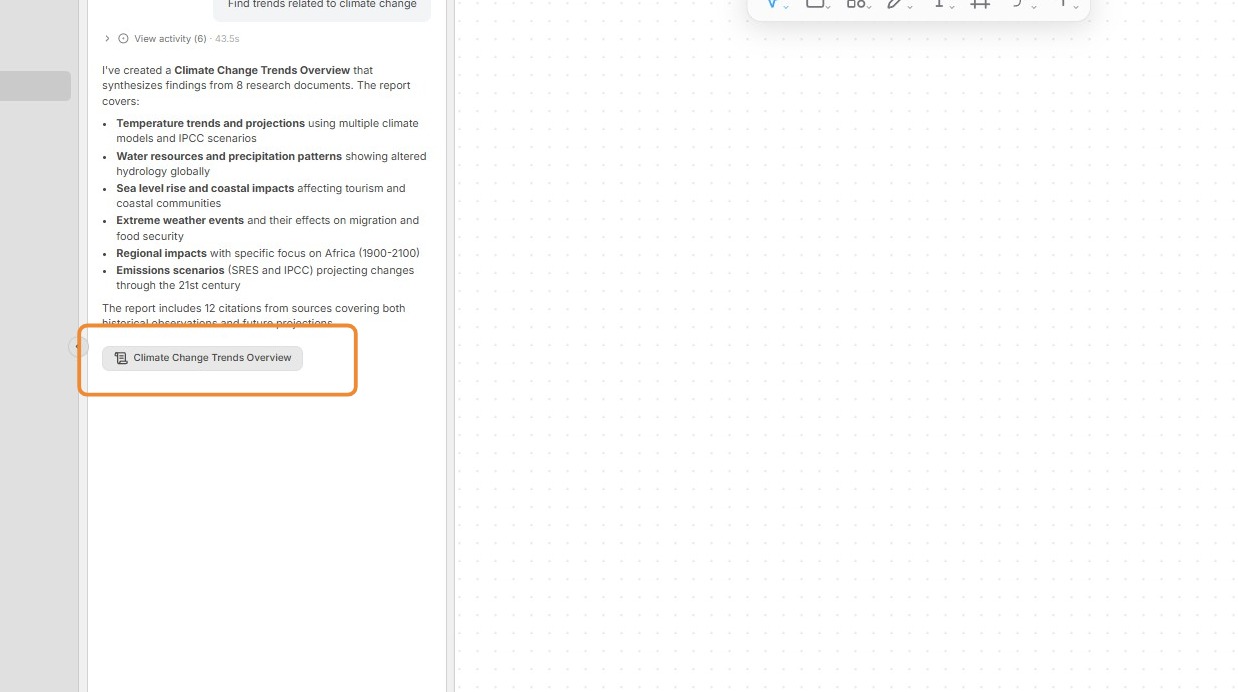
6. Open the Task Result in the AI chat window once the AI agent has completed the task. This will open a document in the bottom half of the main pane.
7.
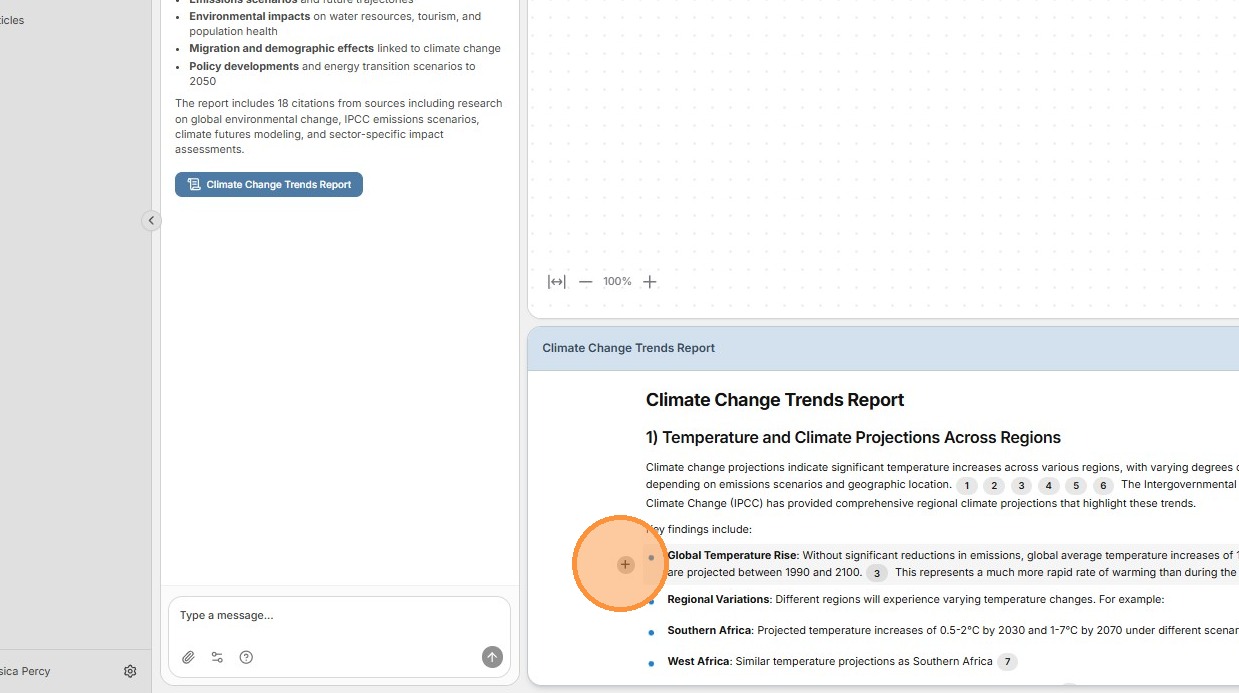
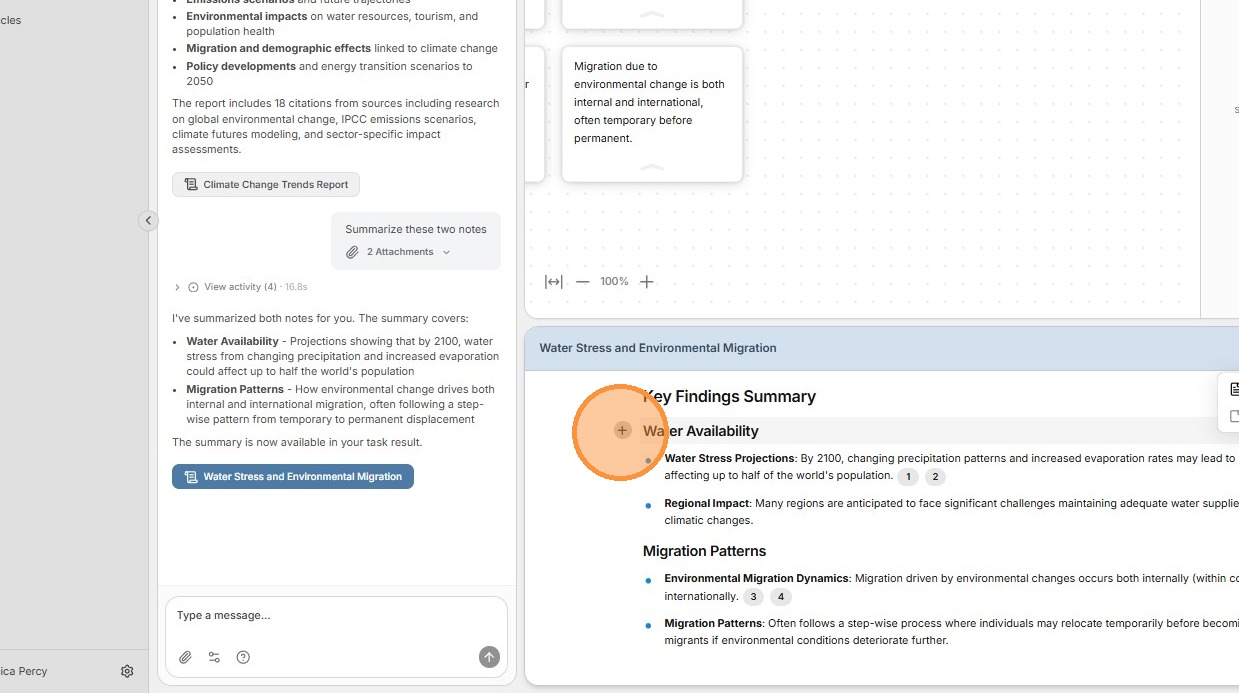
Move your mouse to the left of any paragraph and click the + sign to add that excerpt to the Project Whiteboard.
You can group multiple paragraphs together by pressing the mouse button on the first + sign, dragging the mouse up or down, and then releasing the mouse button.
You can also highlight text and click the Add Note button in the context menu.
8. Close the Task Result document once you have collected a series of excerpts.
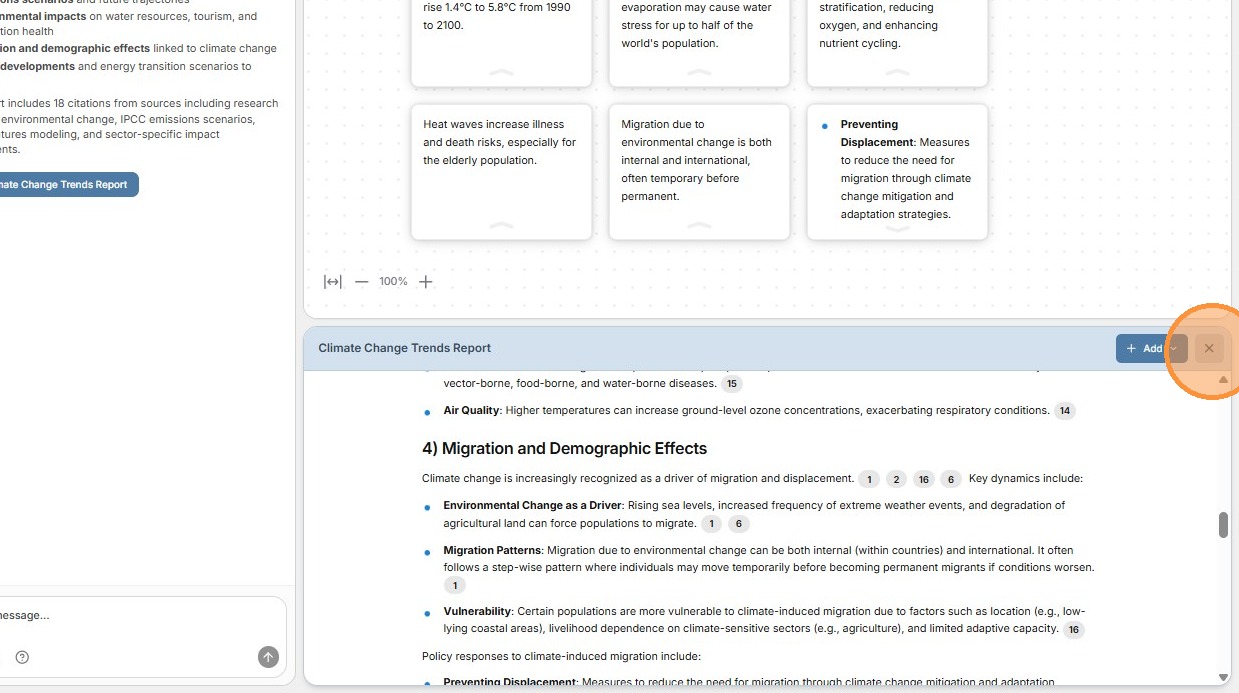
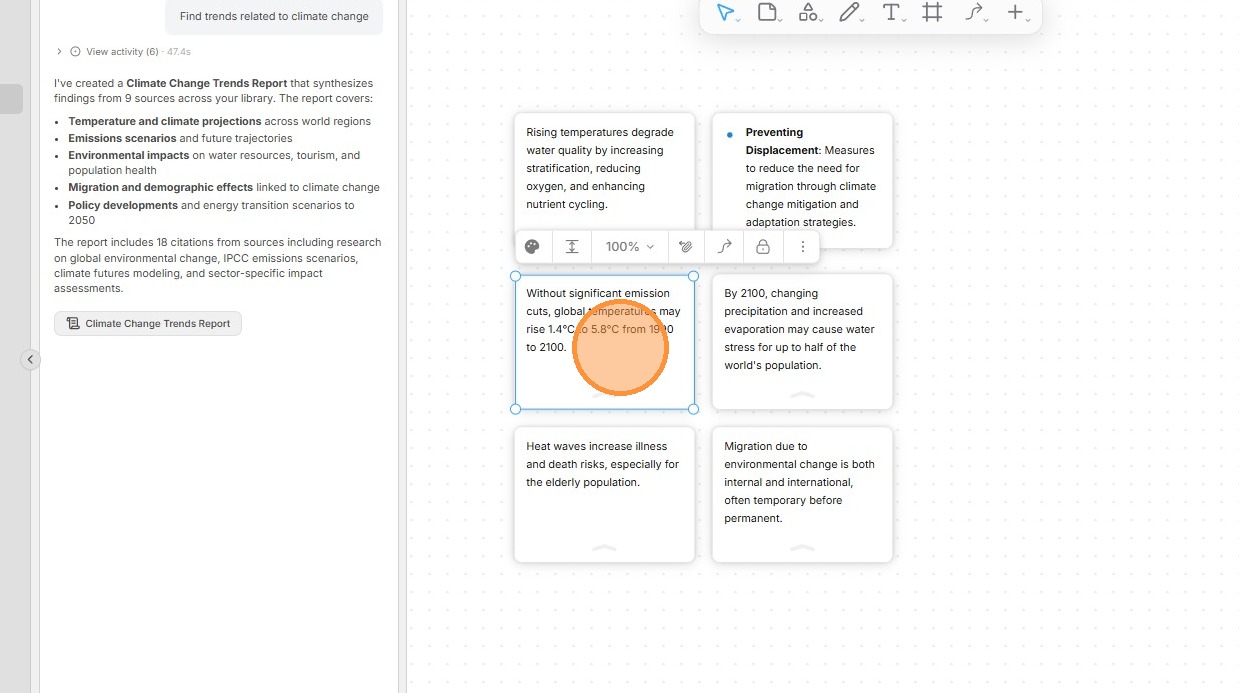
9. Select one of the Perceptful Notes.
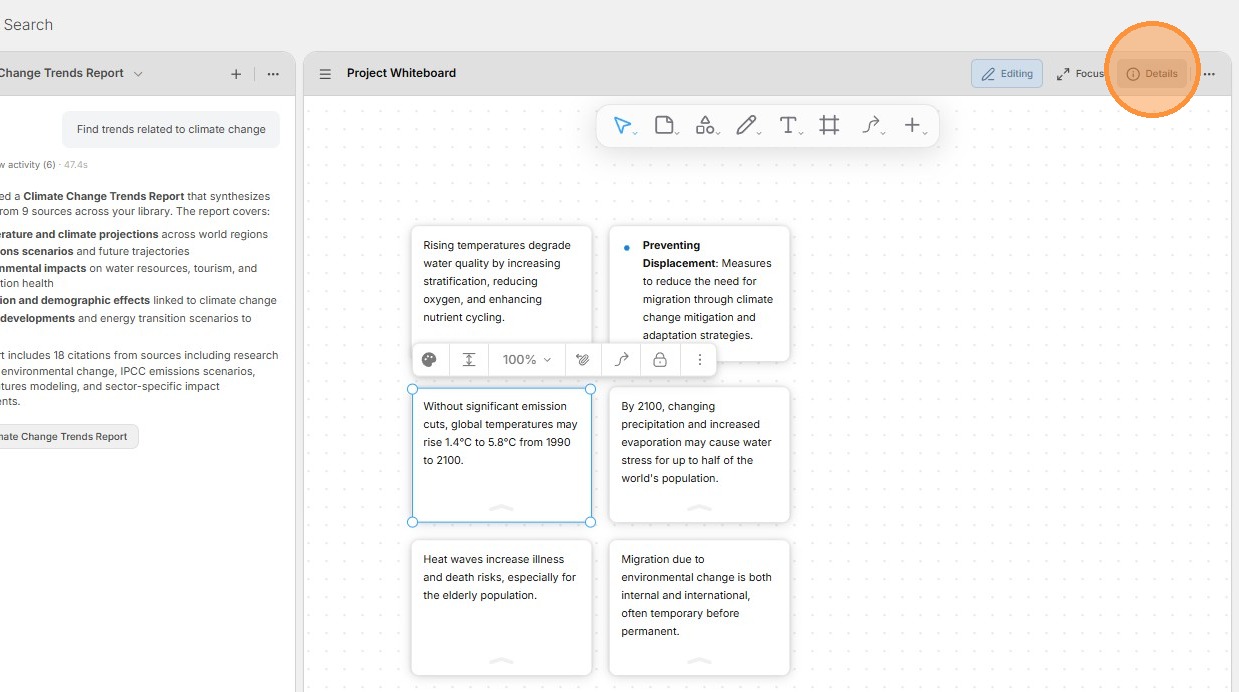
10. Click the Details button in the top-right corner.
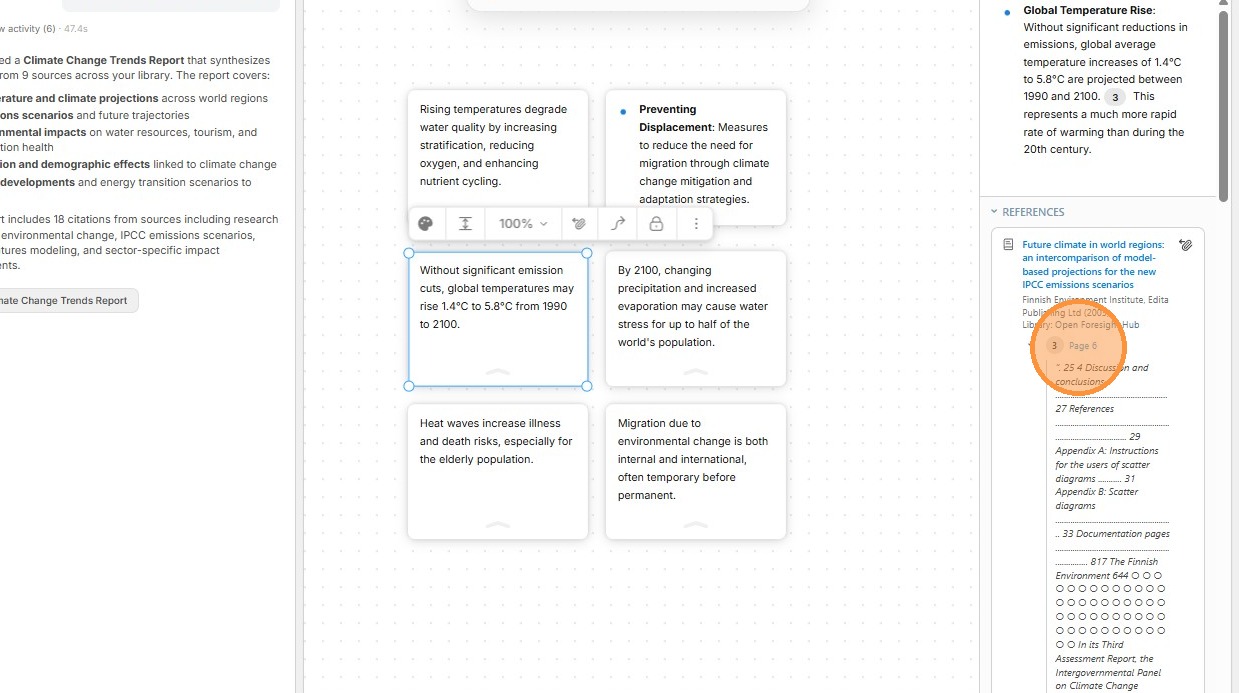
11. In the side panel you will see the original excerpt from the Task Result, along with the original references belonging to that excerpt.
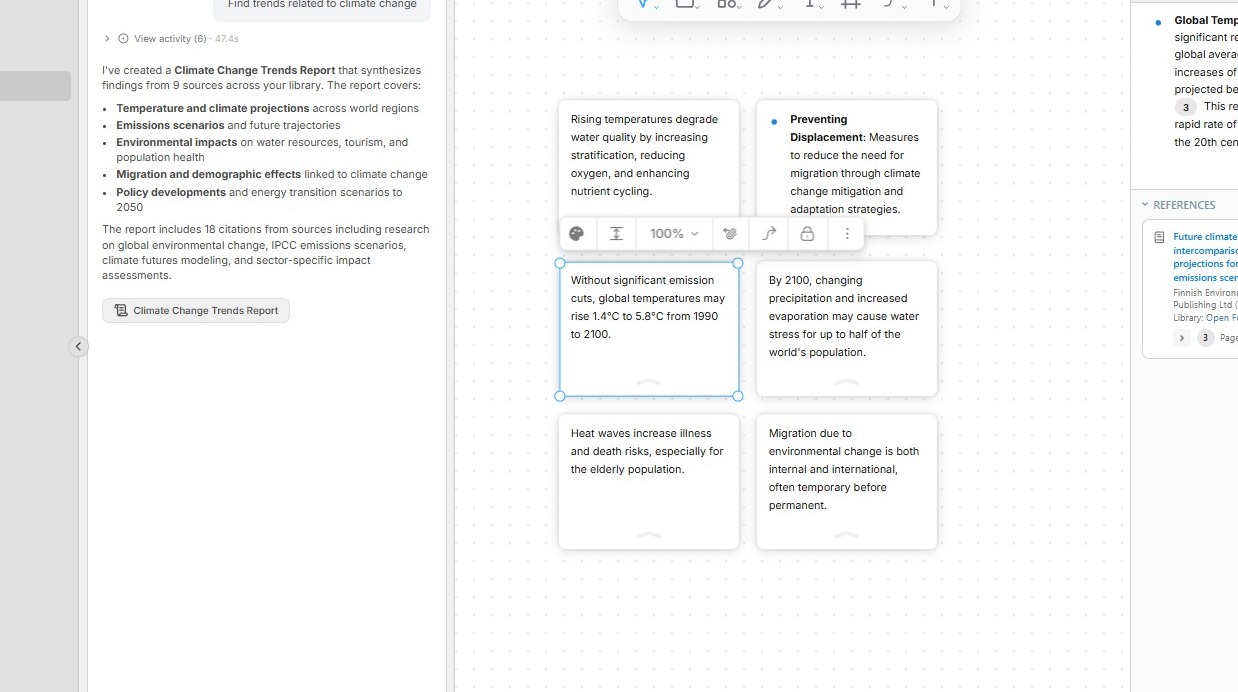
12. Clicking on the page of the reference will load the PDF and navigate to that page in a new browser tab.
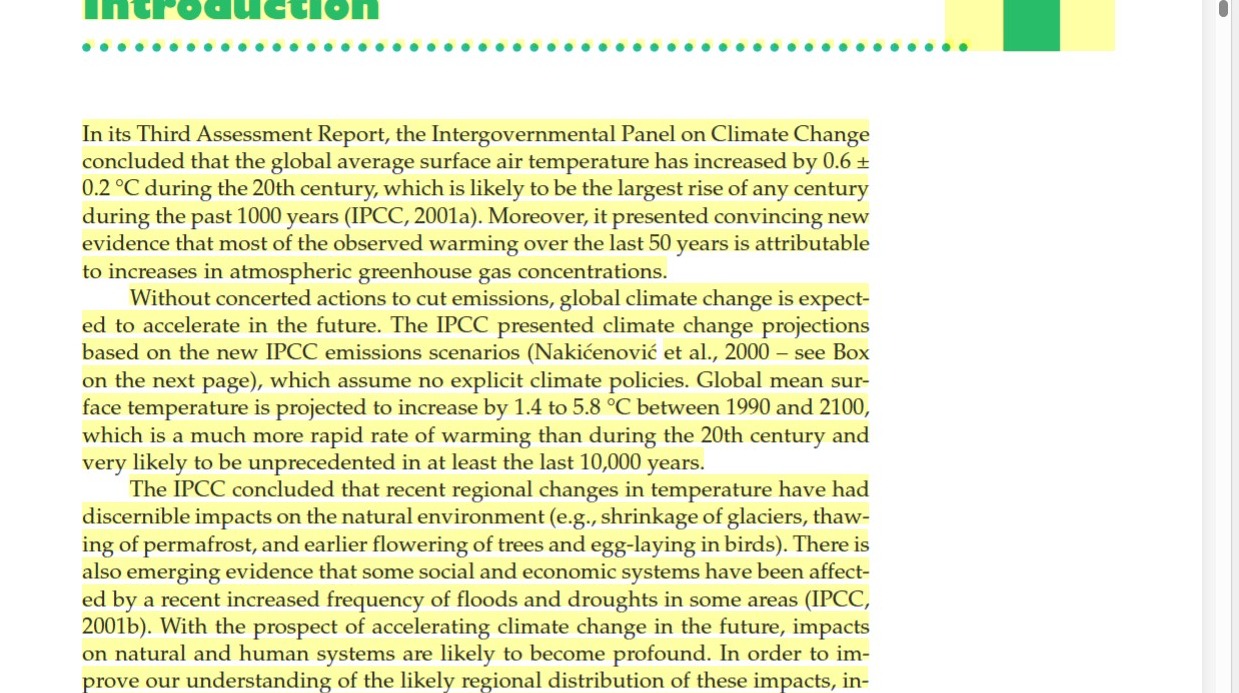
13. The text in the PDF that the excerpt references will be highlighted.
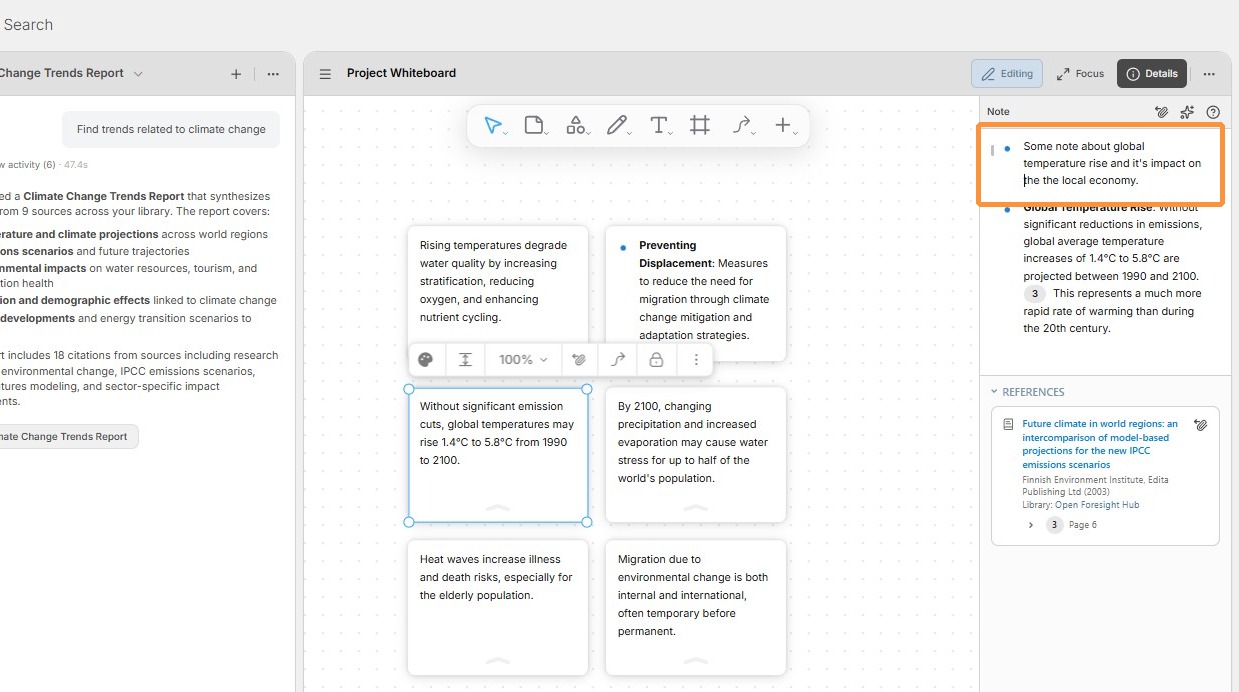
14. You can add personal notes to a Perceptful Note. These notes are accessible to all users in the project.
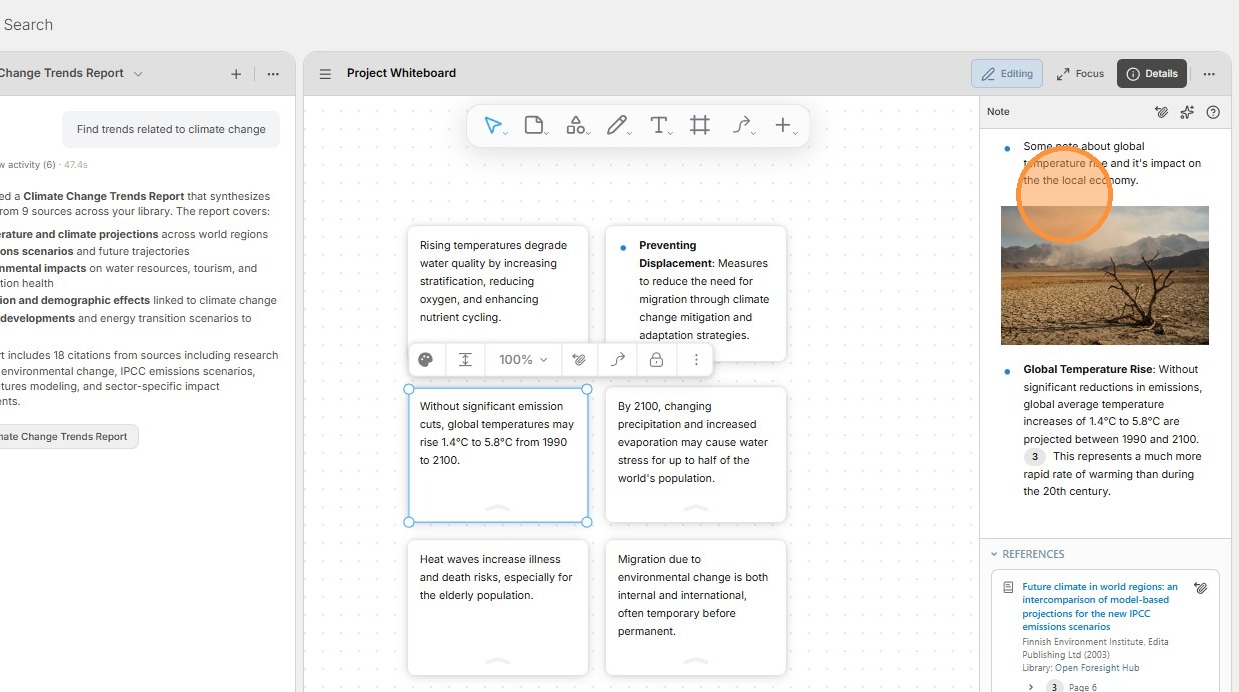
15. Perceptful Notes provide rich text editing. Typing the / key will open a menu to select from. In this case, choosing Image will allow you to add images to the Perceptful Note.
16. Clicking on the paperclip icon will add the Perceptful Note as an attachment to the AI chat textbox.
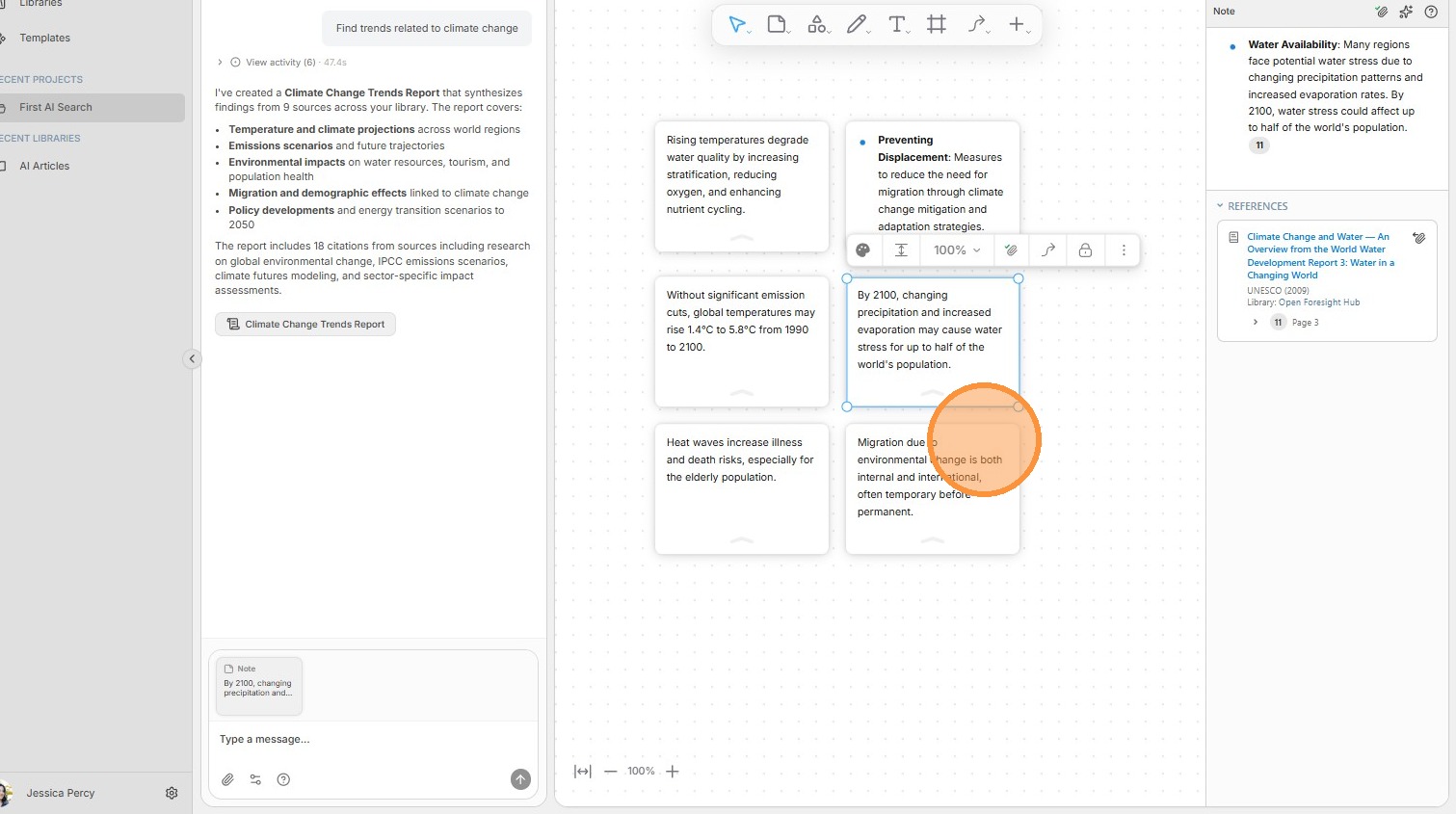
17. Click the Attach button to add the Perceptful Note to the chat.
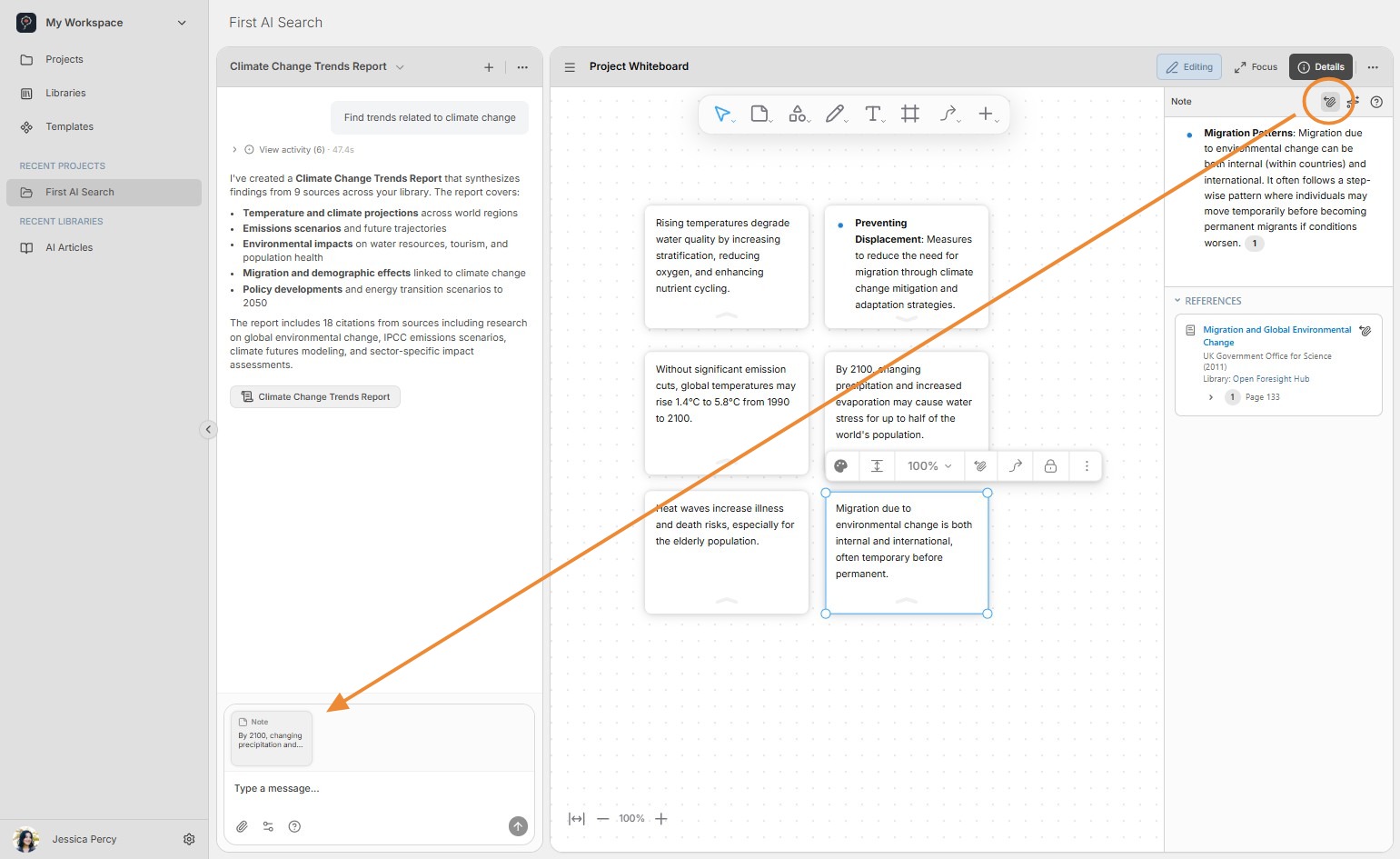
18. You can add multiple Perceptful Notes to the AI chat textbox and then assign tasks to the AI agent. For instance, you can ask the AI agent to summarize two Perceptful Notes.
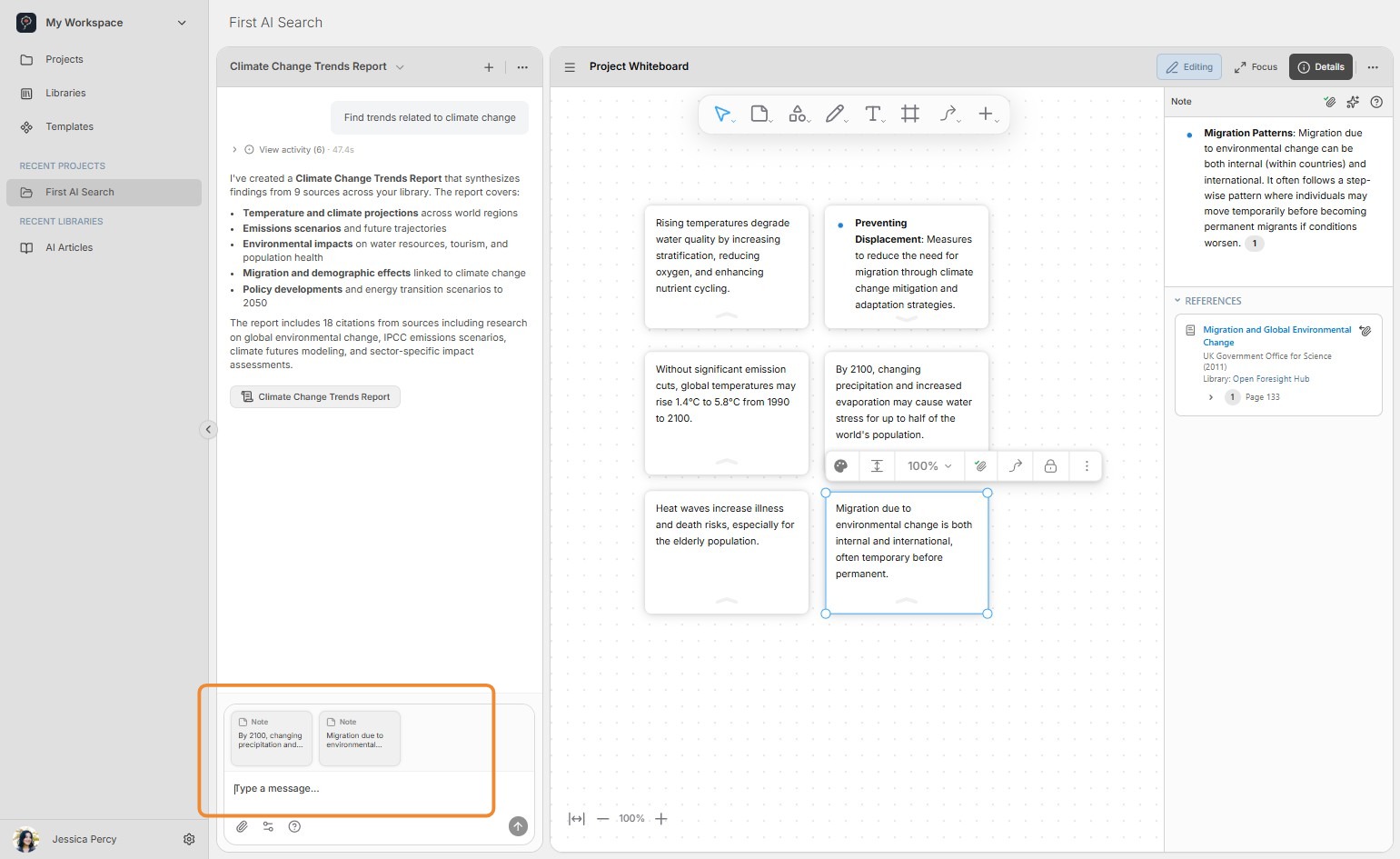
19. Click the send icon to submit the task to the AI agent.
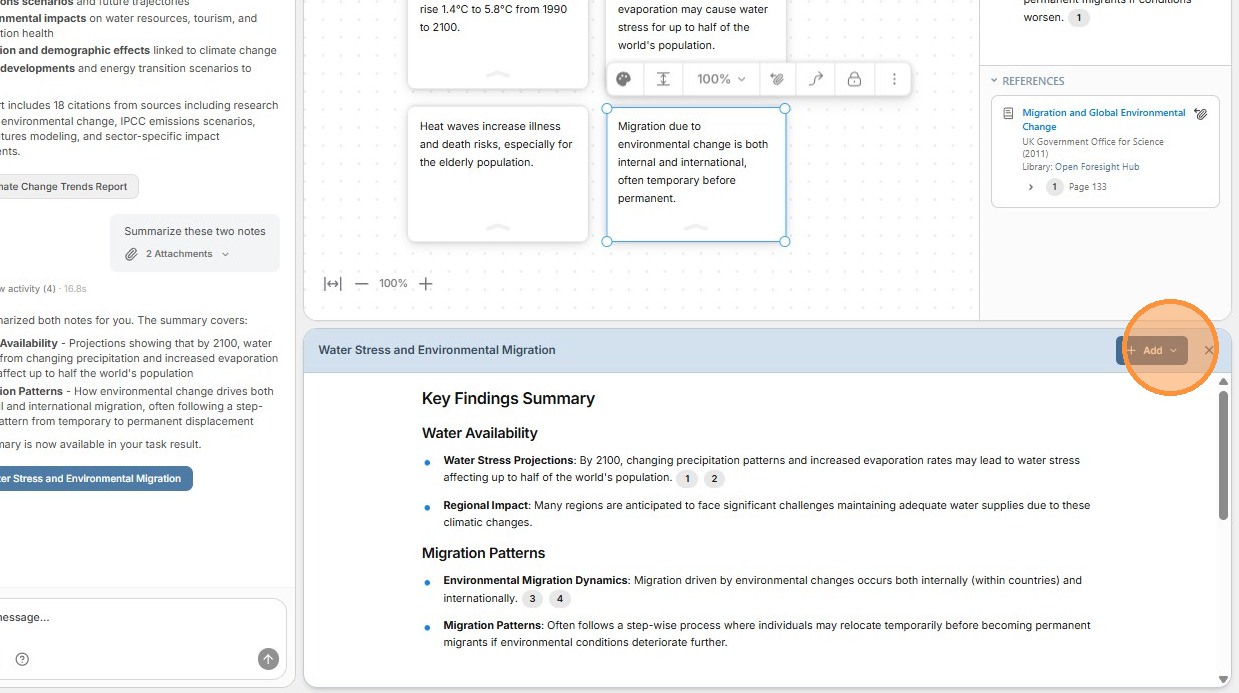
20. You can add the entire Task Result document to the whiteboard.
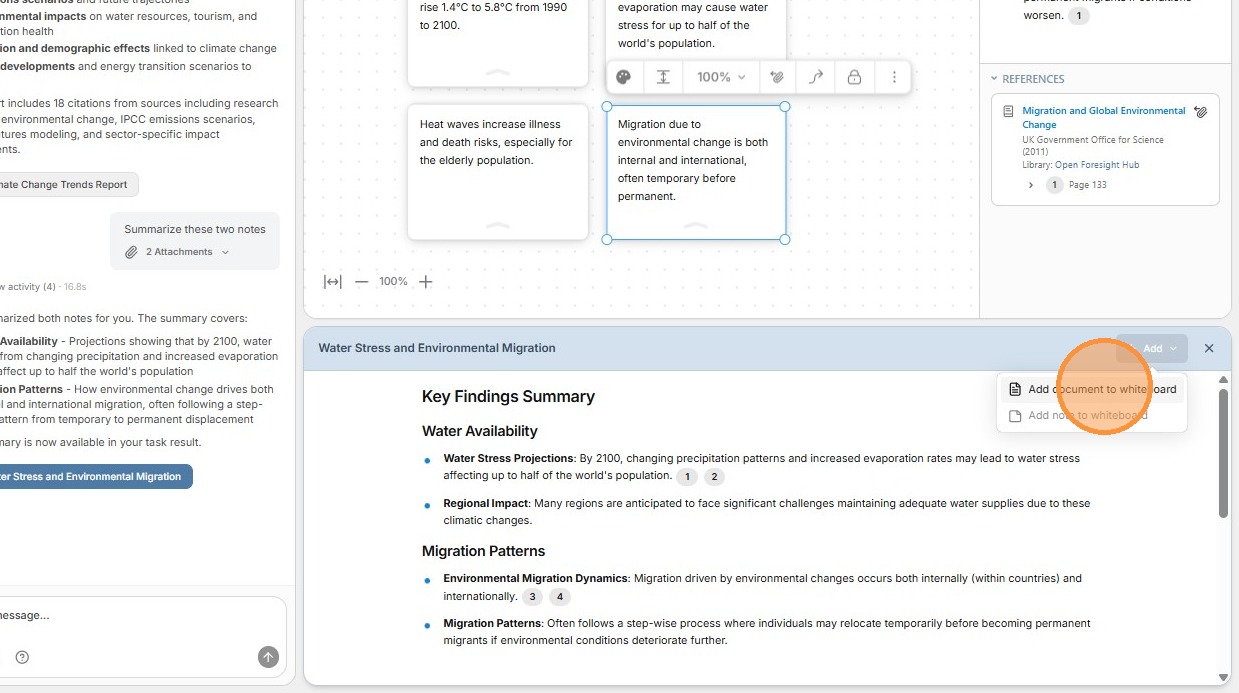
21. Alternatively, you can add a subset of the document as a Perceptful Note.
22. The new Perceptful Note — generated by combining two other Perceptful Notes — contains the original Perceptful Notes in the references section. This enables you to track the progression of your insights back to the original sources.