Learn about the different UI tools in the AI Chat pane. Topics covered include attaching files, selecting libraries, choosing output templates, renaming conversations and creating new ones, and tools to help you get the most out of the platform.
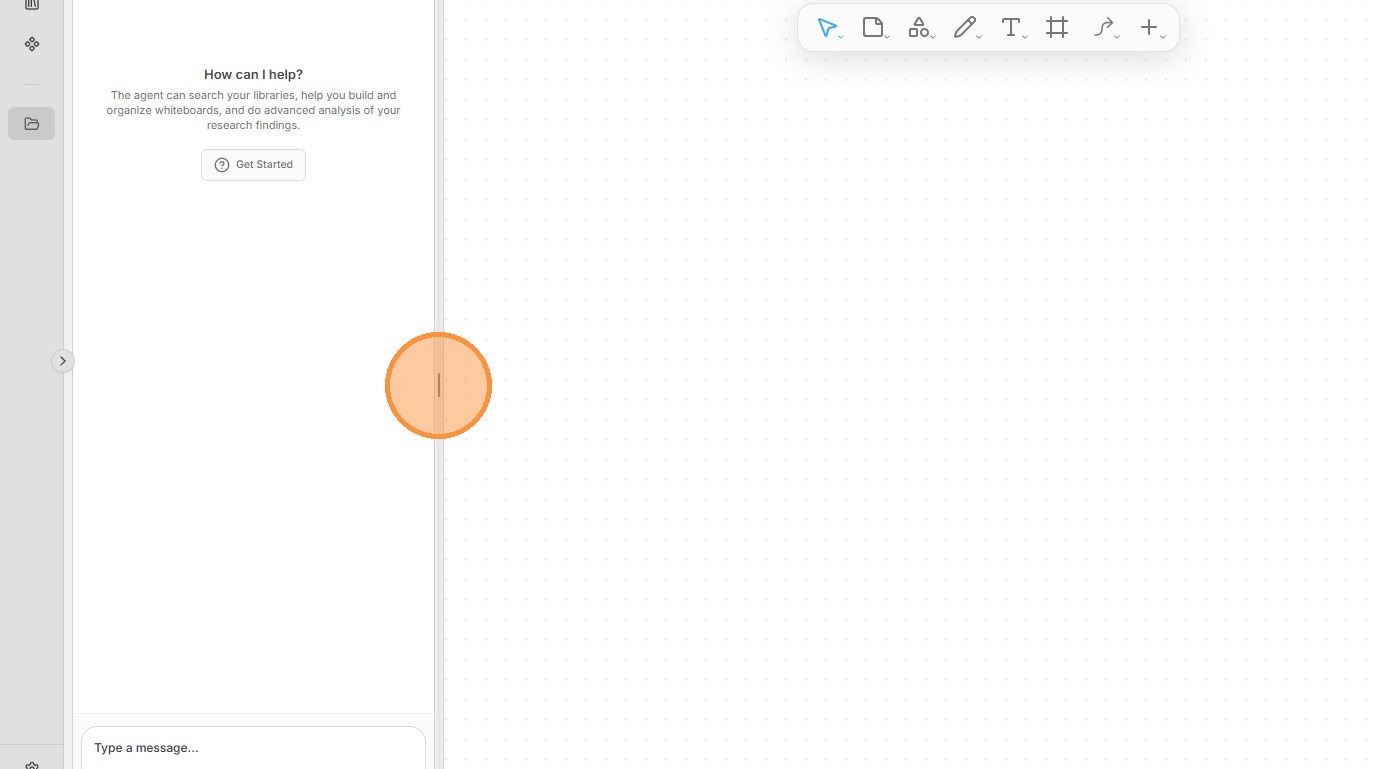
1. The AI Chat pane is visible on the left side when a project is loaded. You can resize the width of the chat pane by dragging the highlighted bar.
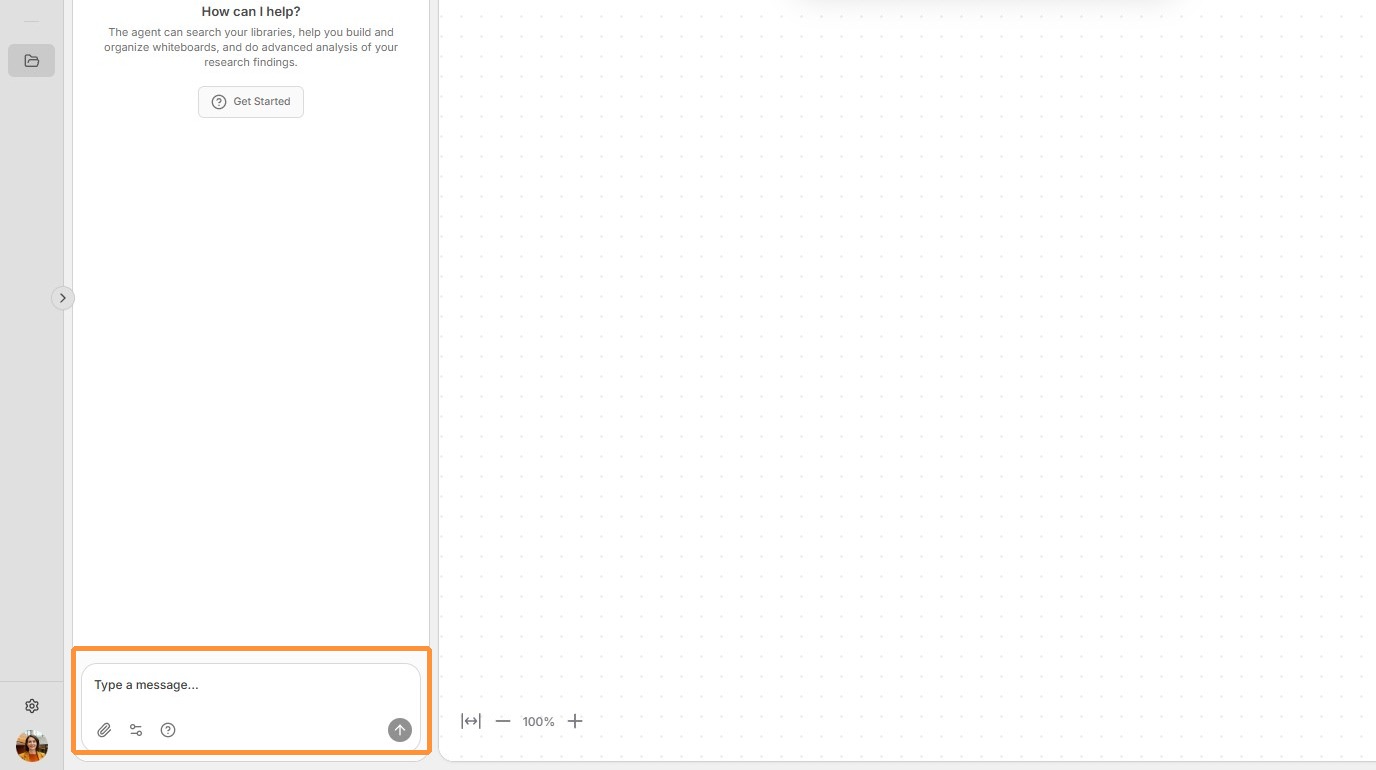
2. To converse with AI agents, simply type your message in the text box at the bottom of the pane.
3.
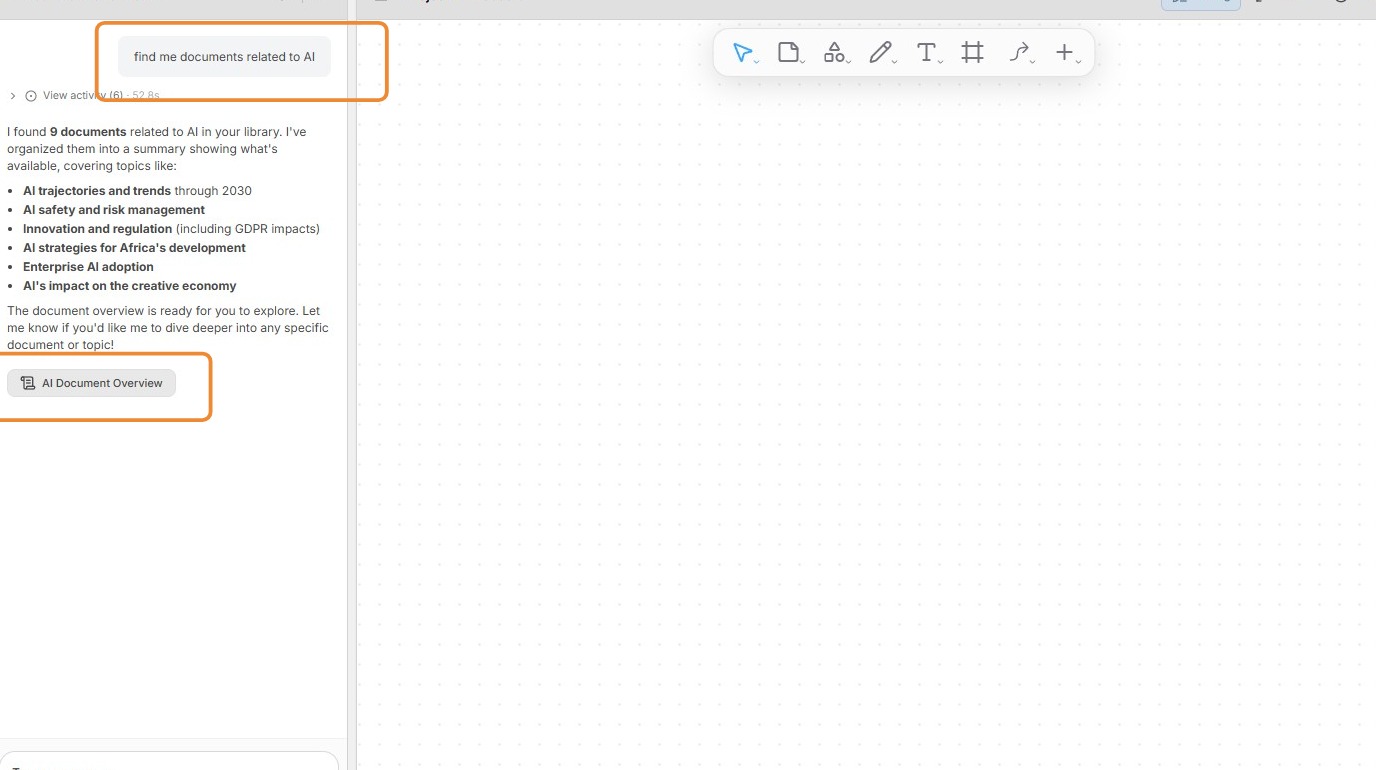
When you submit your instructions through the text box, they are added to the conversation thread. Your instructions are always right-aligned in the conversation thread.
After completing the tasks, AI agents provide you with a Task Result. All responses by AI agents, including Task Results, are left-aligned in the conversation thread.
You can open Task Results by clicking on the box.
4. You can attach reports, notes, and other materials to the chat text box by clicking the paperclip icon found in Task Results, artifacts, and notes. The paperclip icon is also found in the References section at the bottom of documents.
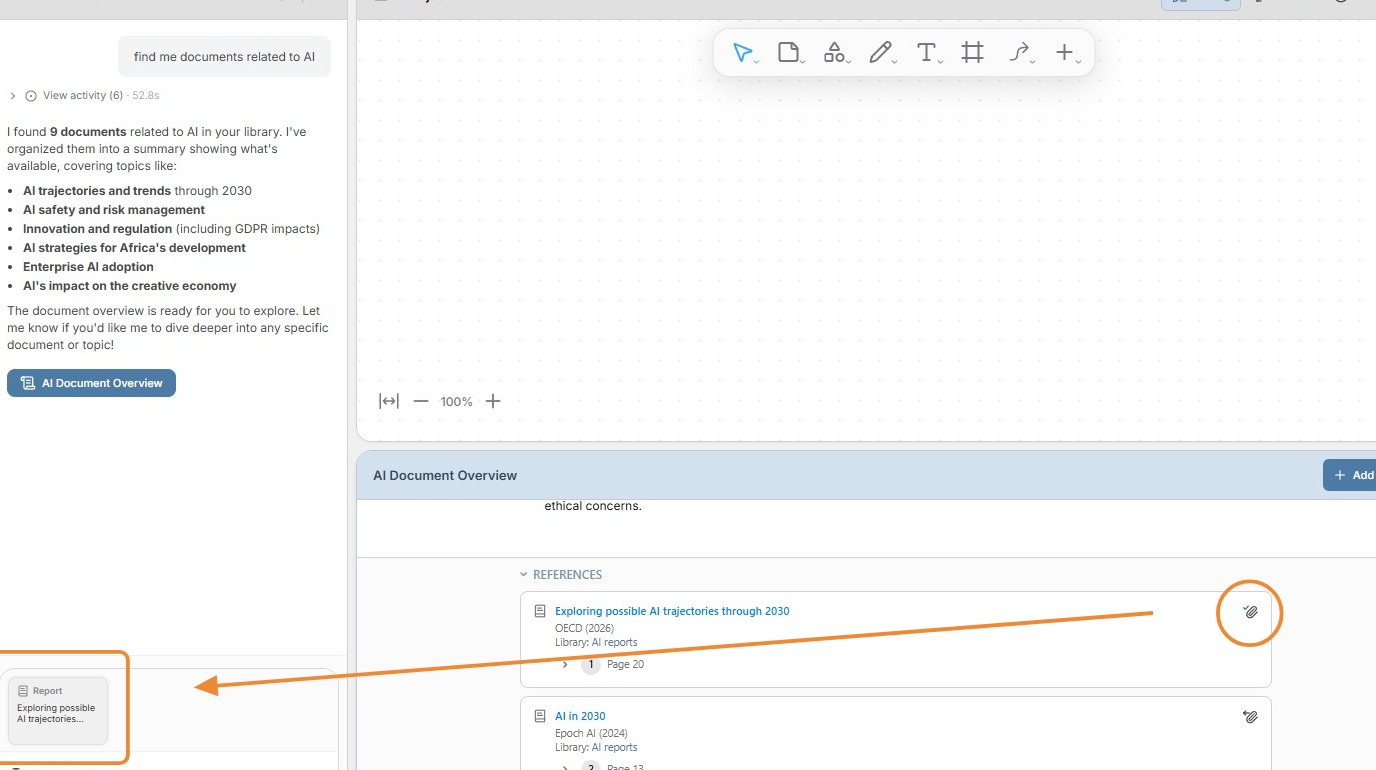
5.
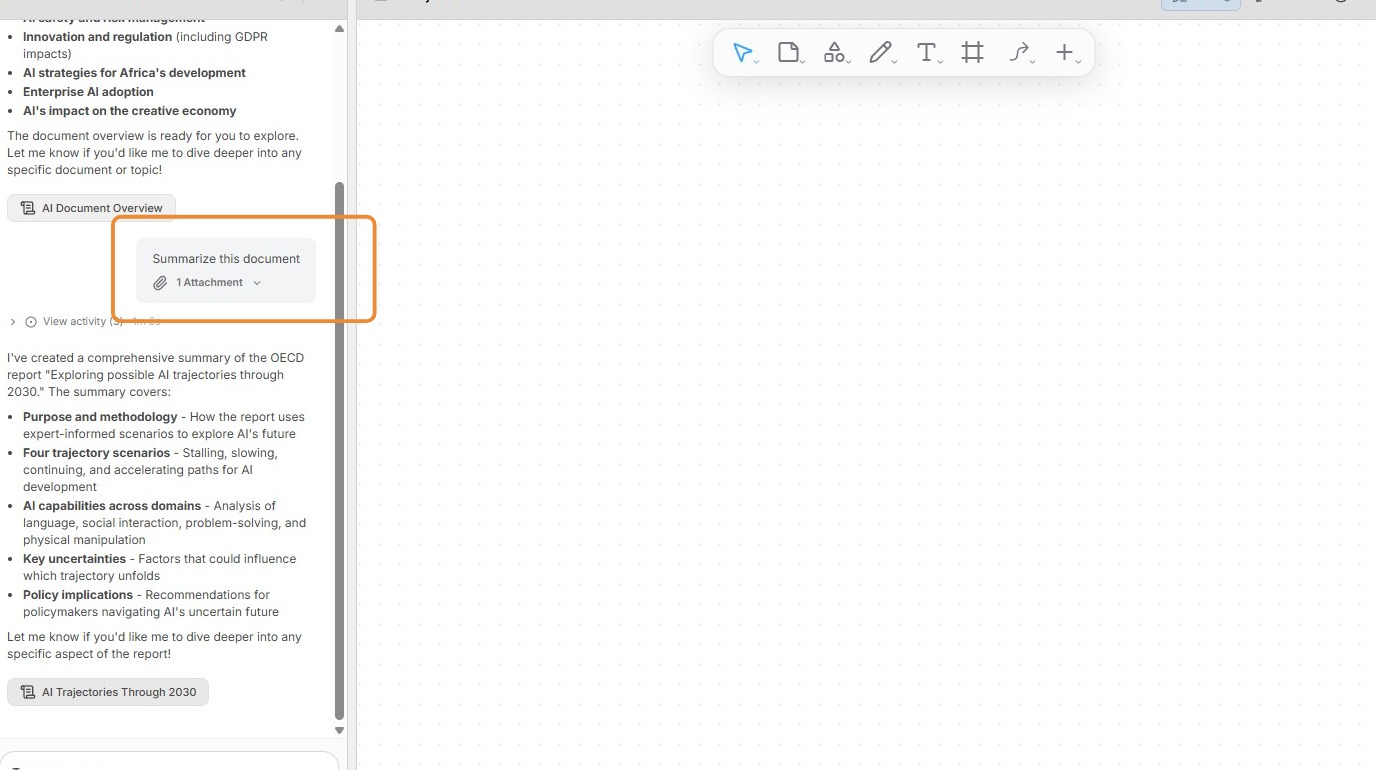
When reports, artifacts, and other materials are attached to the chat text box, the AI agents will include these materials when completing their assigned tasks.
In this example, the AI agent is asked to summarize the attached document.
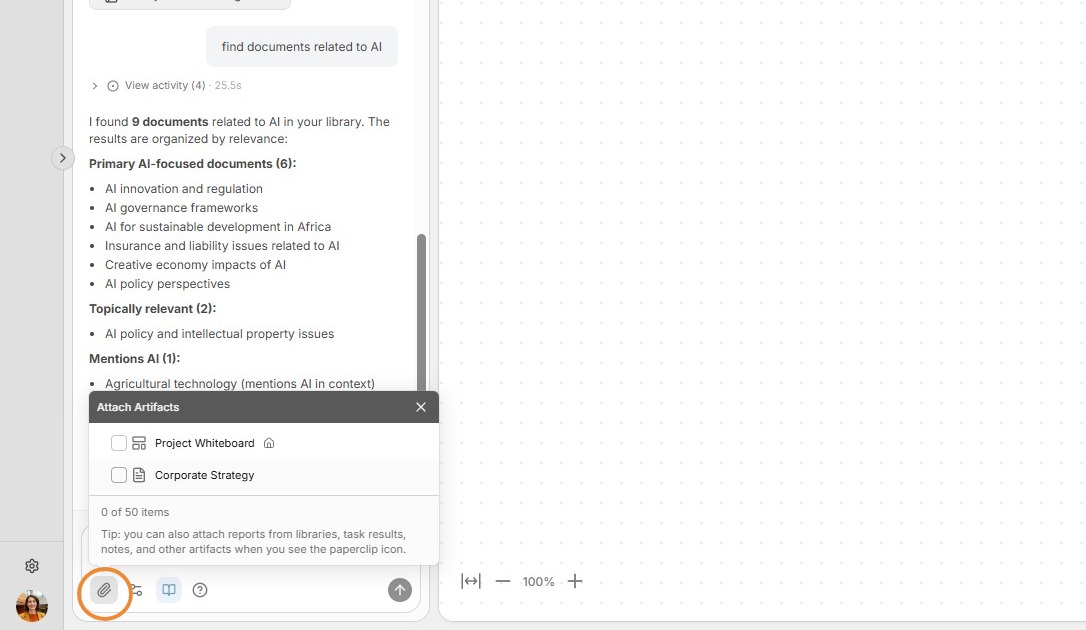
6. Artifacts can also be added to the chat text box by clicking the paperclip icon in the bottom-left corner. Simply click on the artifacts you want to include, and they will be added to the chat text box.
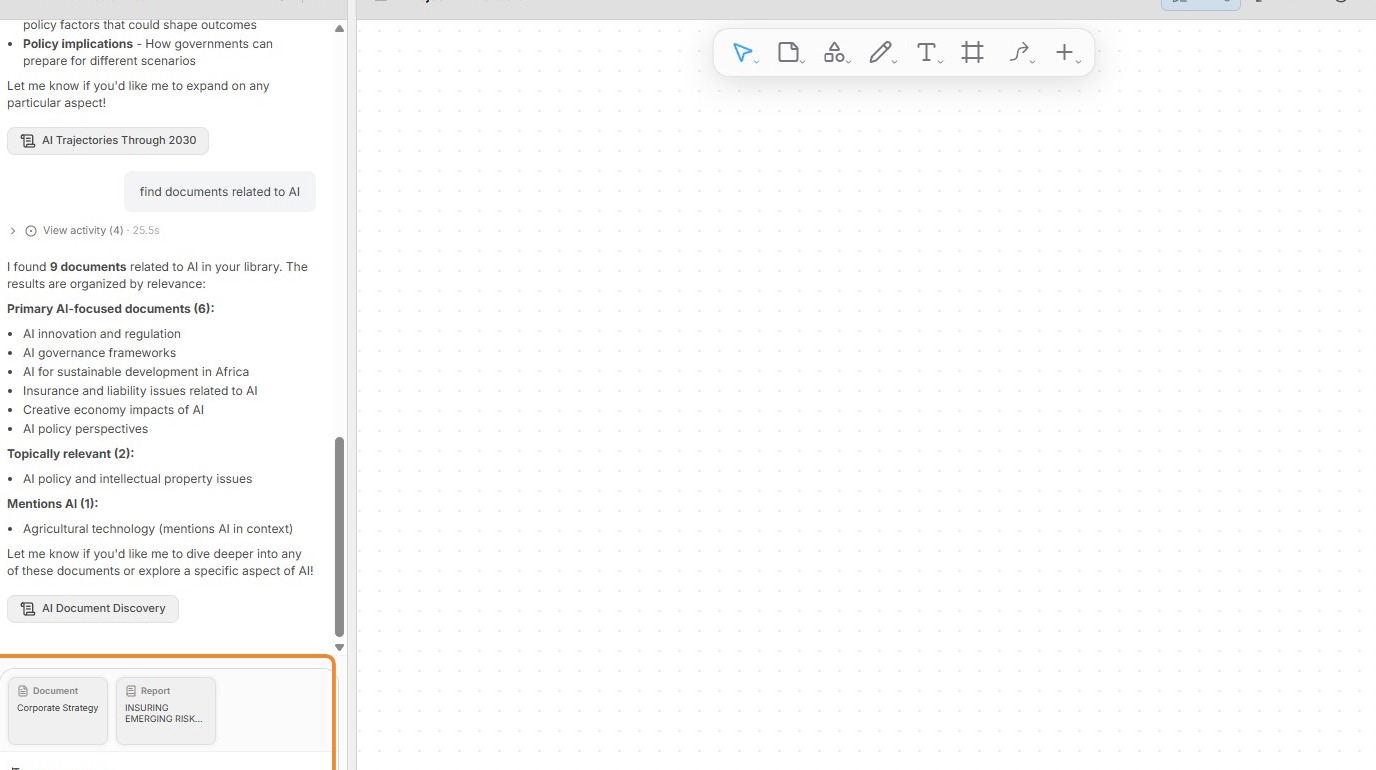
7. With multiple attachments, you can explore the relationships between different reports, documents, and whiteboards. For example, you can ask for an analysis of a report through the lens of a Corporate Strategy document.
8. The Options menu, found in the chat text box, allows you to modify the output format and choose which libraries AI agents should search when completing tasks.
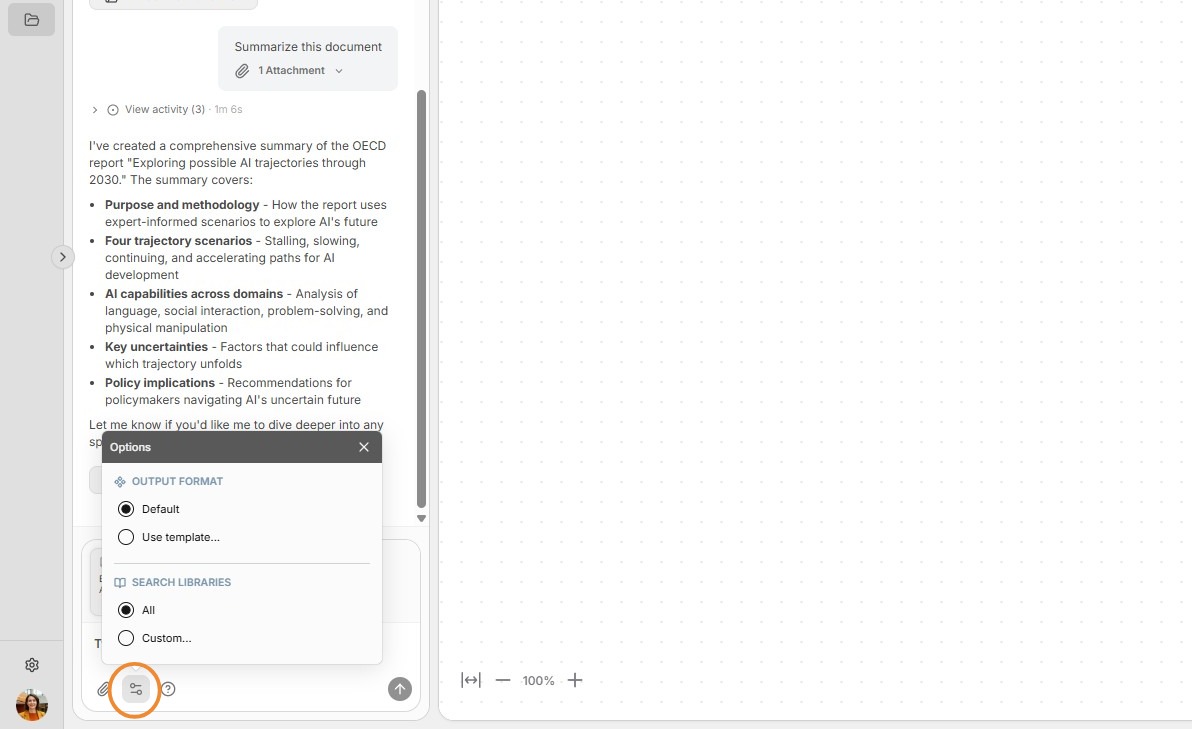
9.
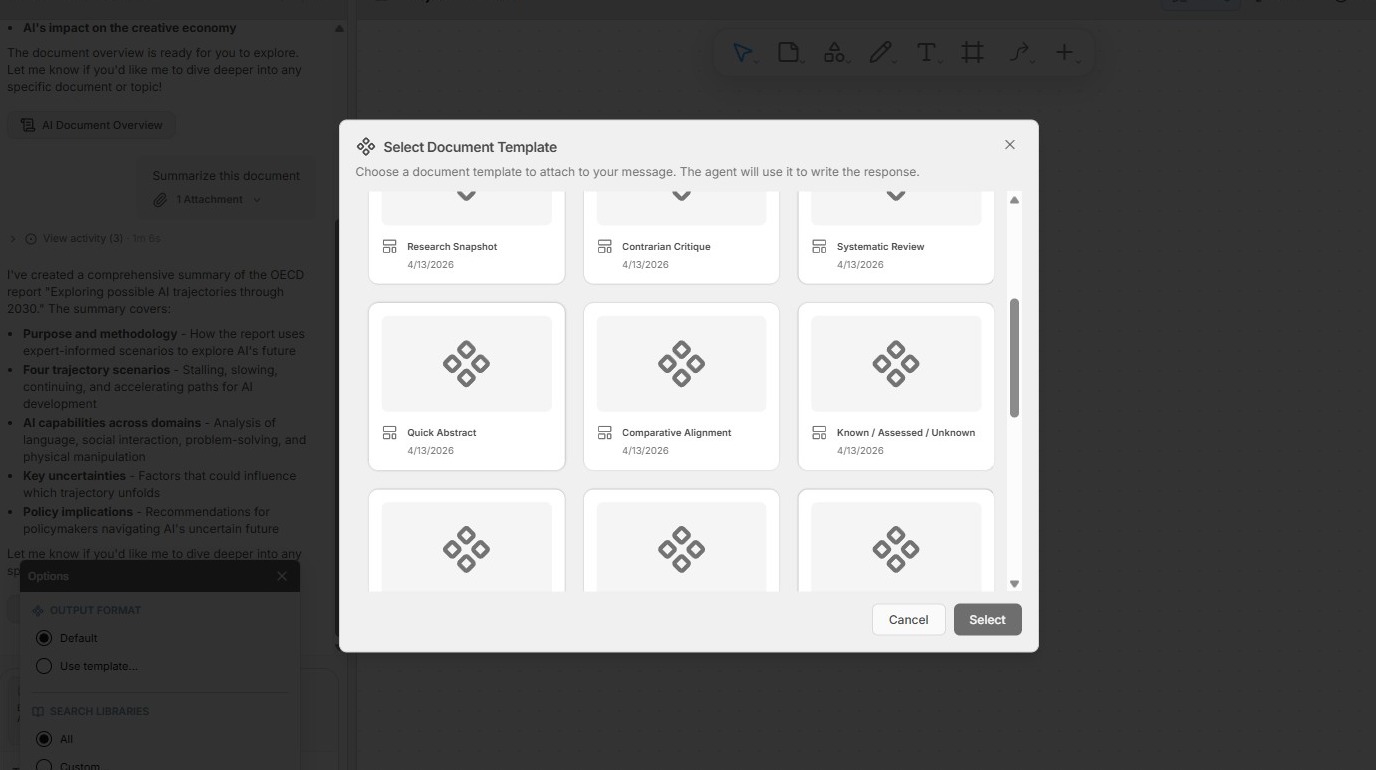
To choose a predefined output format, select Use template… and choose from the available templates.
Listed templates include custom templates created for workspace members, as well as licensed templates available through the platform.
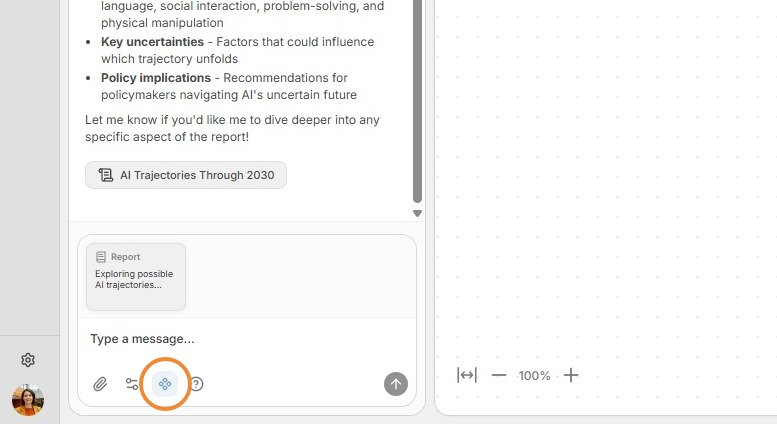
10. A blue icon indicates that a template is currently being used to format the output.
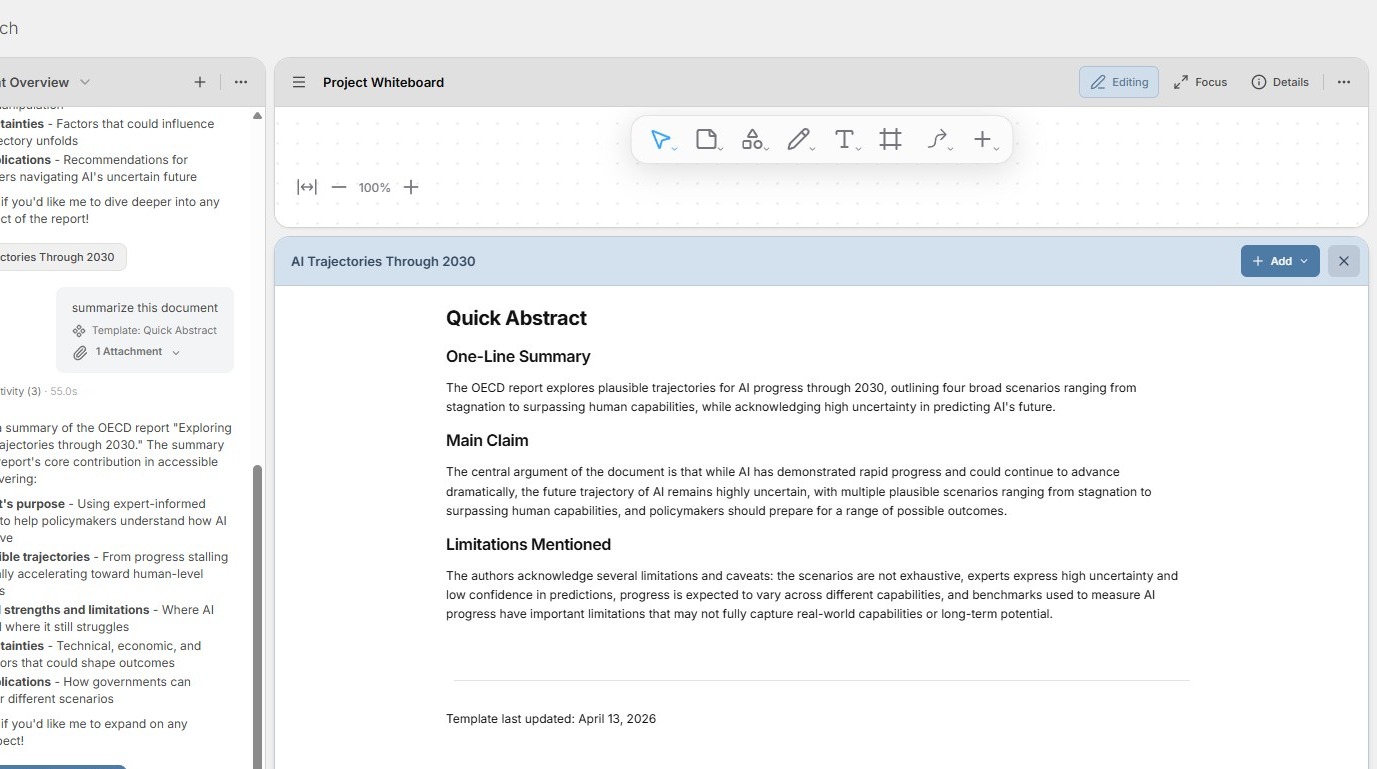
11. Templates can define the type, length, formatting, and structure of the content. Instructions can include the type of analysis or synthesis AI agents need to conduct when completing the template.
12. To choose which libraries AI agents should use, click the Options menu and select Custom under Search Libraries.
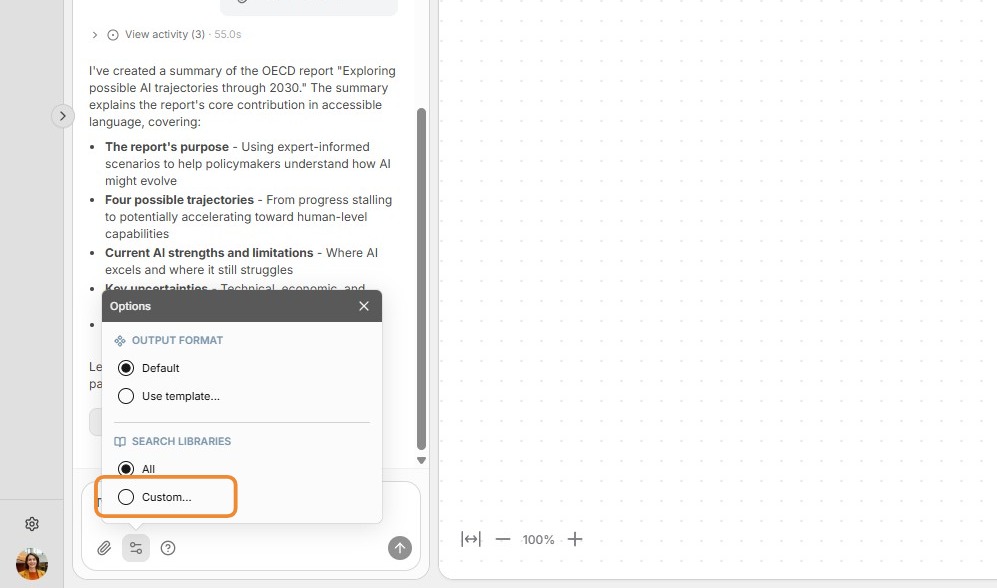
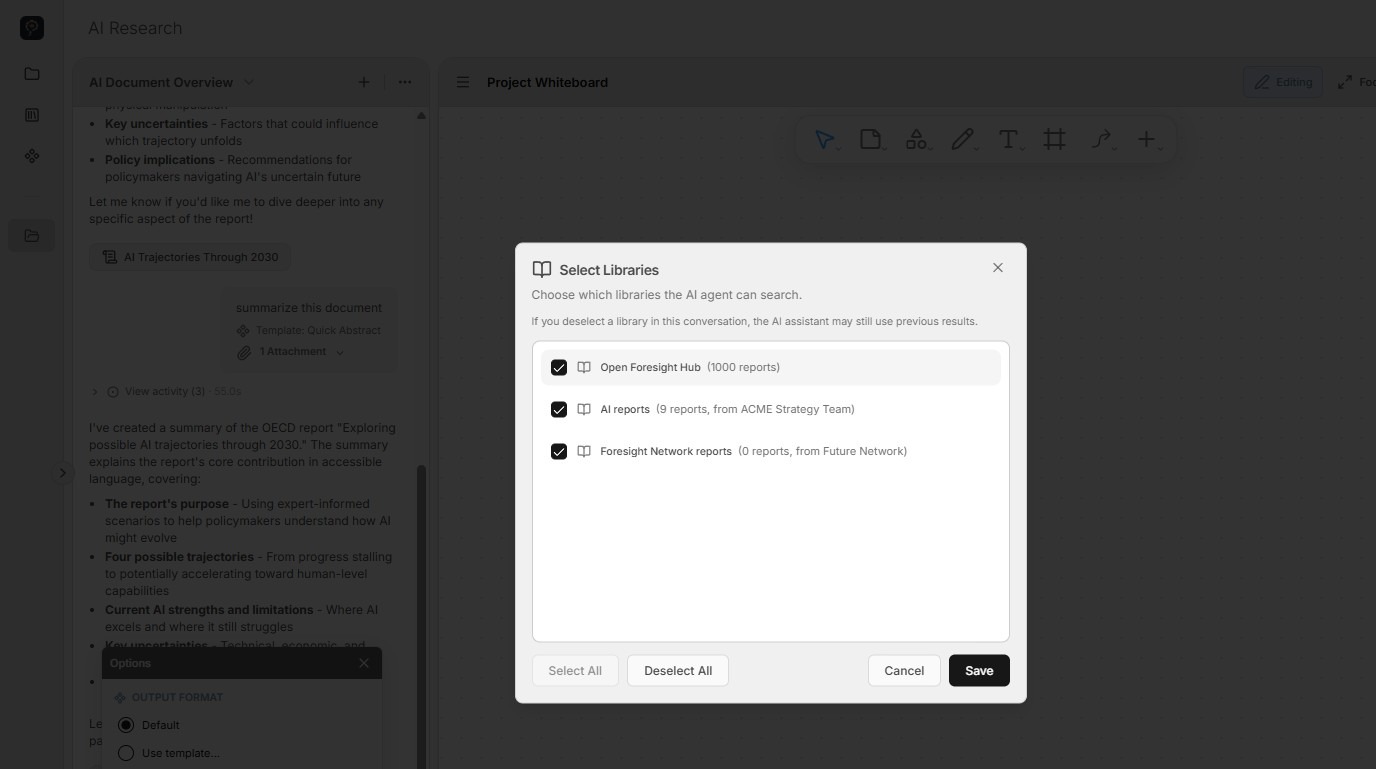
13. A dialog box will appear listing all available libraries. Select the libraries you wish to use for the project.
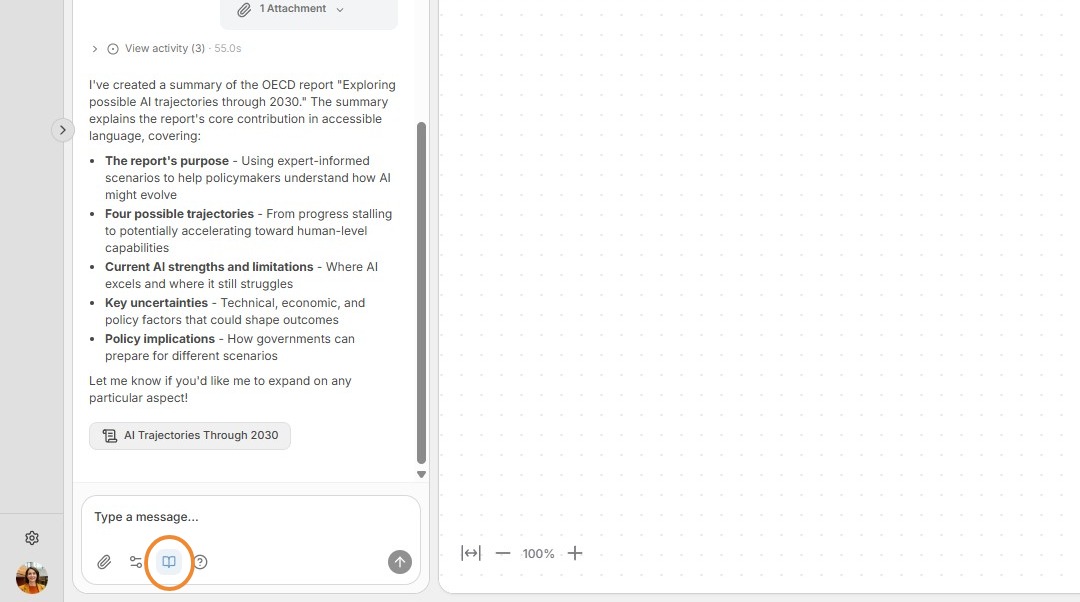
14. A blue book icon will be displayed when a customized list of libraries has been selected.
15. By default, Perceptful.AI will assign the chat conversation a name. You can change the name or delete the conversation by clicking the ... icon.
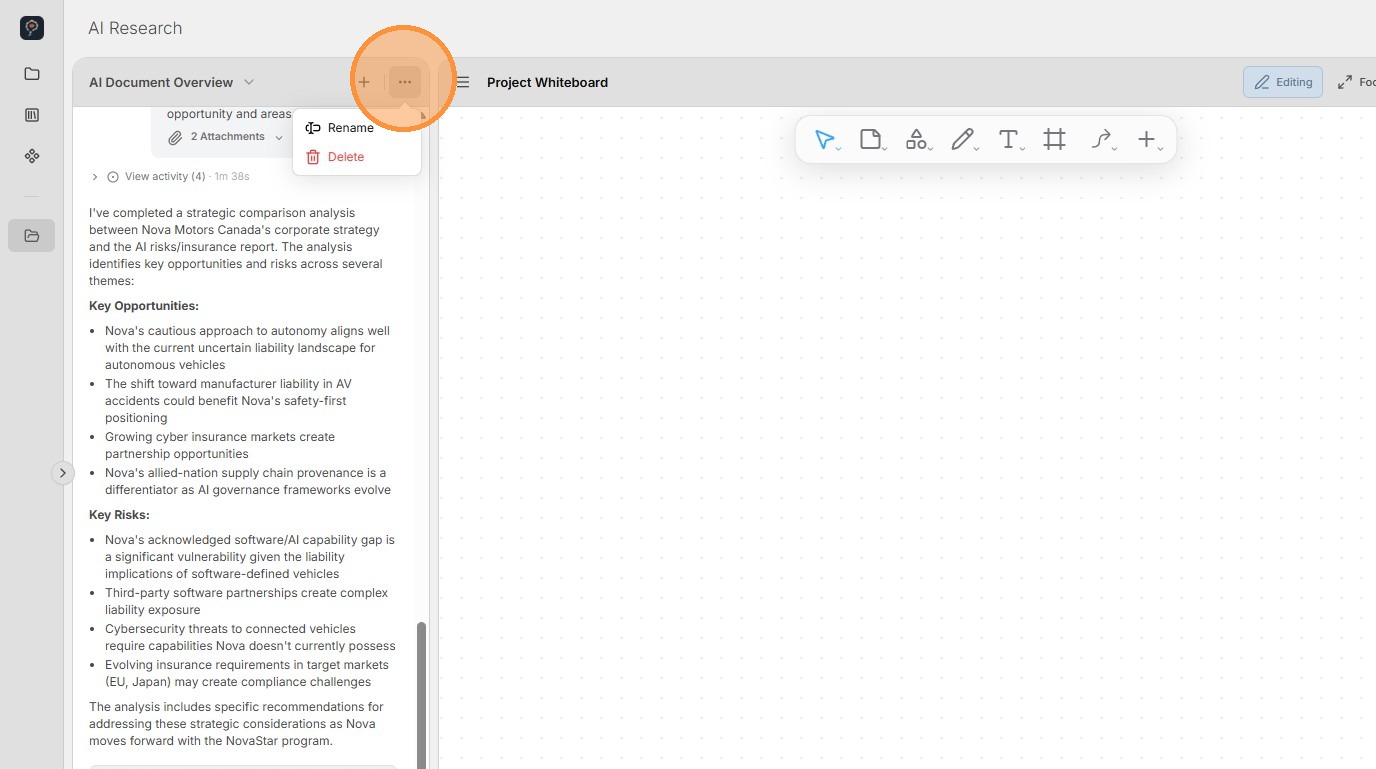
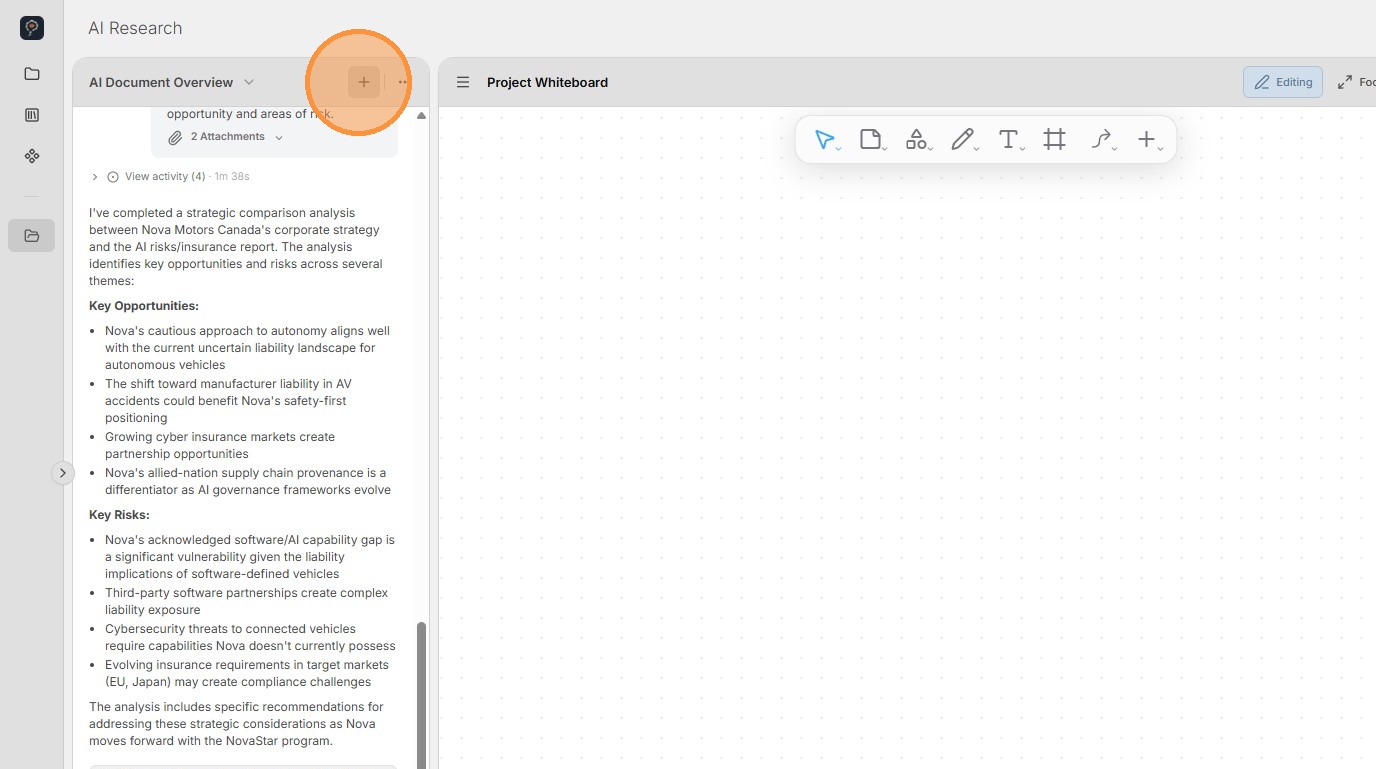
16. You can start new AI conversations by clicking the + button at the top of the AI chat pane.
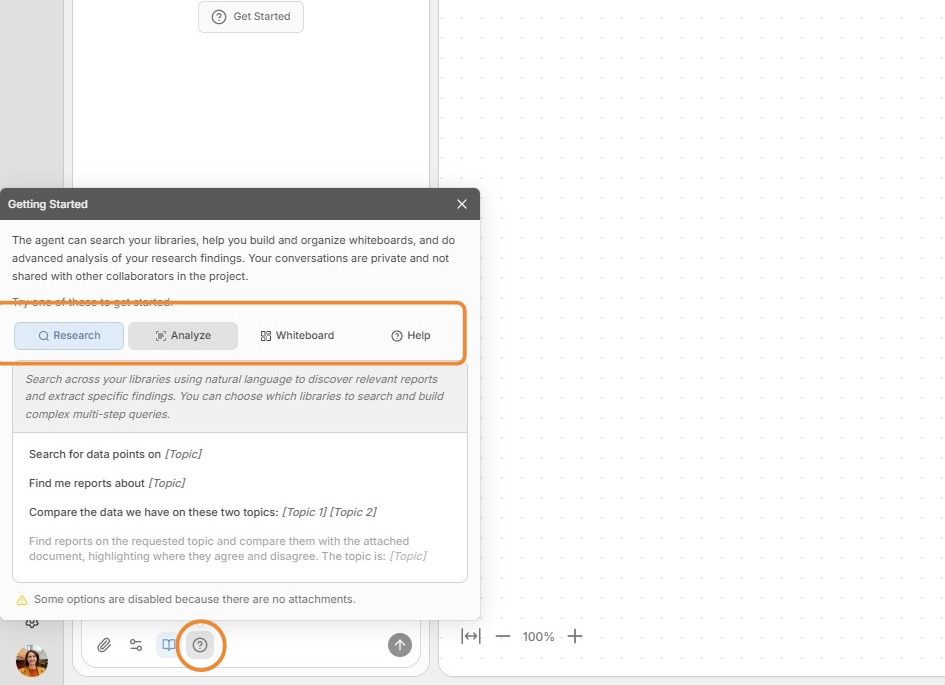
17. Clicking the question mark icon at the bottom of the chat text box opens a menu with predefined prompts organized by category (Research, Analyze, Whiteboard, Help). Click on any category to display the related prompts.